
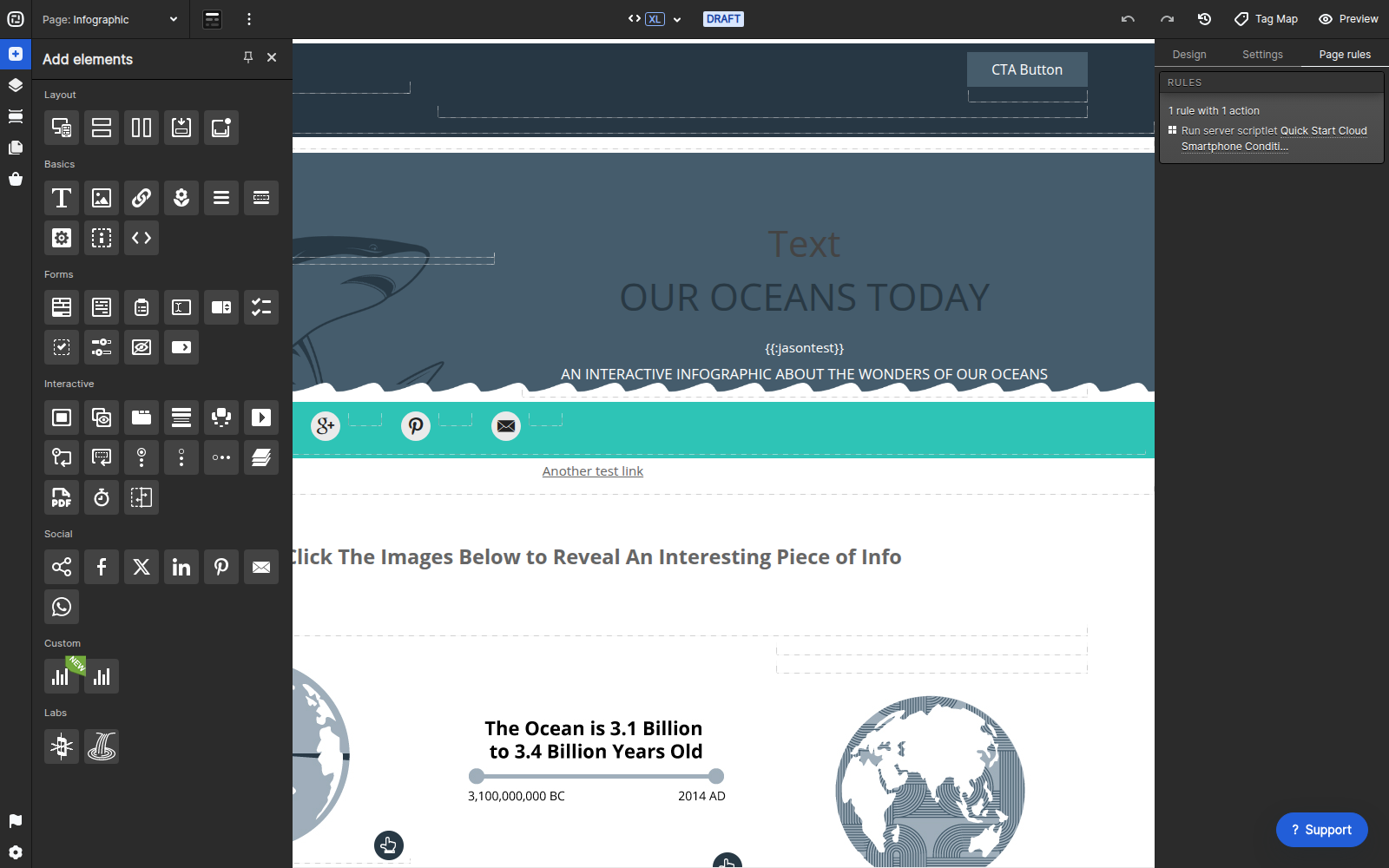
Ion’s Social elements add sharing controls to an experience. The current Social section of the Elements palette includes Social Share, Facebook, X, LinkedIn, Pinterest, Email, and WhatsApp options.
Add social elements
- Open a page in Creative Studio.
- Open Add elements and expand Social.
- Drag the needed element into a container on the page.
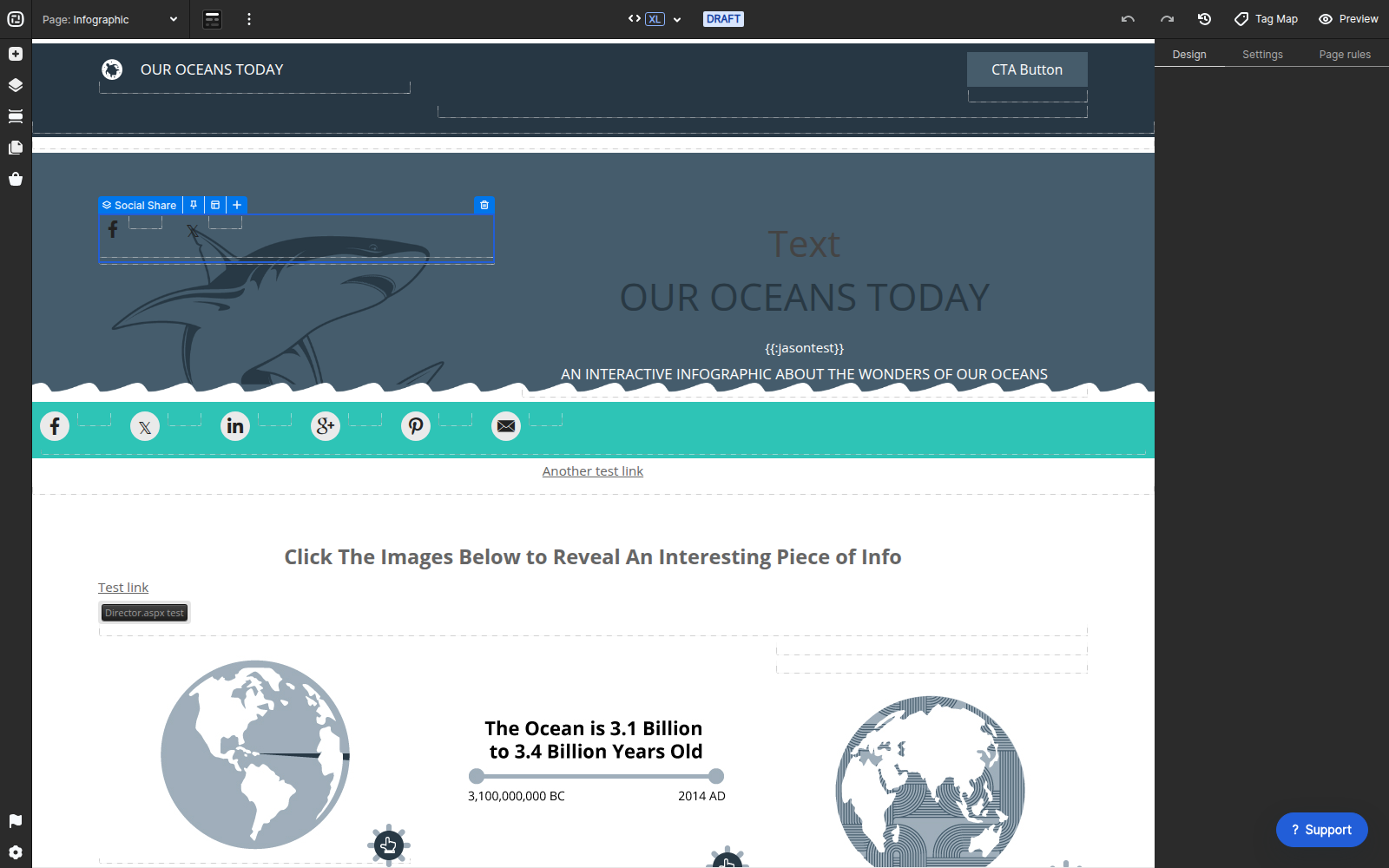
- Select the element and use Design to apply alignment, text, color, responsive, and micro-theme settings.
For a Social Share group, apply micro-themes to the parent group so the icons share a consistent container, orientation, shape, and style.
Control the shared preview
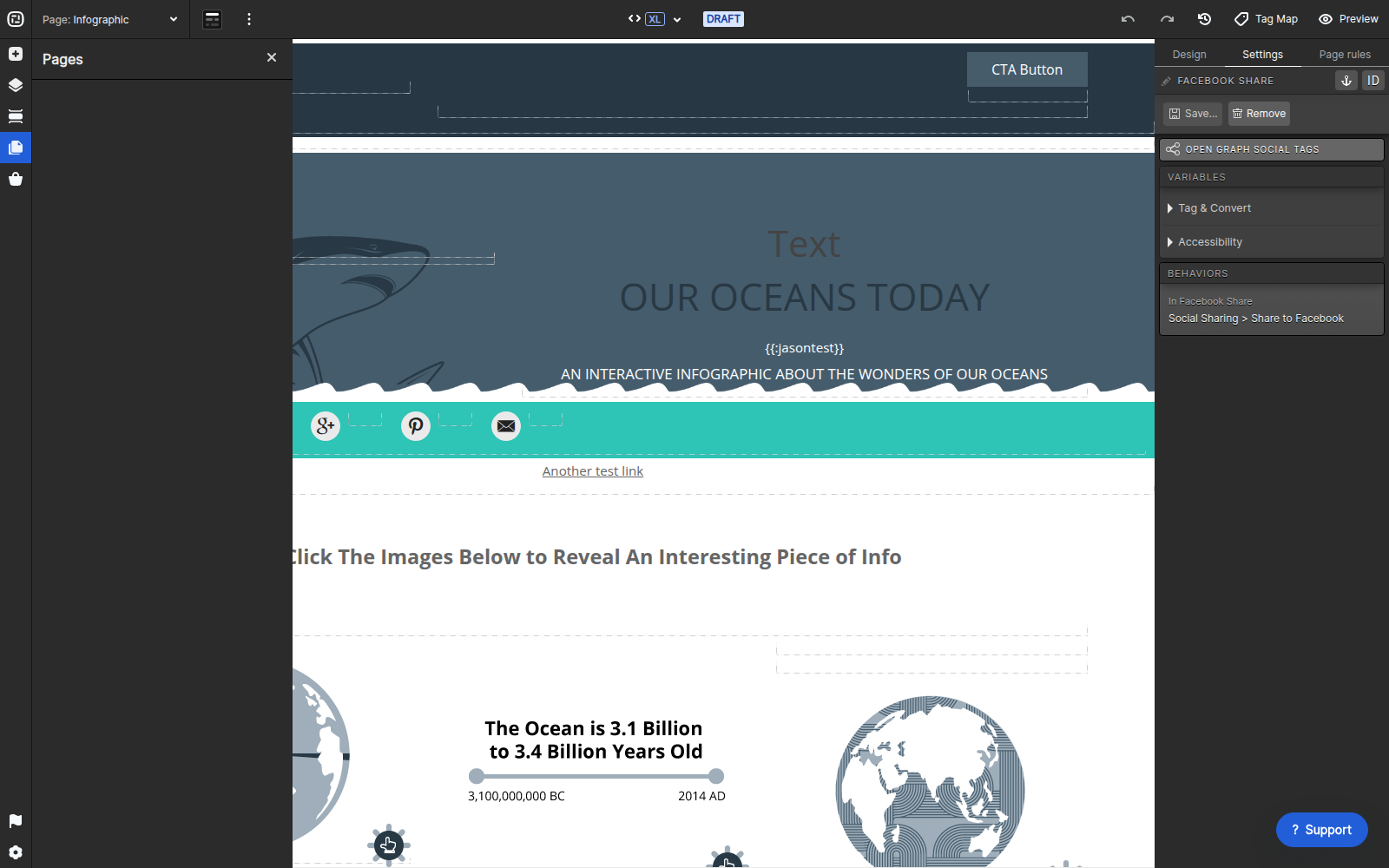
For Facebook sharing, select the Facebook Share element, open Settings, and choose Open Graph social tags. On the page’s Social media settings, enter an OG title, description, URL, and image. These values control how the page is presented when the destination network reads its Open Graph metadata.
Current workflow video
Testing tips
- Use a public HTTPS image that social crawlers can retrieve.
- Keep the title and description concise and specific to the page.
- Test the live URL after publishing; Creative Studio preview metadata is not a substitute for the public URL.
- Social networks may cache an earlier preview. Use the network’s sharing debugger when a corrected tag is not reflected immediately.
