
The 3 Quizzes with Grades template contains 3 category quizzes with individual results as well as a gated form for additional information. The quizzes contain choices and multiple options for users to select. This template features animations, graphics, and colors that make it very engaging. User engagement can be easily tracked and collected through the gated form. This quiz template captures the user through a fun and highly visual display.
- Type: Quiz
- Complexity: Medium
- Use case: Education
Features available
Here are the major features, abilities, and interactive elements used in this template.
- Animations
- Flows
- Form
How-to use
Here is a helpful guide on how to handle all the major features, abilities, and interactive elements available to make the most out of this template.
Animation
Step 1: Select the element that you wish to animate.
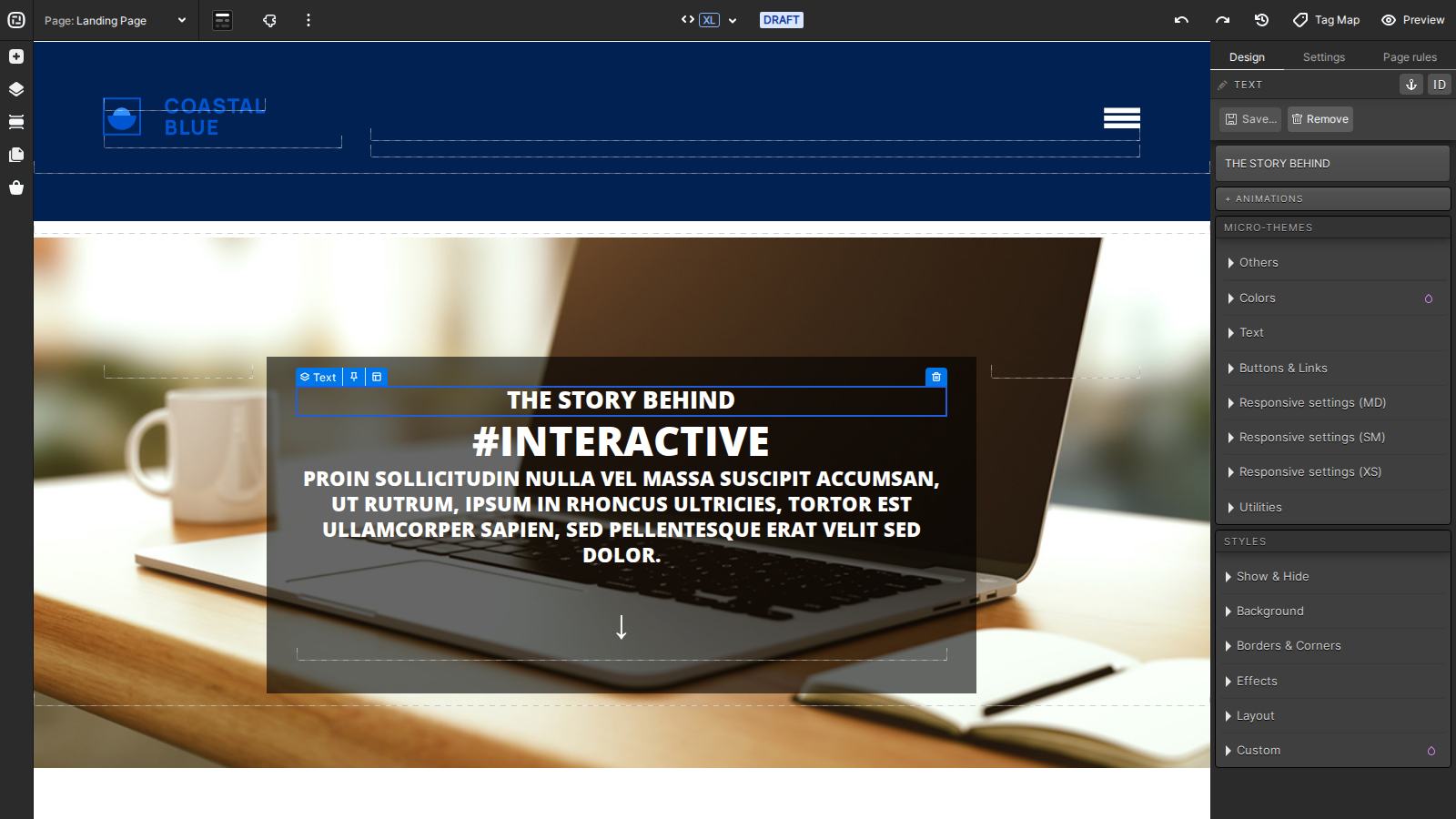
Step 2: Under the animation panel, choose the type of animation trigger.
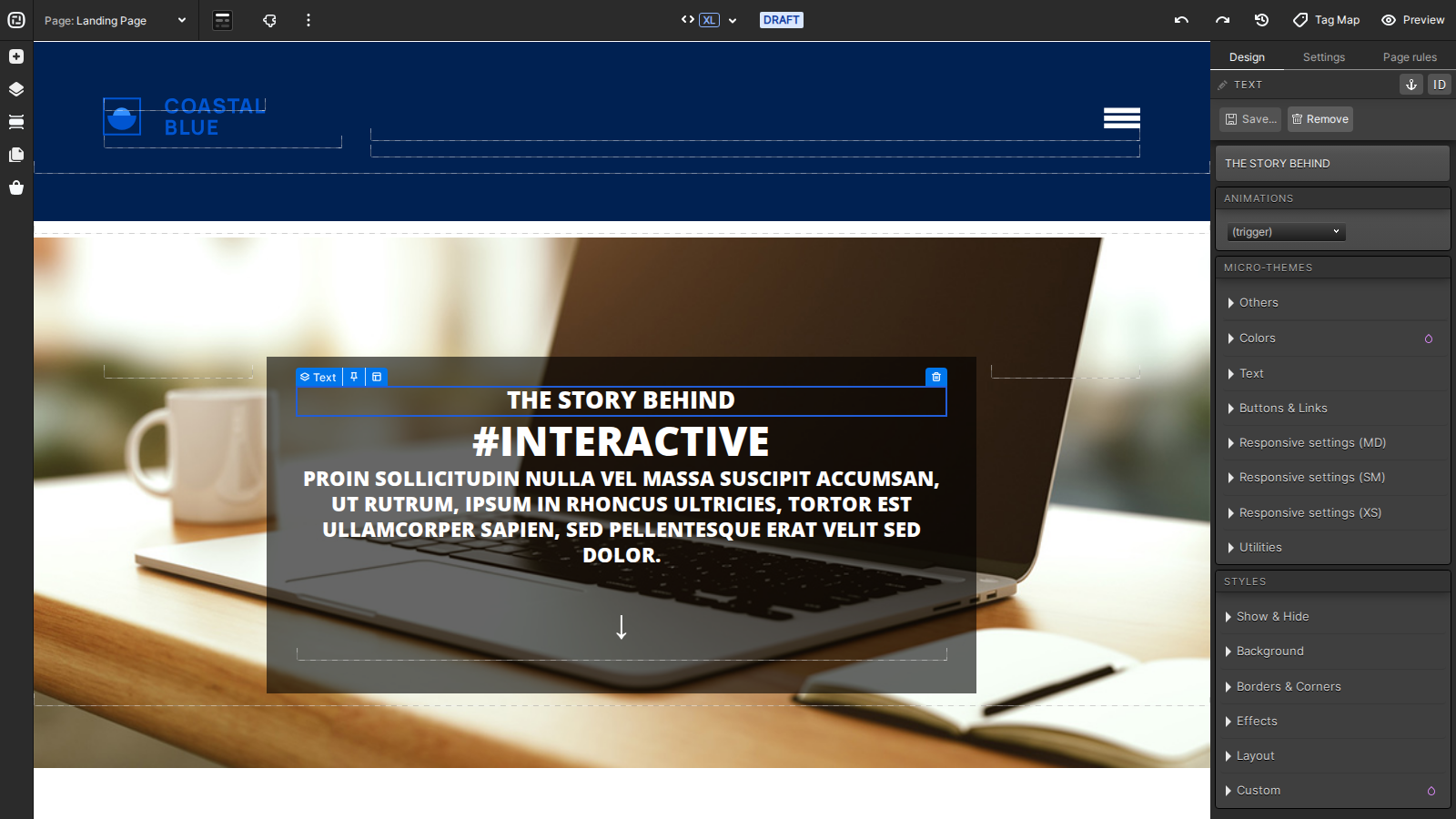
Step 3: From the list of animations, select the desired animation
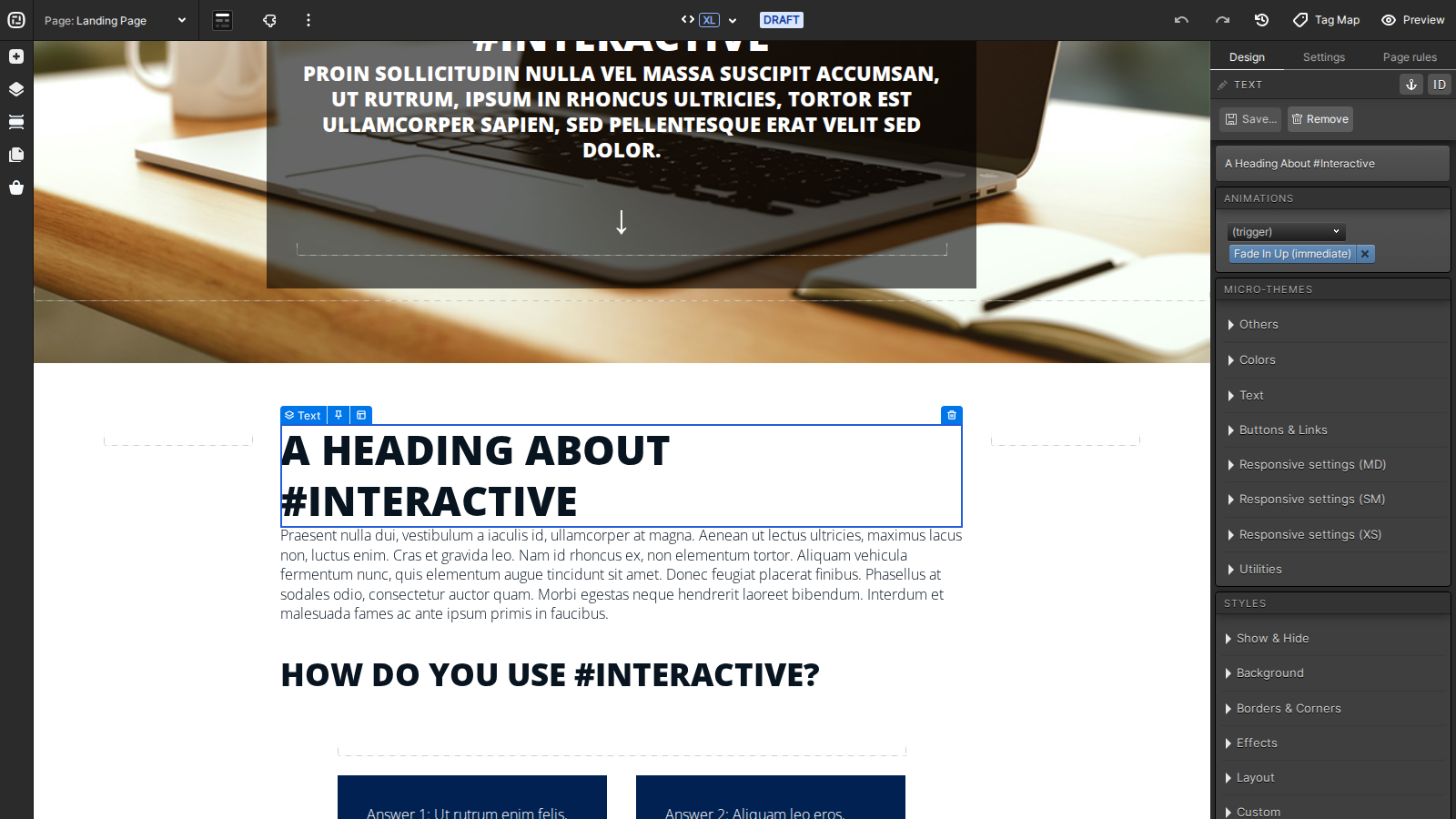
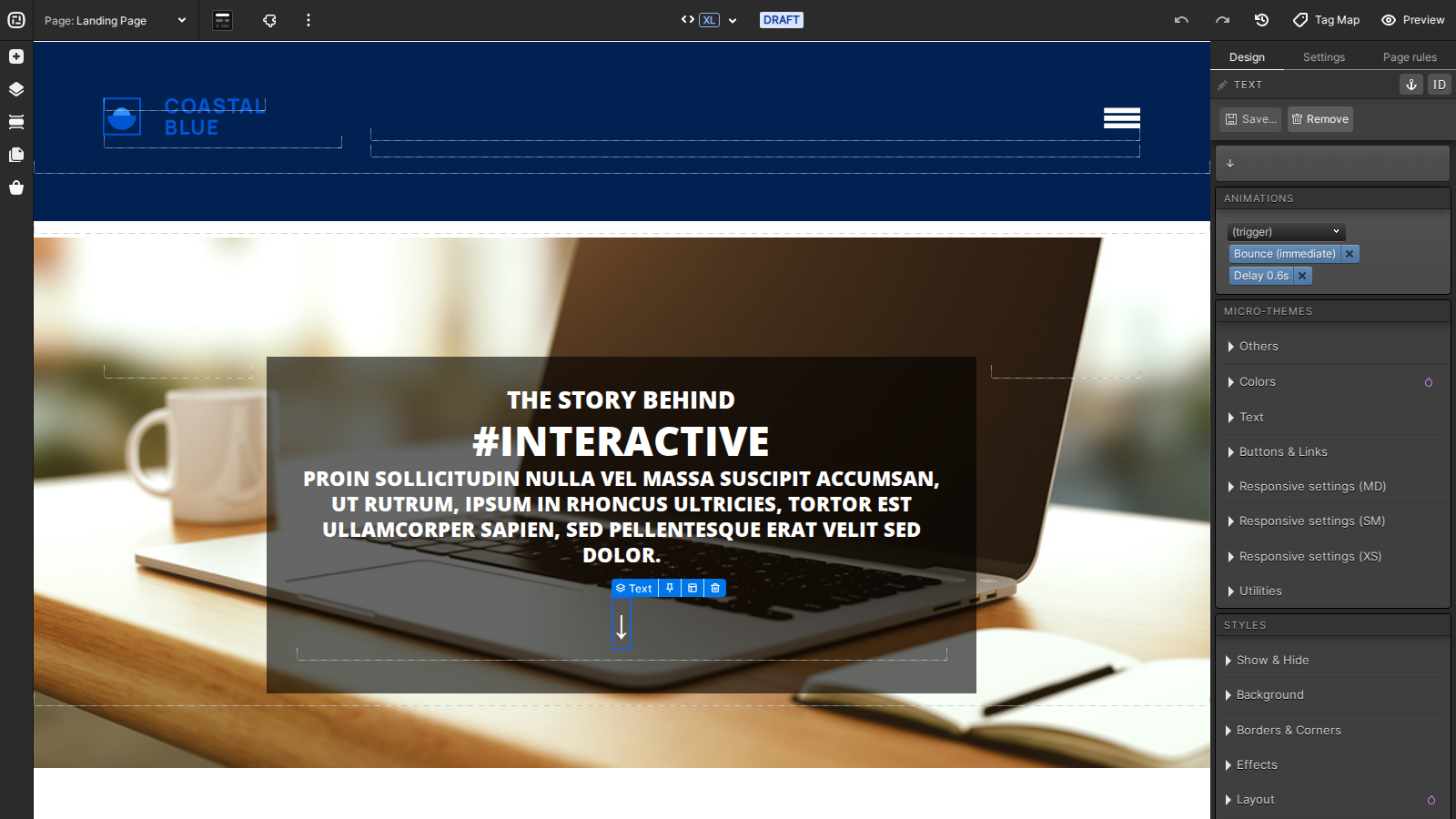
Step 4: To remove an existing animation, click the X next to the animation tag under the animation panel.
Form
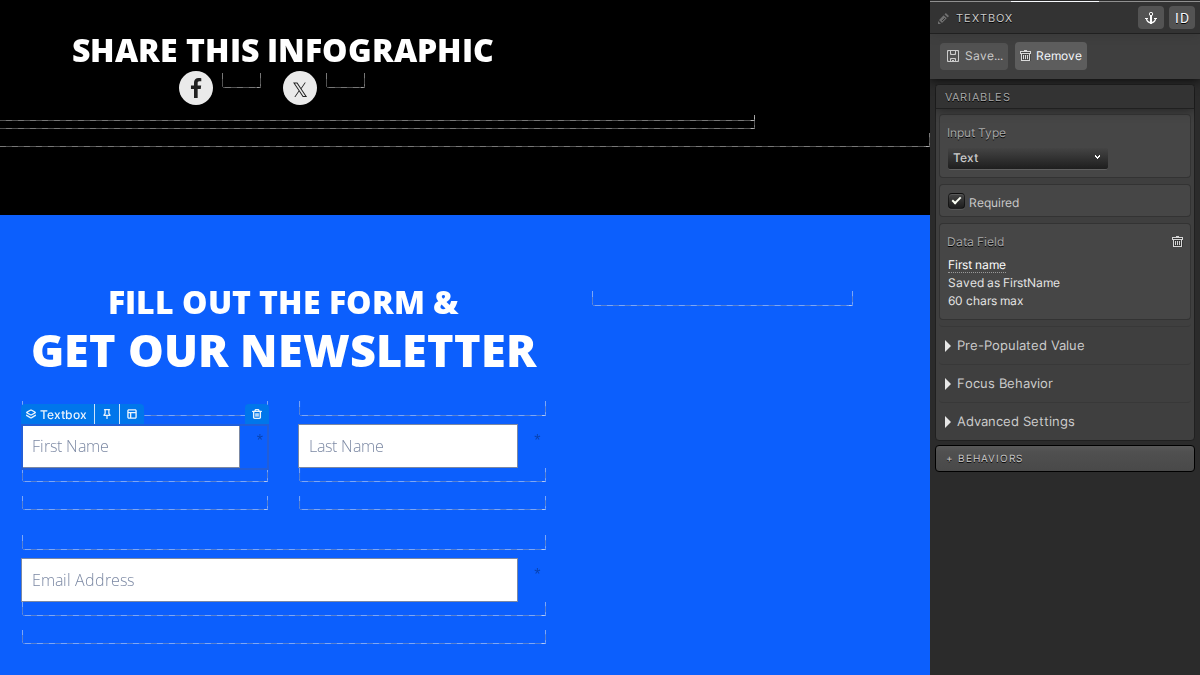
Step 1: To edit the different Form inputs, select one of the Textboxes.
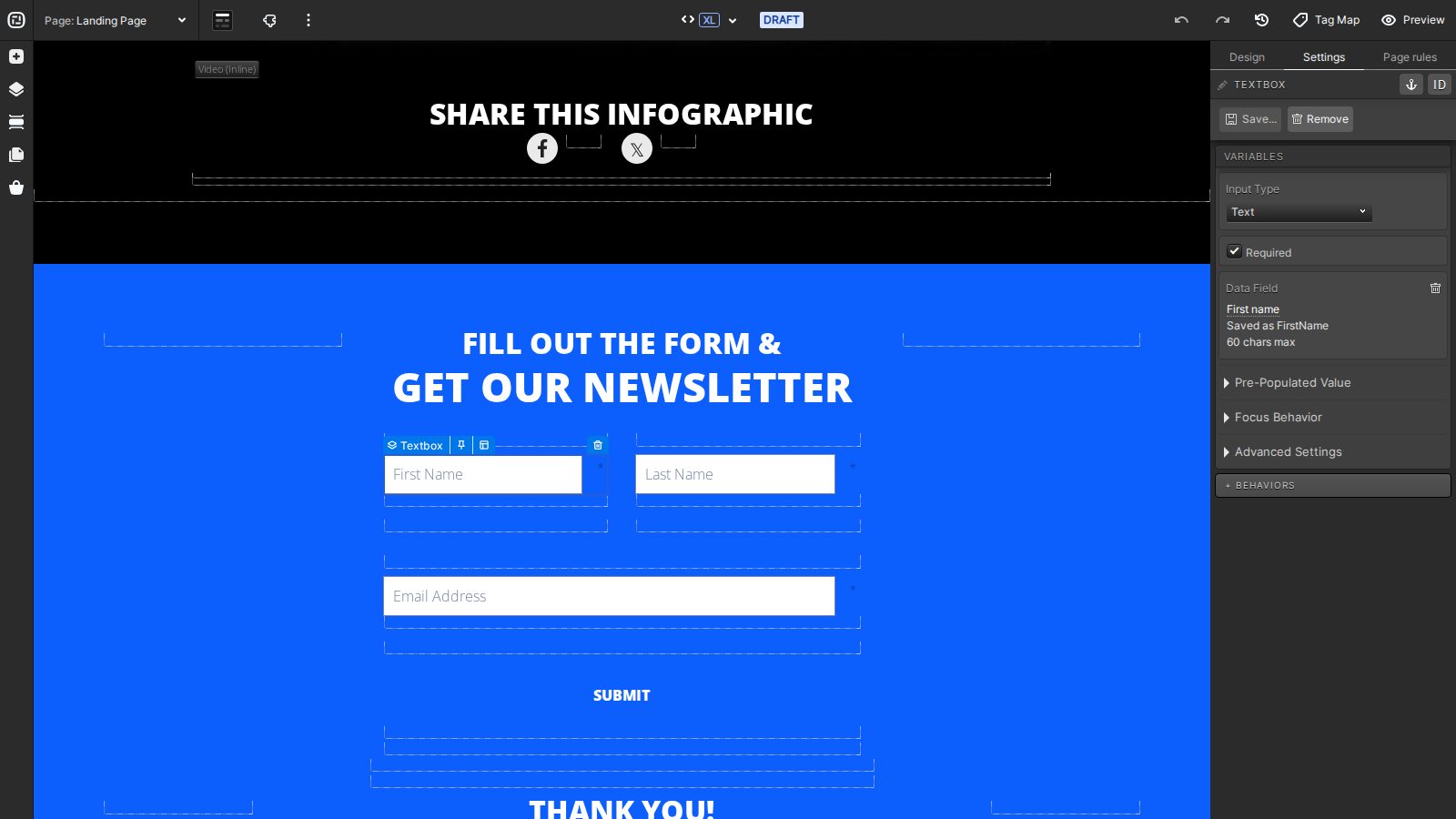
Step 2: Under the Variables panel, click the Data field link to open up the lists of data fields.
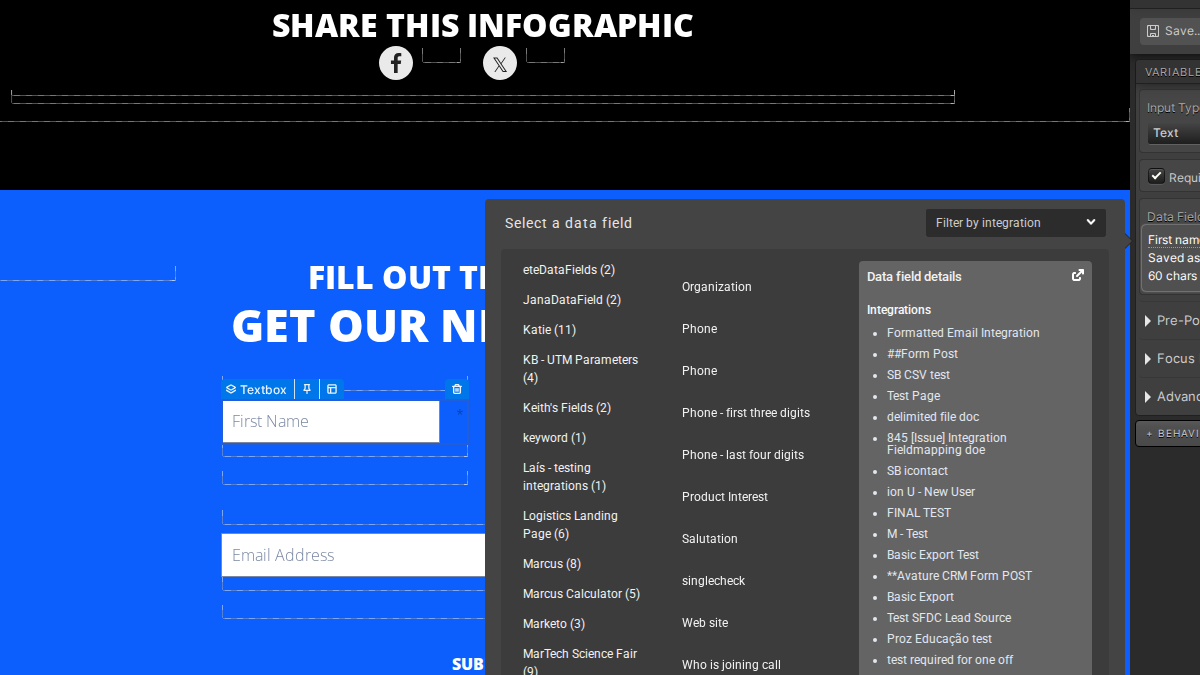
Step 3: Select a category from the Categories panel to the left.
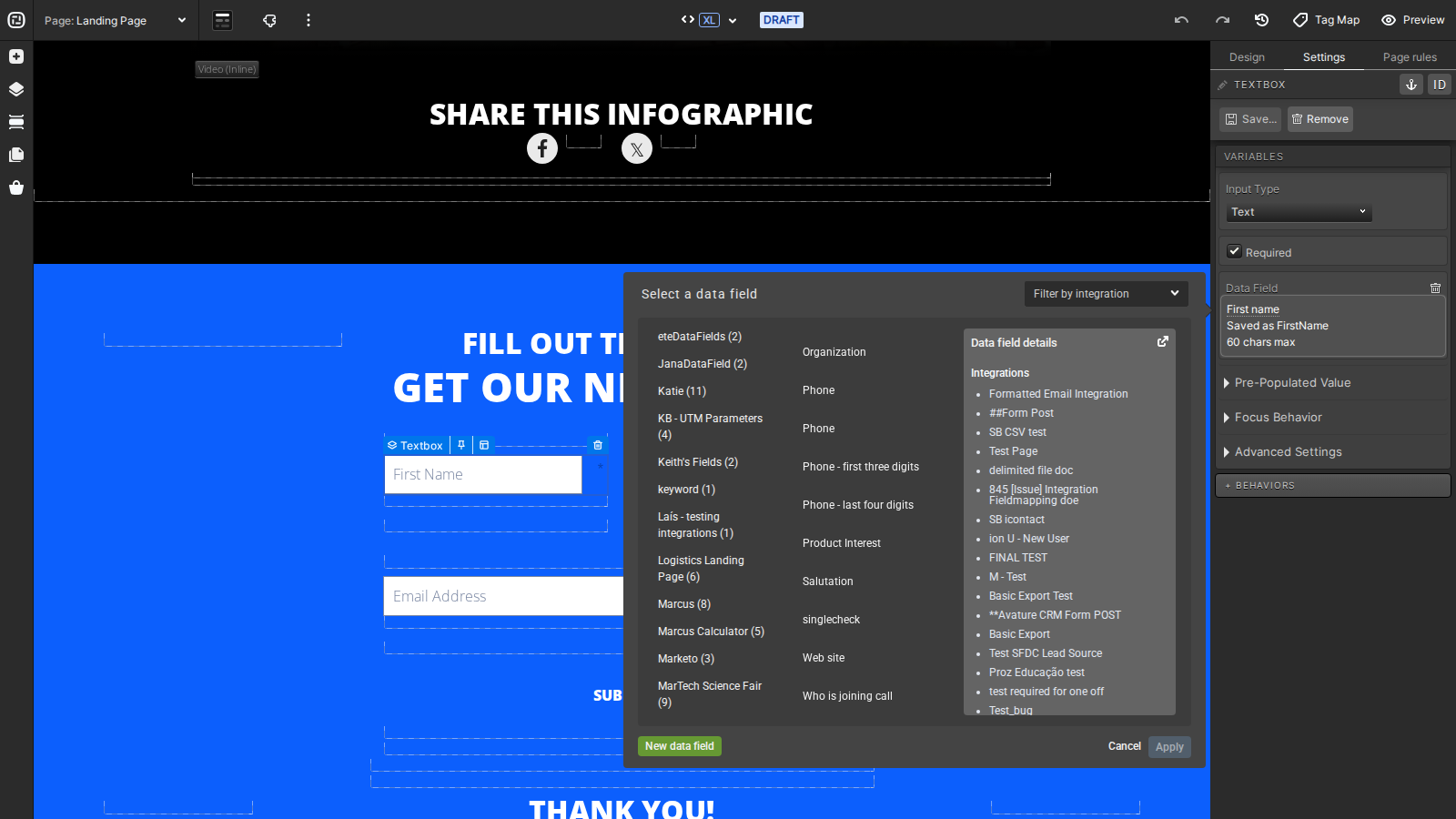
Step 4: Choose your data field then press OK.
Flows
Step 1: To update the content within your Flow, begin by selecting it on the canvas.
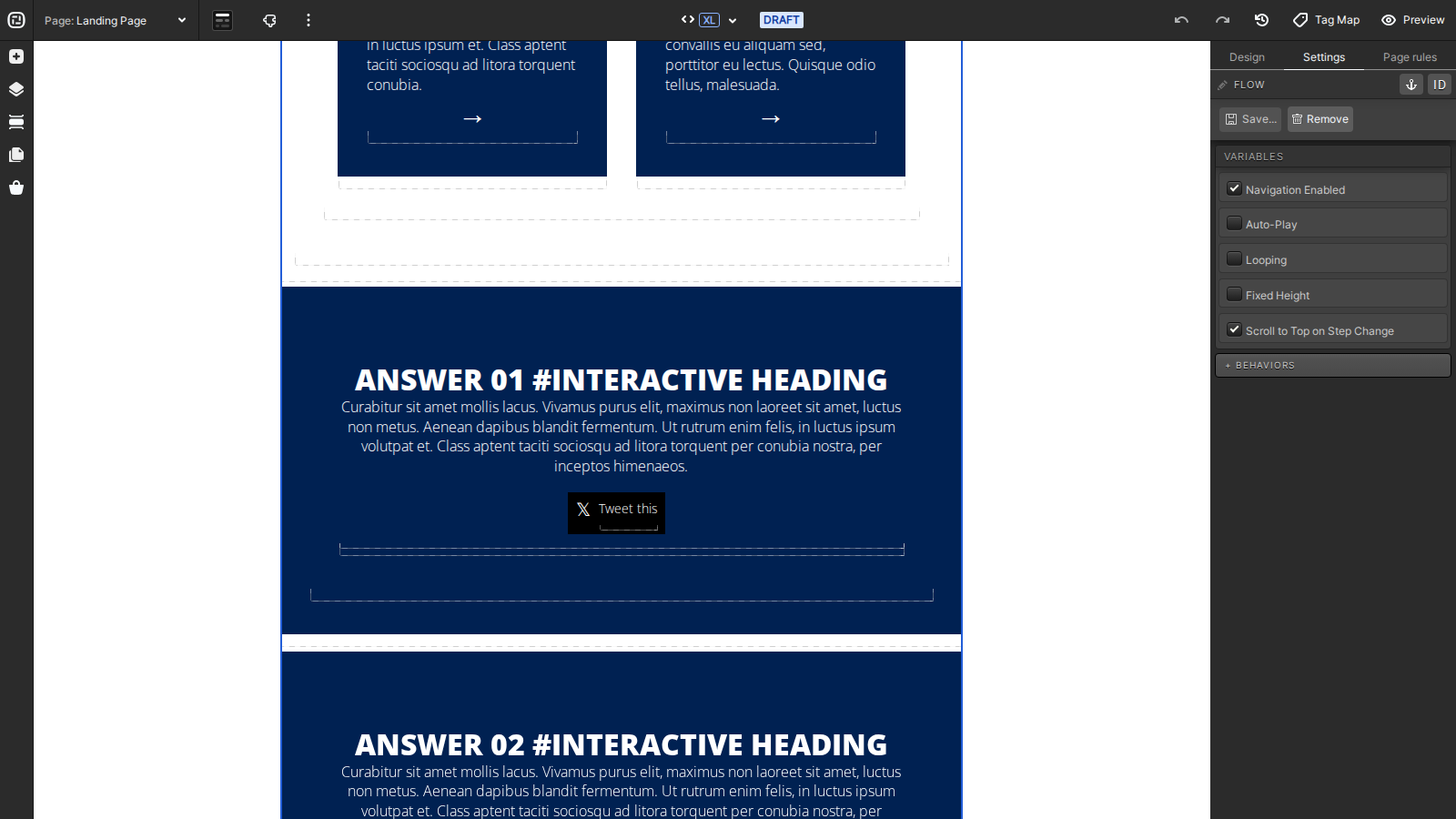
Step 2: Within the Flow, locate the first Flow Step at the top. You can edit the contents within the container, add content, or remove all of the content from the Flow Step.
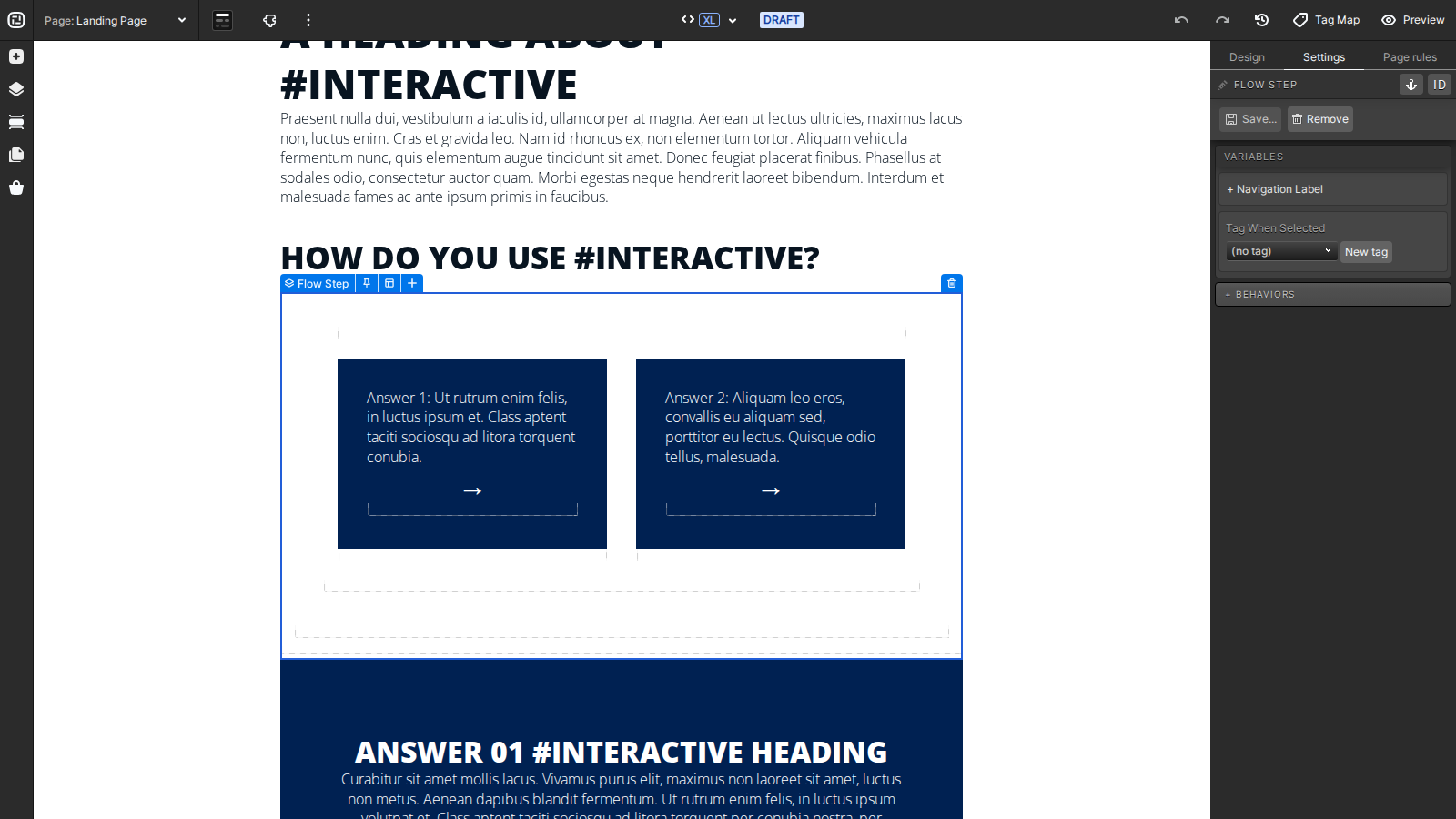
Step 3: After choosing the Flow Microtheme, another dropdown will appear where you can choose from a list of sub-category options.
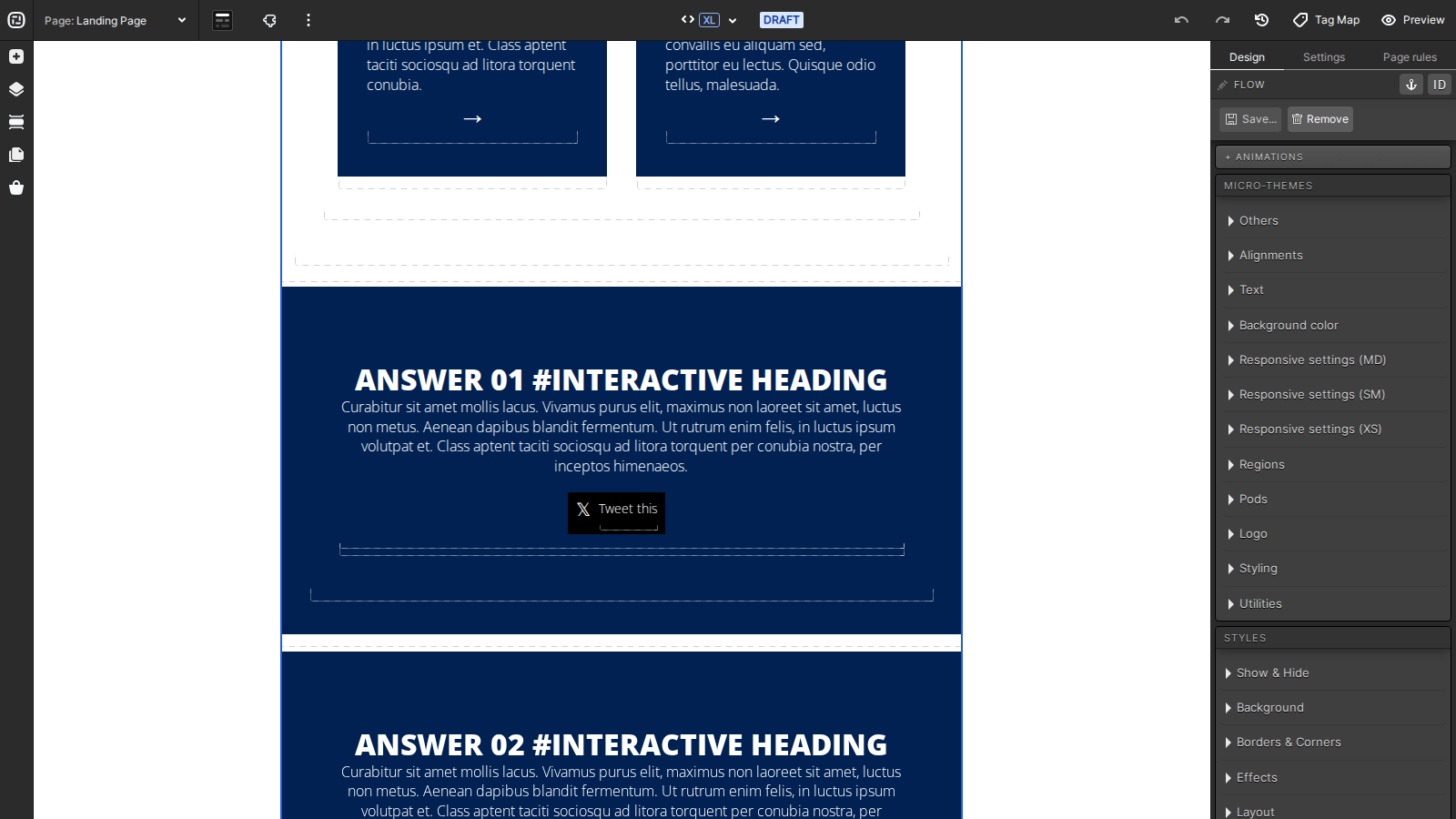
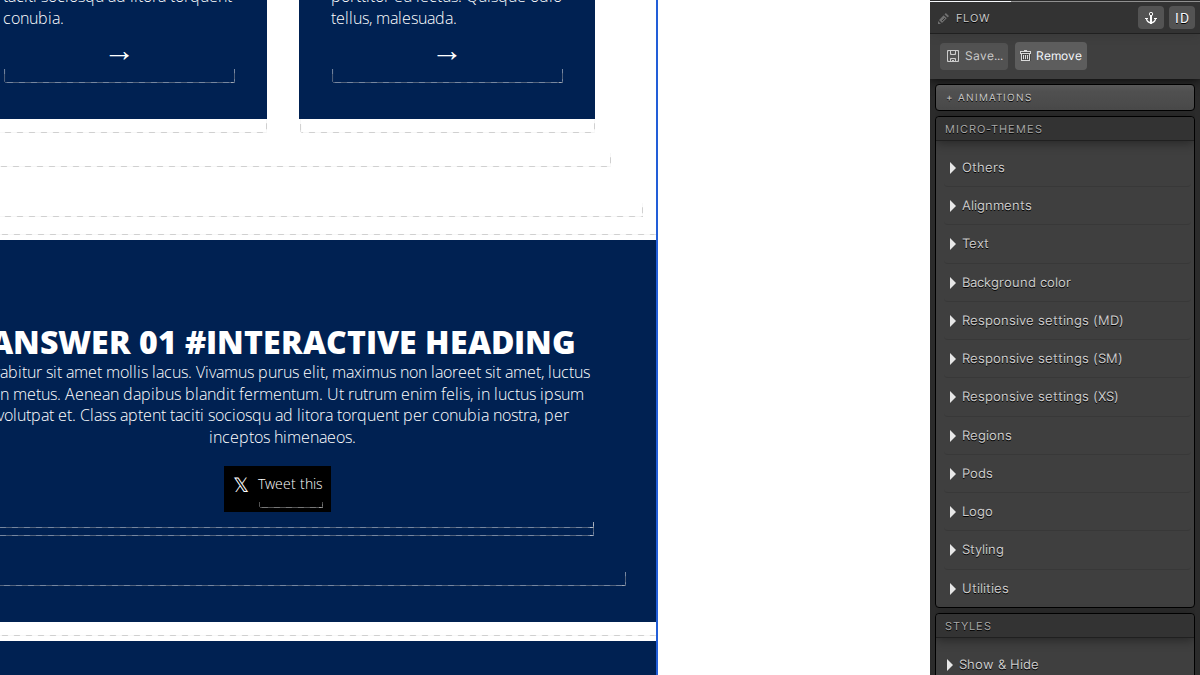
Step 4: You can choose the behavior between the flowsteps by selecting from the All Steps category in the dropdown menu.
Content Writing Template
Here is the content structure’s template to make it easier for you when providing content guidelines or creating the copy for this template, from understanding the content structure to getting to know the amount of words needed to each text piece.
Related templates
If you like this template, you might want to check out these other similar models.
Have a question?
Still have questions or are facing troubles when handling this template? Please do not hesitate to send any additional questions to help@ioninteractive.com, so we can make sure to have this article constantly up to date.
