
Activity History shows who changed what in your Ion console, and when. Console Owners can use it to review recent changes to creatives, URLs and image library assets, and to find a specific change quickly.
Where to find it
In your Ion console, open Insights in the left-hand menu and select Activity history. Only console Owners can open this page, so other users won’t see it in their menu.
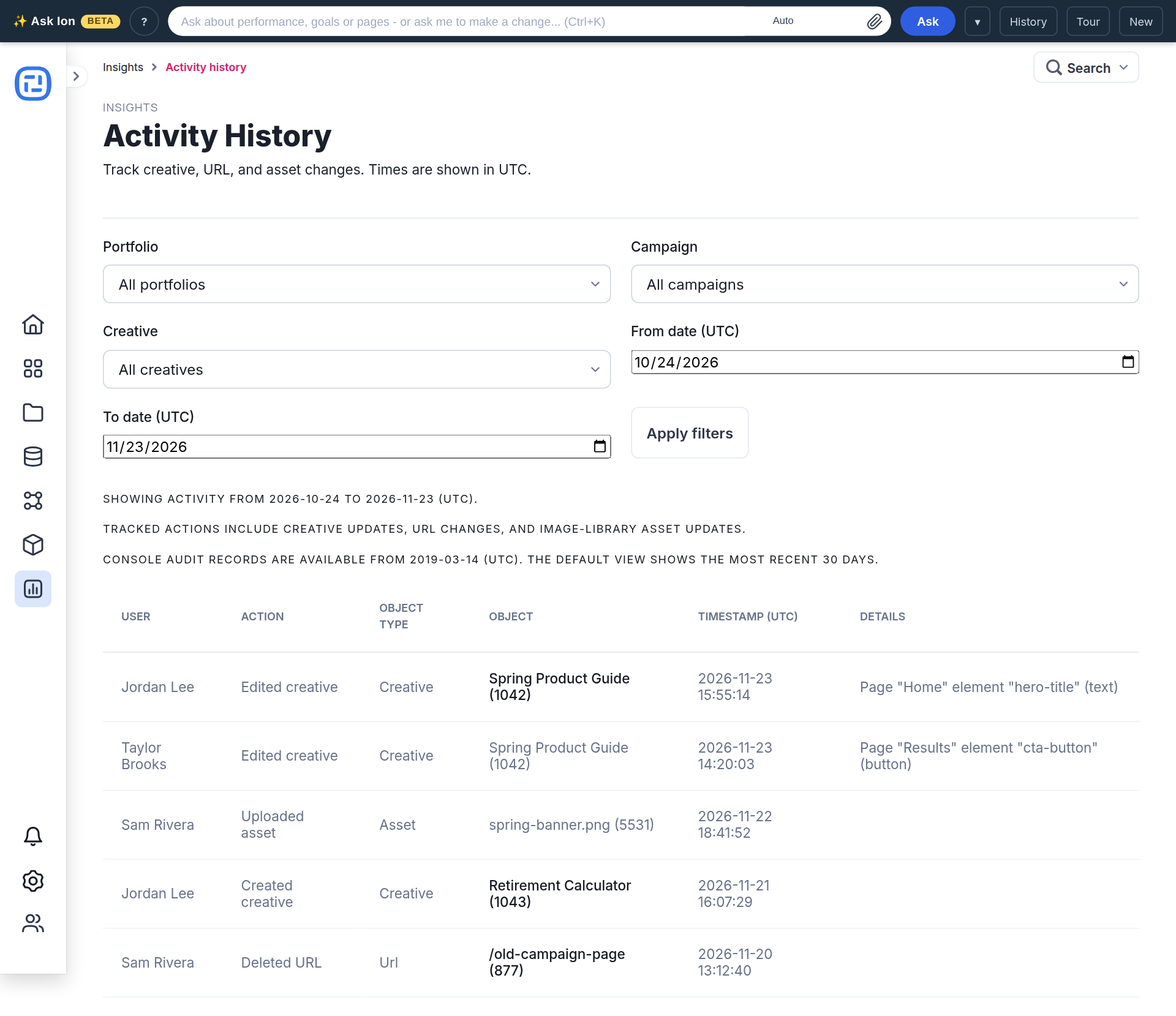
What it shows
- User: the person who made the change.
- Action: what they did, for example created, edited or deleted a creative, uploaded or deleted an image library asset, deleted a URL, or exported respondent data.
- Object: the creative, URL or asset that changed, with a link to it if it still exists.
- Timestamp: the date and time of the change, in UTC.
- Details: more about the change where available, such as the page and element that was edited.
Changes made by Ion staff
Activity History also lists changes that Ion staff make in your console, for example when our support or services team updates a creative for you. They appear under the staff member’s own name, just like your team’s changes, so you have one complete record of who changed what.
Choosing a date range
Use the Portfolio, Campaign and Creative filters to focus on one area, choose a From date and To date (in UTC), and select Apply filters. The page opens on the last 30 days.
There’s no limit on the date range. You can look back as far as your console’s records go, and the page shows the earliest available date under the filters. Each search lists up to the 500 most recent matching entries. If there are more, a note tells you, and you can narrow the dates or filters to see the rest.
Some kinds of changes, such as edits to individual page elements and image library updates, are recorded only from when Activity History was added to your console, so older entries may show less detail.
If you have any questions, please contact us at help@ioninteractive.com.
