
The Magazine White Paper template lets you create a professional interactive magazine with a clean, structured layout. It features a hero section, intro text, and tabbed navigation leading to an organized index with 4 categories, each containing 4 chapters. Every chapter offers unique layouts for text, images, and step-by-step content – perfect for detailed content that needs to keep readers engaged.
Here’s how to set it up and customize it for your content:
What is the Magazine Whitepaper Template?
The Magazine Whitepaper template is an immersive multi-chapter whitepaper with interactive navigation and dynamic layouts:
- Structured Content Hub: Hero + intro text → Interactive tabs → Index with 4 categories
- Organized Chapters: 4 sections, each with 4 chapters
- Flexible Layouts: Unique designs for all 4 chapters (text-heavy, image-focused, step-by-step flows)
- Interactive Elements: Navigational tabs, index links, and in-content engagement
Step-by-Step Guide to Using the Template
Set up the Interactive Tabs
- Edit tab labels to match your content, you can double click on the tab text (in blue) or select the tab and edit on the settings tab:

The current New Creative screen provides template, complexity, industry, and use-case filters. - Add the content you desire in the Tab Section container.
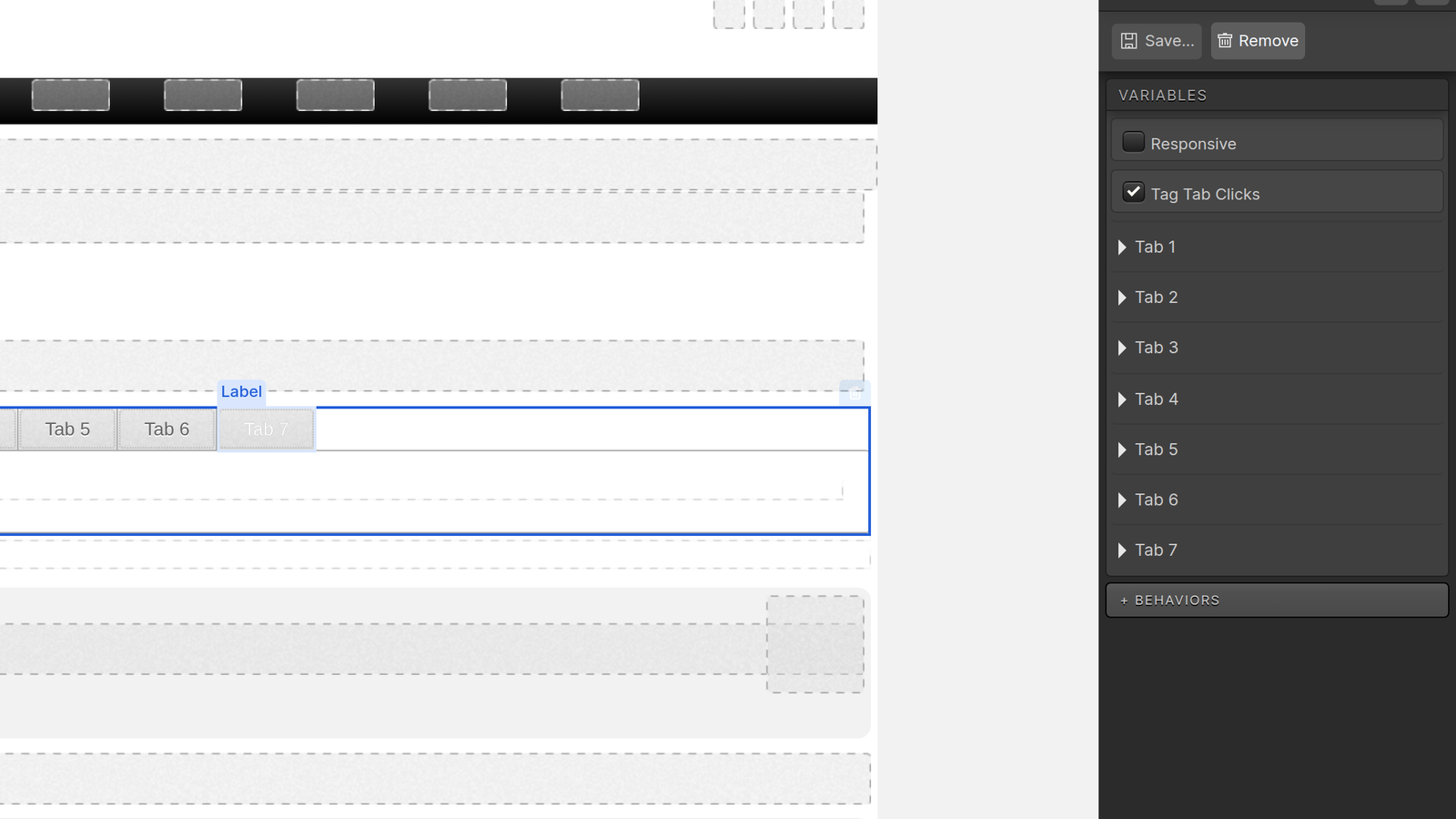
The current Tabs component exposes responsive behavior and per-tab settings. - Add CTA links if necessary, and further personalize it with button micro-theme.
- Customize using the micro-themes Pods.
Index reveals
- There are 4 sections linking to the Index page, they are all anchored to the respective section. Selecting the container that holds the reveal, add an action to them with an anchor, the anchor must have an unique name.
The current Reveal component supports overlay or toggle behavior and click or hover triggers. - On the Index page, select the Region Container and on the top right click on the anchor icon.
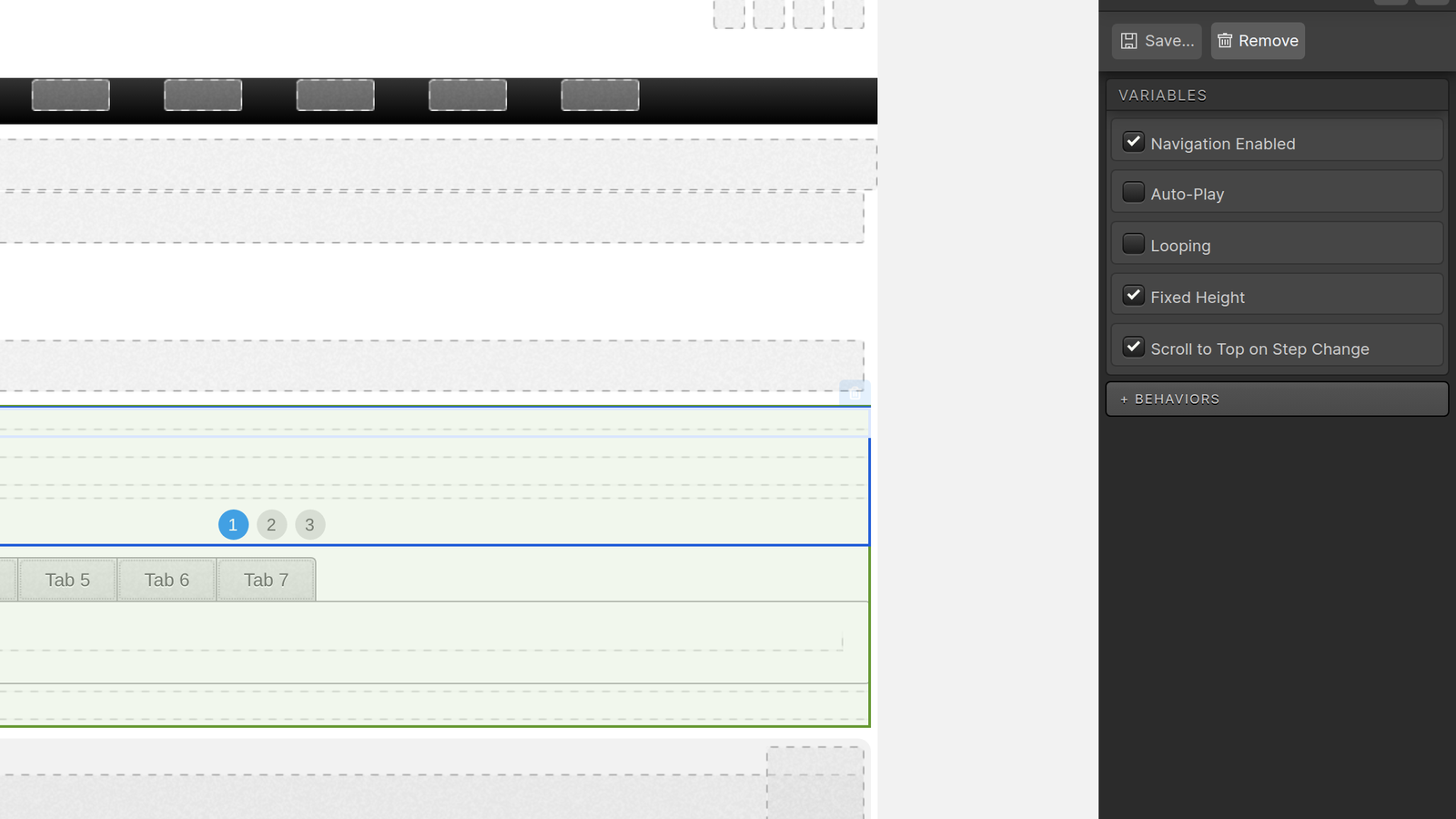
The current Flow component supports navigation, auto-play, looping, fixed height, and step behavior. - Give it the same unique name used before and hit save.
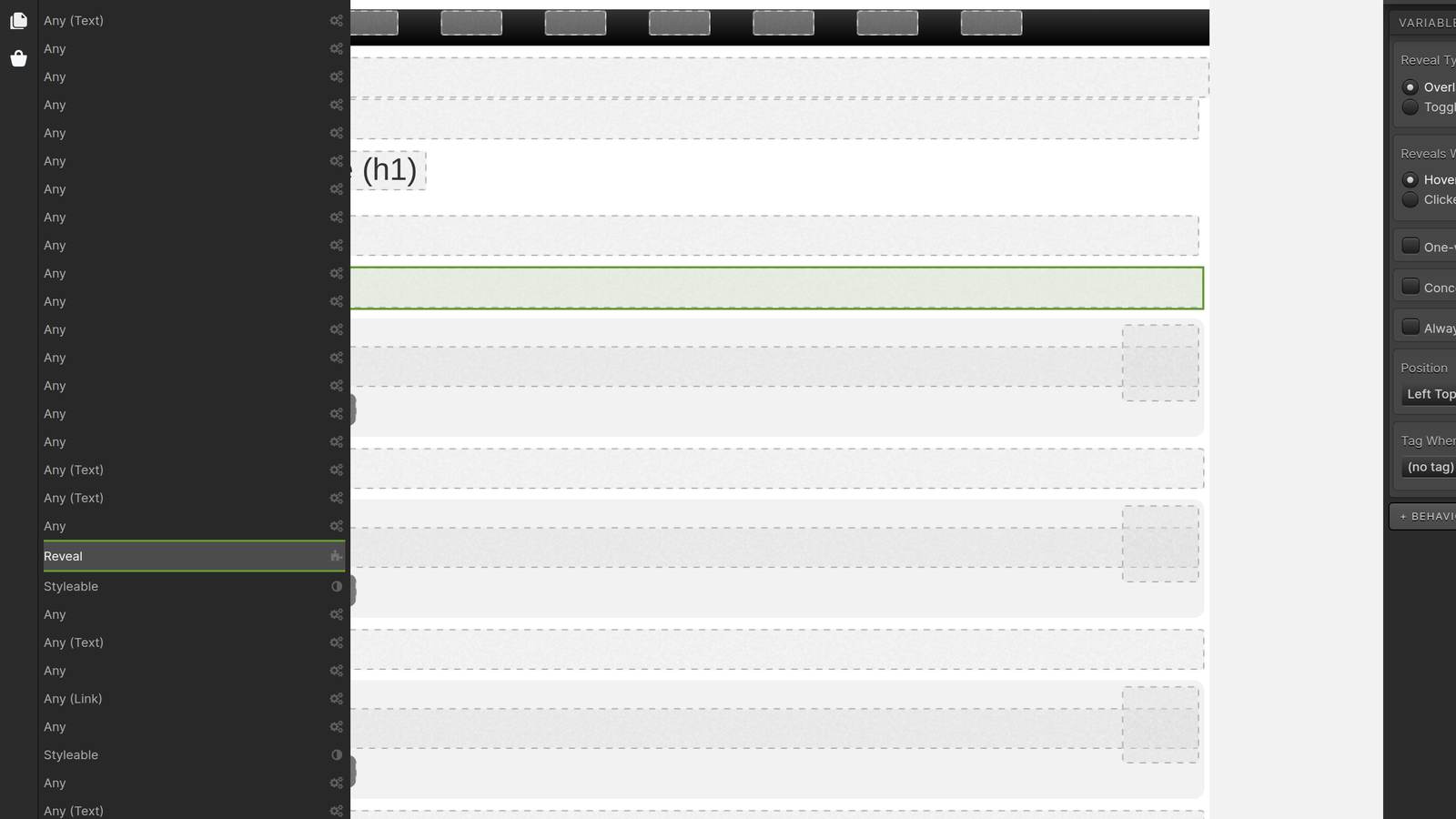
Use Layers to inspect and select nested page elements.
Setting the chapter Flow
- To add a Flow Step navigation is simple. Add a link and on the Design tab, under Buttons and Links, add a Link style. In this case we are using the Back Link.
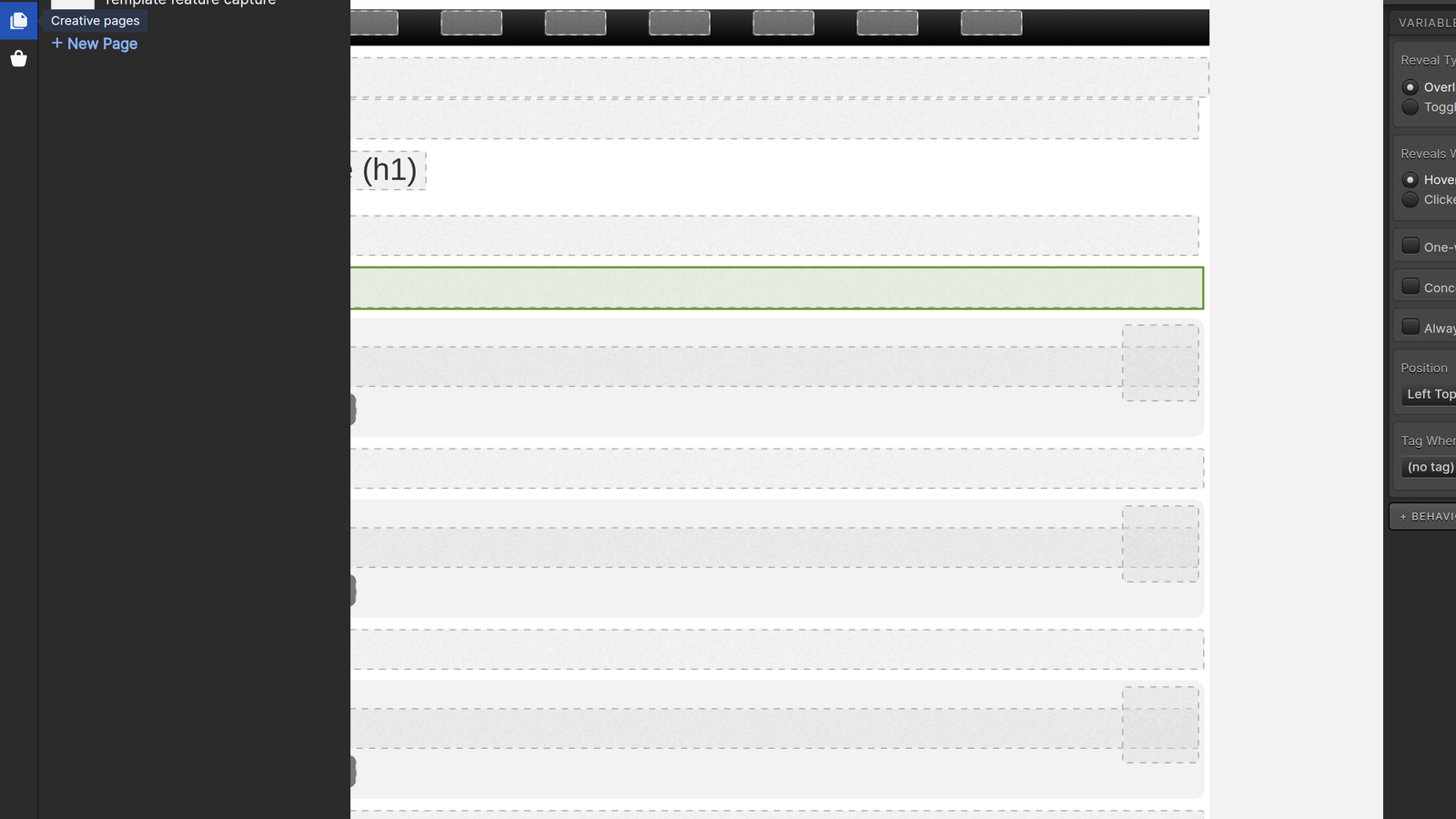
Use Pages to navigate or add pages within the creative. - After styling the link, let’s add an action to it. To add it, click on the Settings tab open Behaviors.
- On the Behaviors in Flow accordion, select the action desired, in this case, go to the previous flow step. Save it by clicking Apply.
Test and Publish
Before publishing, preview your Magazine White Paper on all viewports to ensure everything looks right. Verify that all accordion tabs, index links, and chapter flows work seamlessly, and test any interactive elements. Once everything checks out, your polished white paper is ready to engage your audience!
