Before diving into your ion console, check out this orientation video to walk you through the console dashboard and navigation. This is a great resource for ion beginners looking for guidance on where to find specific resources within your console.
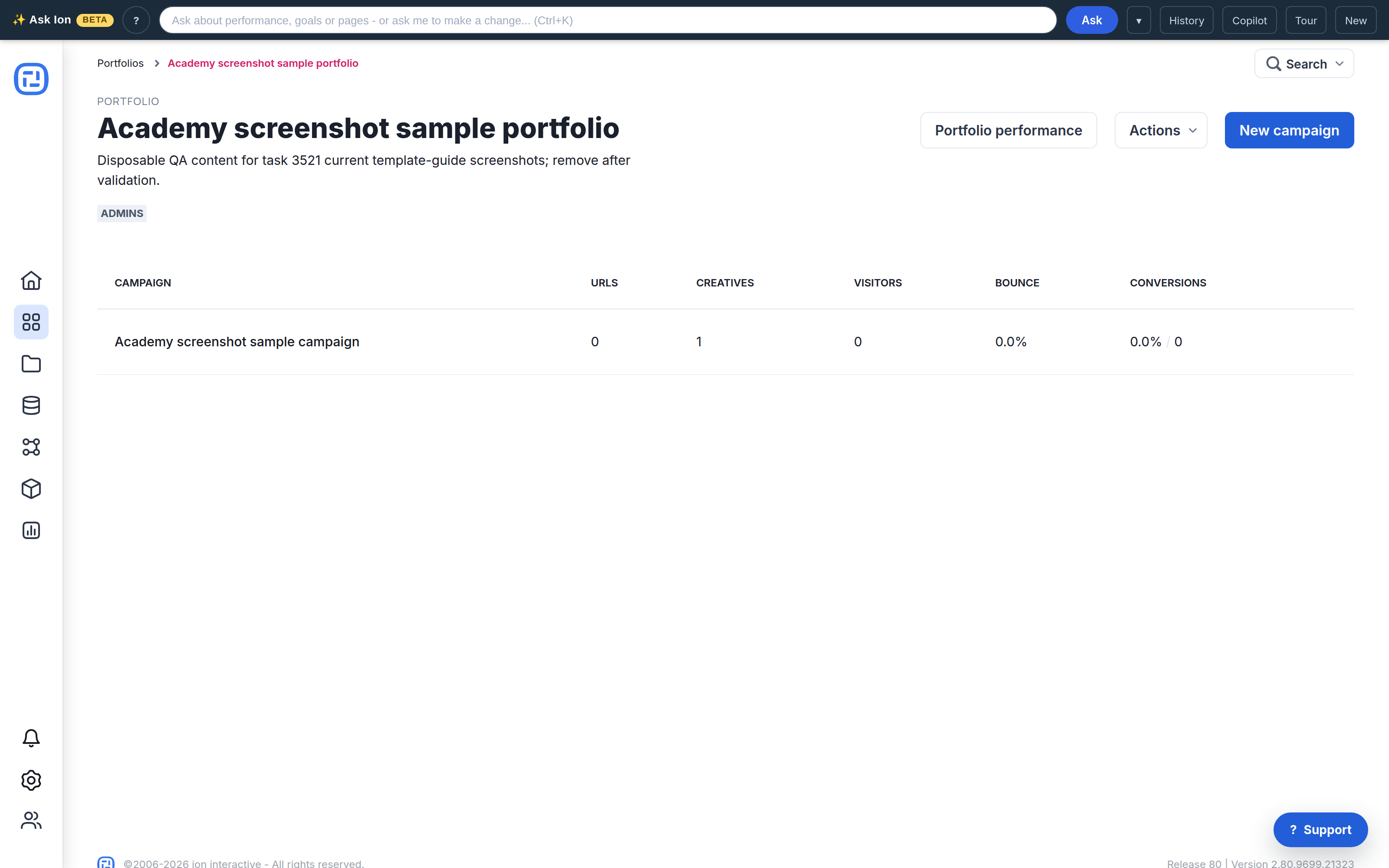
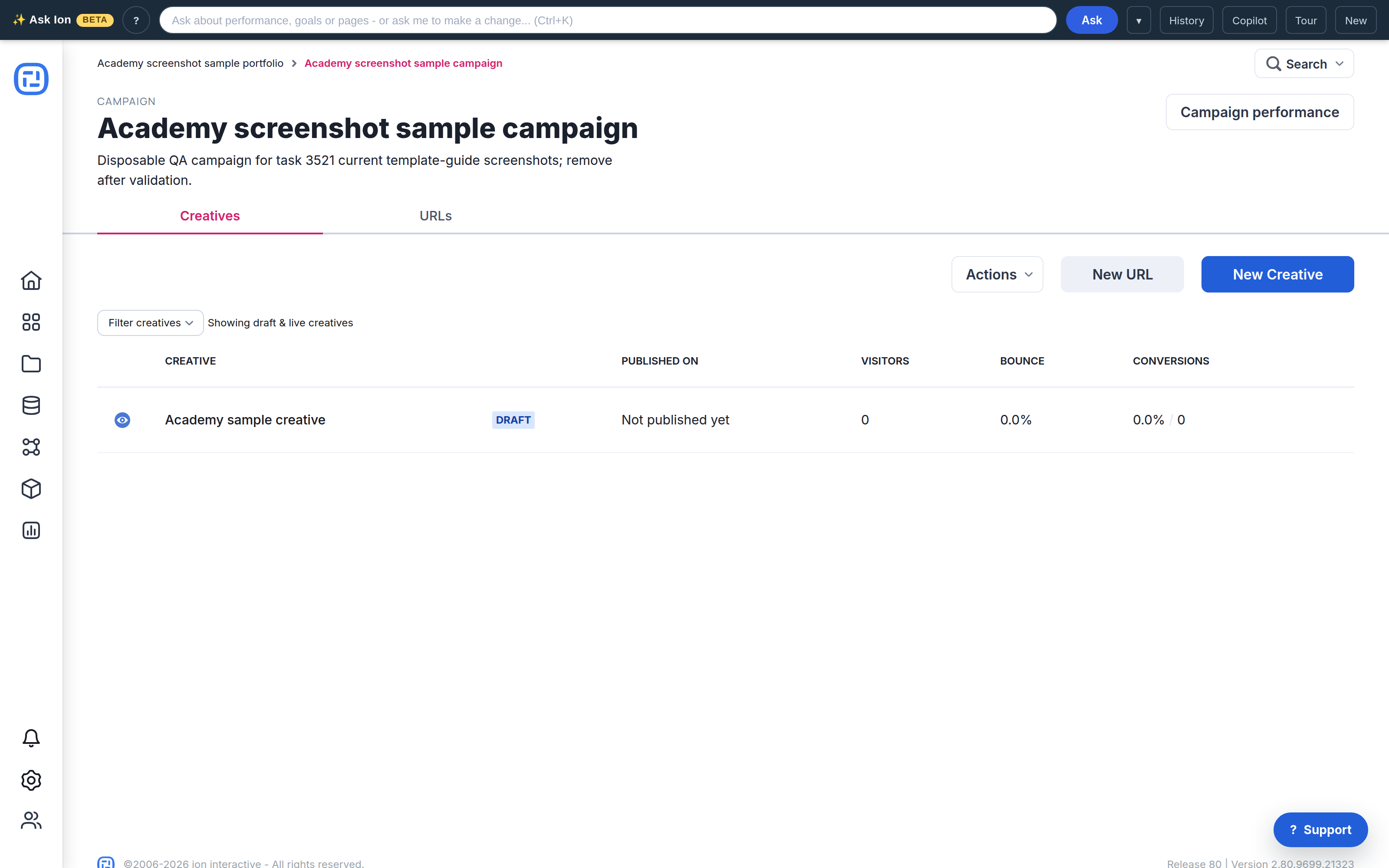
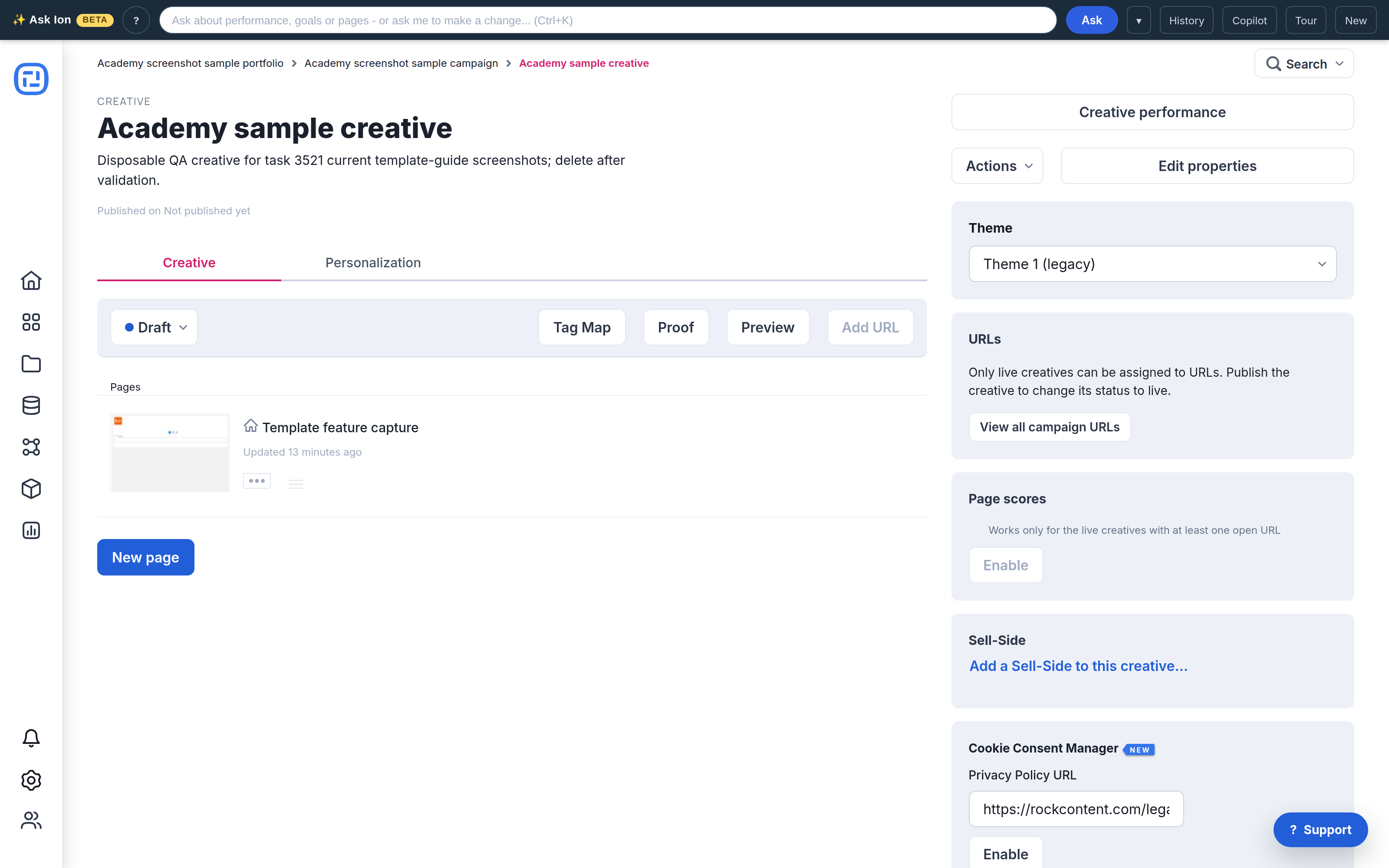
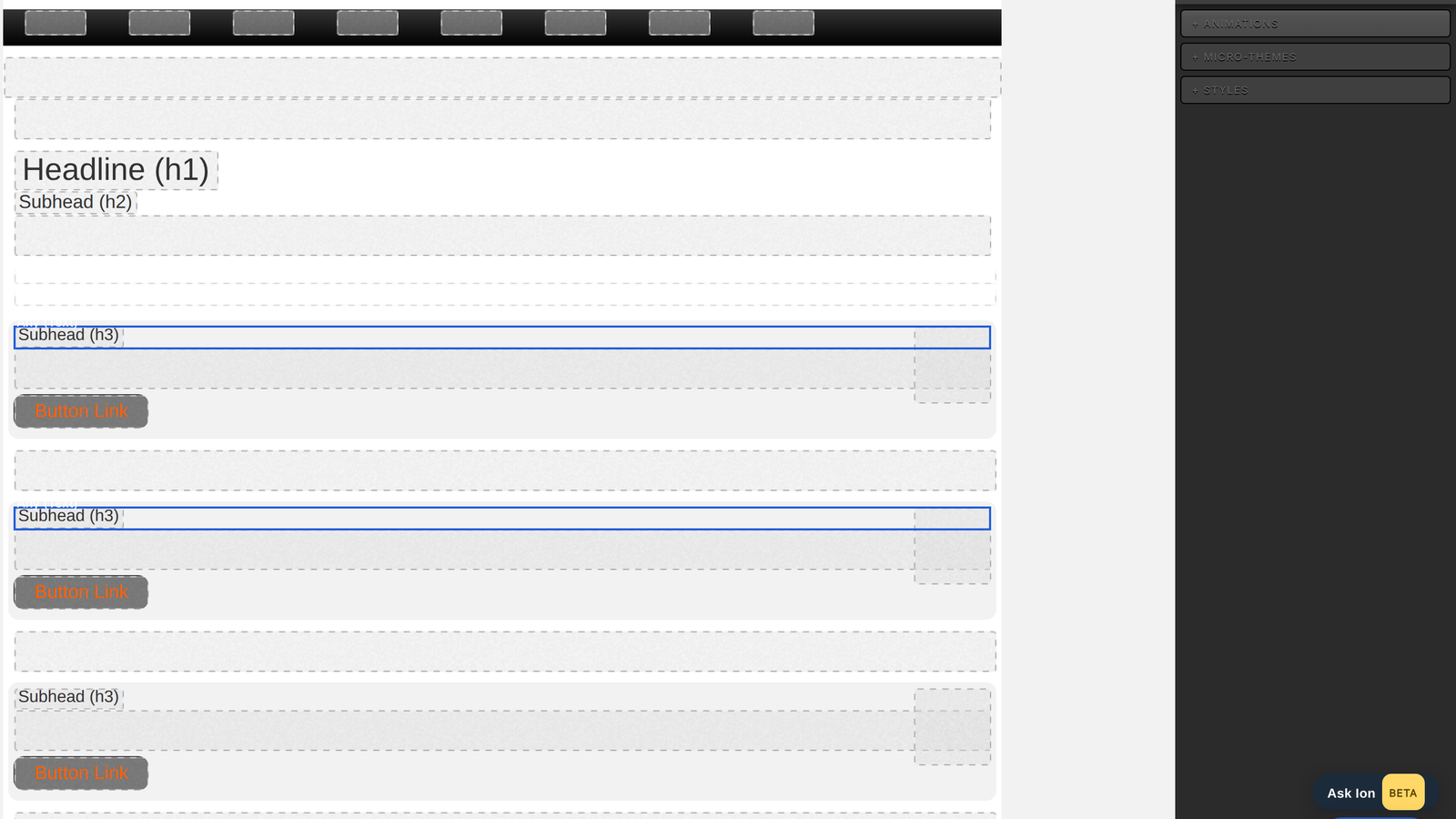
Silent current-UI orientation: Portfolio, Campaign, Creative Management, and Creative Studio.A portfolio contains campaigns and provides portfolio-level performance and actions.A campaign contains creatives and traffic-source URLs.Current Creative Management includes status, Tag Map, Proof, Preview, pages, URLs, Page scores, and creative settings.Creative Studio provides Design, Settings, Page rules, Layers, Pages, Preview, and Tag Map controls.
Current console walkthrough
Portfolio: groups campaigns and provides portfolio-level actions and reporting.
Campaign: contains creatives, traffic-source URLs, and campaign actions.
Akemi is a visual designer with over 10 years experience designing for web, mobile and other digital platforms. Her passion lies in creating thoughtfully crafted user experiences that are intuitive, accessible and highly functional. When she's not behind a screen, you'll find her in the kitchen cooking for family and friends or reading Don Norman's books.