
For Ion forms it is possible to reject select email addresses or email domains by implementing a few simple advanced rules at both the form and page levels. If you would like to reject a specific set of email addresses, continue following the suggestions in this help article:
If you would like to reject common personal email addresses generally, you can implement the following scriptlet for a quicker turnaround. The scriptlet “Personal Email Reject Condition” evaluates if the EmailAddress data field contains any of the following terms:
- aol
- gmail
- gmx
- hotmail
- hushmail
- icloud.com
- mail.com
- outlook
- proton and protonmail
- yahoo
- zoho
It returns true if any one of those terms were found in the EmailAddress datafield, and false otherwise.
Step 1 – Install the scriptlet in your Ion console.
- Navigate to Libraries > Server Scriptlets
- Click green “New scriptlet category” and give it a label
- Click green “New scriptlet” button and label the scriptlet
- Paste or write custom Javascript into the scriptlet field
- Save
var personalEmailDomains = ["gmail", "hotmail", "aol", "yahoo", "gmx", "hushmail", "icloud.com", "outlook", "mail.com", "zoho", "proton", "protonmail"]

if(respondent["customEmailDomains"] != null) personalEmailDomains =  respondent["customEmailDomains"].split(",")

var emailRegex = new RegExp(personalEmailDomains.join("|"));
var targetField = respondent["targetField"] || "emailaddress"
var email = respondent[targetField]

if(email == null || email == "") return true;

return emailRegex.test(email)
Additional Information: Note, use server-side Javascript (ECMAScript Version 3) to process data. The script should return a string or null.
Step 2 – Use rules to run your scriptlet on your Ion form
- Navigate to the Ion page where you have your form set up;
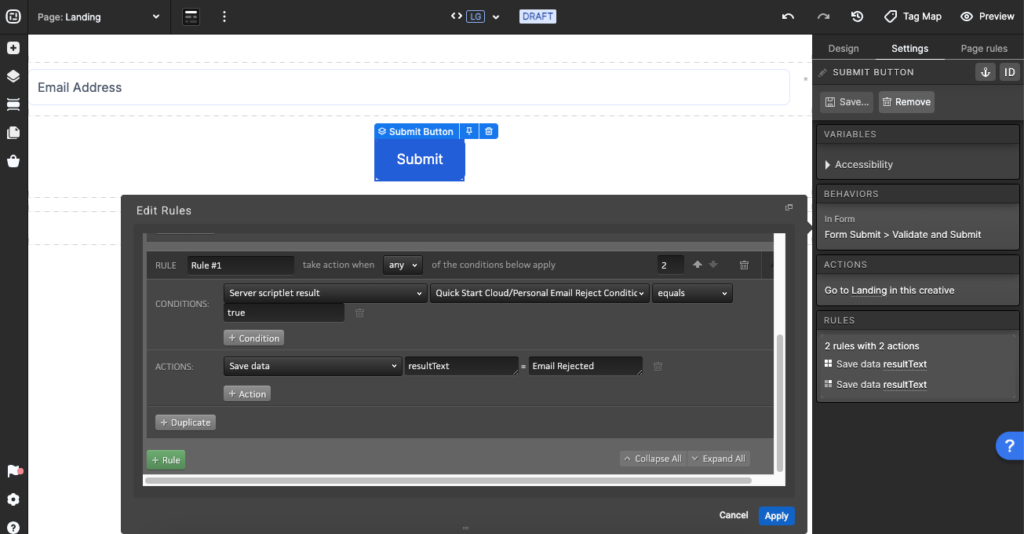
- If you would like the scriptlet to run on form submission, click the form’s submit button in Content Studio and then open the rules editor from within the Edit tab.
- Add a rule condition to trigger the scriptlet “Server scriptlet result” and select the scriptlet from the dropdown to the right.
- Add the action labeled “Save data” with the value “resultText” and the error message you’d like to be displayed to the visitor if they provide an email address that’s not acceptable.
Step 3 – Optional: Add a text box to display the error message
- Add a text element to your form page at a location of your choice.
- Add “resultText” in double curly brackets in the text element and style as required.
- Hit “Apply” to save.
