
Contents
Installation Workflow
Step 1: Prepare the minified assets locally
Create the two asset files on your computer before uploading them to Ion.
Windows (Notepad):
- Launch Notepad.
- Paste the CSS snippet.
- Choose
File > Save As, set “Save as type” to “All Files”, pick UTF-8 encoding, and save asixp-ps-widget-wheel-of-fortune.min.css. - Open a new Notepad window.
- Paste the JavaScript snippet.
- Save the file as
ixp-ps-widget-wheel-of-fortune.min.js.
macOS (TextEdit):
- Open TextEdit and select
Format > Make Plain Text. - Paste the CSS snippet.
- Save the document as
ixp-ps-widget-wheel-of-fortune.min.css. - Create a new plain-text document.
- Paste the JavaScript snippet.
- Save the document as
ixp-ps-widget-wheel-of-fortune.min.js.
Linux (Gedit or another plain-text editor):
- Open your preferred plain-text editor (for example, Gedit).
- Paste the CSS snippet.
- Save the file as
ixp-ps-widget-wheel-of-fortune.min.css. - Create a second document.
- Paste the JavaScript snippet.
- Save the file as
ixp-ps-widget-wheel-of-fortune.min.js.
Alternative editors: Any plain-text editor that preserves UTF-8 encoding without hidden formatting—such as Visual Studio Code, Sublime Text, or Atom—works equally well. Create two new files, paste the respective snippets, and save them using the filenames above.
CSS content to copy:
div.ixp-ps-widget-wheel-of-fortune{user-select:none;-moz-user-select:none;position:relative;max-width:100%;height:0;padding-bottom:100%}div.ixp-ps-widget-wheel-of-fortune svg{--offset:0;position:absolute;overflow:visible;transition:.2s;transition-timing-function:ease-out;width:100%;height:100%;top:0;left:0}div.ixp-ps-widget-wheel-of-fortune svg>g.wheel{transform:rotate(var(--offset))}div.ixp-ps-widget-wheel-of-fortune svg>g.wheel.spin{animation-name:spin;animation-duration:6s;animation-fill-mode:forwards}div.ixp-ps-widget-wheel-of-fortune svg>g.wheel>g.sector>path{stroke:#fff}div.ixp-ps-widget-wheel-of-fortune svg>g.wheel>g.sector>path:not([fill]){fill:#0c2032}div.ixp-ps-widget-wheel-of-fortune svg>g.wheel>g.sector>text{fill:#000;writing-mode:tb;text-orientation:upright}div.ixp-ps-widget-wheel-of-fortune svg>g.wheel>g.sector>path:not([fill])+text{fill:#fff}div.ixp-ps-widget-wheel-of-fortune svg>g.center>path{cursor:pointer;fill:#0c2032;stroke:#fff}div.ixp-ps-widget-wheel-of-fortune svg>g.center>text{cursor:pointer;fill:#fff}div.ixp-ps-widget-wheel-of-fortune svg>g.center>*{transition:.3s}div.ixp-ps-widget-wheel-of-fortune svg>g.center:hover>*{transform:scale(1.3)}@keyframes spin{from{transform:rotate(var(--offset))}to{transform:rotate(var(--target))}}
JavaScript content to copy:
!function(){const t=function({onClick:t=(()=>{}),items:e=[],playOnce:n=!1,hasPlayed:r=!1,parent:a}){if(!a)throw new Error("No target node provided");const o={onClick:t,items:e,playOnce:n,hasPlayed:r,parent:a,radius:200,sectorCount:Math.max(e.length,2)},s=(t=1,e=0)=>Math.floor(Math.random()*t)+e,l=({radius:t,sectorCount:e,items:n})=>{const r=document.createElementNS("http://www.w3.org/2000/svg","svg");r.setAttribute("viewBox",`-${1.2*t} -${1.2*t} ${2.4*t} ${2.4*t}`);const a=360/e,l=a/2+180,p=i(n,e),u=document.createElementNS("http://www.w3.org/2000/svg","g");u.setAttribute("class","wheel"),r.appendChild(u);for(let r=0;r<e;++r){const o=l+a*r,s=l+a*(r+1),c=f(e-r+p,e);d(o,s,u,n[c],t)}return c(r,"Spin"),r.addEventListener("click",function(t){switch(t.target.parentNode.getAttribute("class").split(" ")[0]){case"center":((t,{sectorCount:e,playOnce:n,hasPlayed:r,items:a,onClick:l})=>{if(1==n&&1==r)return;const c=360/e,d=s(e),p=i(a,e),u=f(e-d+p,e),h=`${(e-u)*c+360*s(2,4)}`;t.style.setProperty("--target",h+"deg"),y(t,"spin").then(e=>{t.style.setProperty("--offset",Math.floor(h%360)+"deg"),e.target.classList.remove("spin"),l(a[u]),o.hasPlayed=!0})})(r.querySelector("g.wheel"),o)}}),r},c=(t,e)=>{const n=document.createElementNS("http://www.w3.org/2000/svg","g");n.setAttribute("class","center");const r=document.createElementNS("http://www.w3.org/2000/svg","path");r.setAttribute("d","m -9 -24 l 9 -16 l 9 16 a 25 25 0 1 1 -18 0 z"),n.appendChild(r);const a=u(0,3,e);n.appendChild(a),t.appendChild(n)},i=(t,e)=>t.length<e&&length<4?-2:-1,d=(t,e,n,r,a)=>{const o=document.createElementNS("http://www.w3.org/2000/svg","g"),s=document.createElementNS("http://www.w3.org/2000/svg","path");if(s.setAttribute("class","sector-path"),r.backgroundColor&&s.setAttribute("fill",r.backgroundColor),s.setAttribute("d",p(t,e,a)),o.appendChild(s),o.setAttribute("class","sector"),o.setAttribute("data-id",r.id),r.label){const n=h(t,e,1.9*a),s=-1*(t+(e-t)/2-180),l=u(n.x,n.y,r.label,s,"start");o.appendChild(l)}n.appendChild(o)},p=(t,e,n)=>{const r=w(t,n);let a="M"+m(r);return a+=`A${n} ${n} 0 0 0 ${m(w(e,n))}`,a+="L 0 0",a+="Z"},u=(t,e,n,r,a)=>{const o=document.createElementNS("http://www.w3.org/2000/svg","text");return t=g(t),e=g(e),r=r||0,a=a||"middle",o.setAttribute("text-anchor",a),o.setAttribute("transform",`rotate(${r}, ${t}, ${e})`),o.setAttribute("x",t),o.setAttribute("y",e),o.innerHTML=n,o},h=(t,e,n)=>w((t+e)/2,n/2),w=(t,e)=>({x:Math.sin(b(t))*e,y:Math.cos(b(t))*e}),m=t=>`${g(t.x)} ${g(t.y)}`,g=t=>{if(Number.isInteger(t))return t.toString();if(t){let e=(+t).toFixed(5);return e.match(/\./)&&(e=e.replace(/\.?0+$/,"")),e}},f=(t,e)=>(t<0&&(t=e+t),t>=e&&(t-=e),t<e?t:null),b=t=>t*(Math.PI/180),y=(t,e)=>new Promise(function(n){t.addEventListener("animationend",function e(r){t.removeEventListener("animationend",e),n(r)}),t.classList.add(e)});return{create:()=>{const t=l(o);o.parent.appendChild(t)}}};!function(e,n){const r=t=>{const e=document.createElement("div");e.innerHTML=t;return e.textContent.replace(/\s+(?=([^"]*"[^"]*")*[^"]*$)/g,"")},a=t=>{try{return JSON.parse(t)}catch(t){return console.warn(t),null}},o=({scriptElement:n,data:o,dataField:s,sliceColors:l="",hasPlayed:c=!1,playOnlyOnce:i=!1,action:d=""})=>{const p=n.closest("div");p.classList.add("ixp-ps-widget-wheel-of-fortune");const u=a(r(o)),h=r(l);let w=""!=h?a(h):null;const m=u.map((t,e)=>{const[n,r]=Object.entries(t)[0];let a={id:`${n}-${e}`,label:n,value:r};return null!=w&&null!=w[e]&&(a.backgroundColor=w[e]),a});t({id:p.id,parent:p,items:m,playOnce:!!i,hasPlayed:!!c,onClick:t=>{((t,n=(()=>{}))=>{const r=[];let a=0,o=Object.prototype.toString;if("object"!=typeof t)return!1;if("[object Object]"===o.call(t))for(propName in t)t.hasOwnProperty(propName)&&r.push({dataField:'{ "name": "'+propName+'" }',value:t[propName]});else if("[object Array]"===o.call(t))for(;a<t.length;a++)r.push({dataField:'{ "name": "'+t[a].f+'" }',value:t[a].v});e.data.save({data:r,success:n})})({[s]:t.value}),""!=d&&(setTimeout(() => {location.href = d}, 750))}}).create()};n.forEach(([t,e])=>{switch(t){case"init":o(e)}})}(window.ixp.runtime,window.ixpPSWidgetDataLayer)}();
Step 2: Upload the framework assets
- In Ion, navigate to
Libraries > Frameworks > Ion Framework. - Upload the
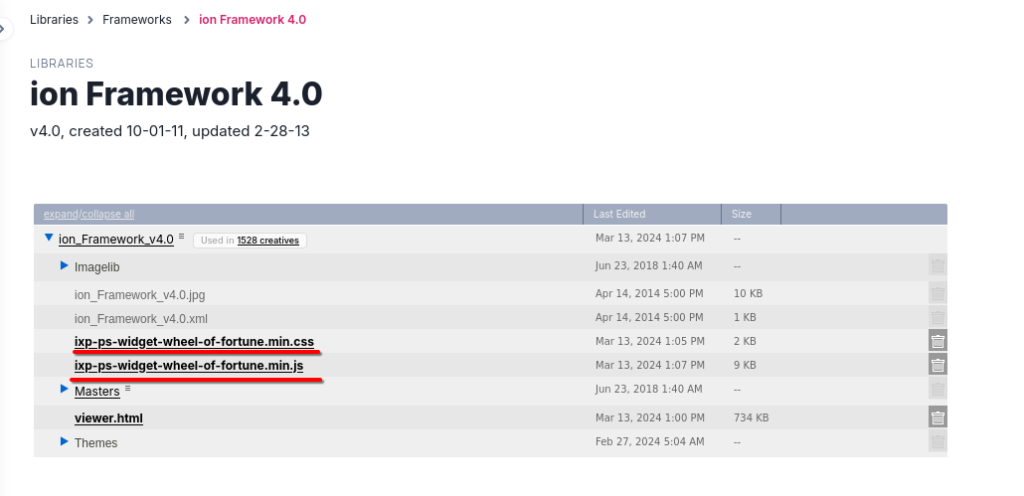
ixp-ps-widget-wheel-of-fortune.min.cssandixp-ps-widget-wheel-of-fortune.min.jsfiles you created in Step 1.
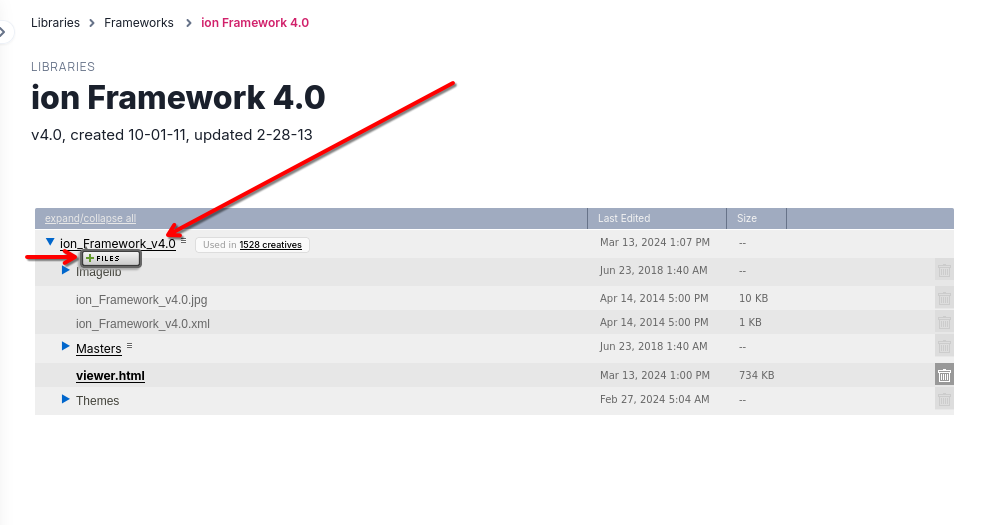
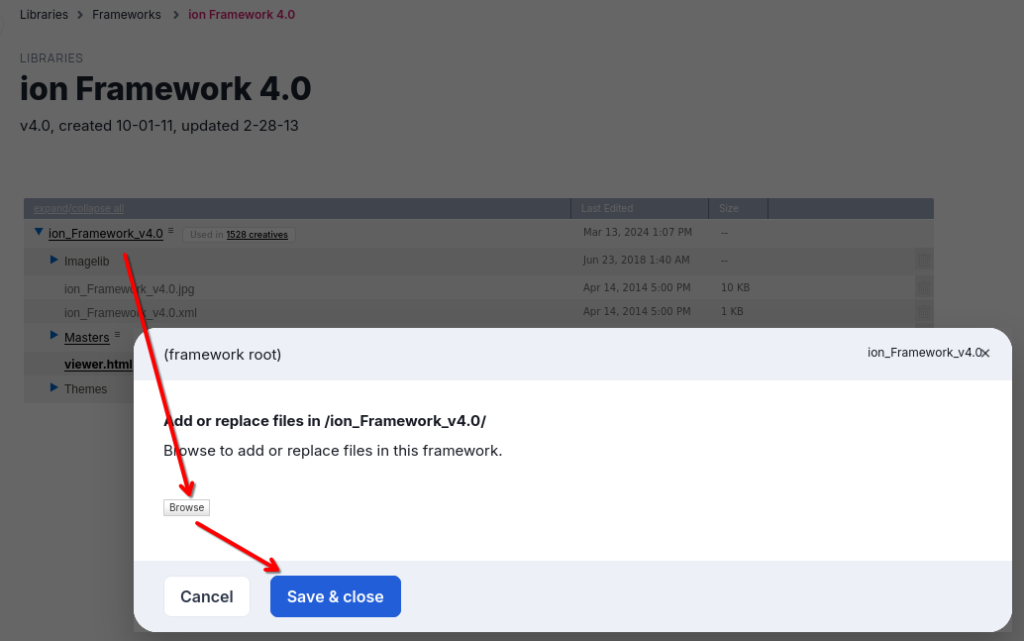
- Confirm both files now appear in the framework list before leaving the screen.
Step 3: Register the widget in Ion
- Navigate to
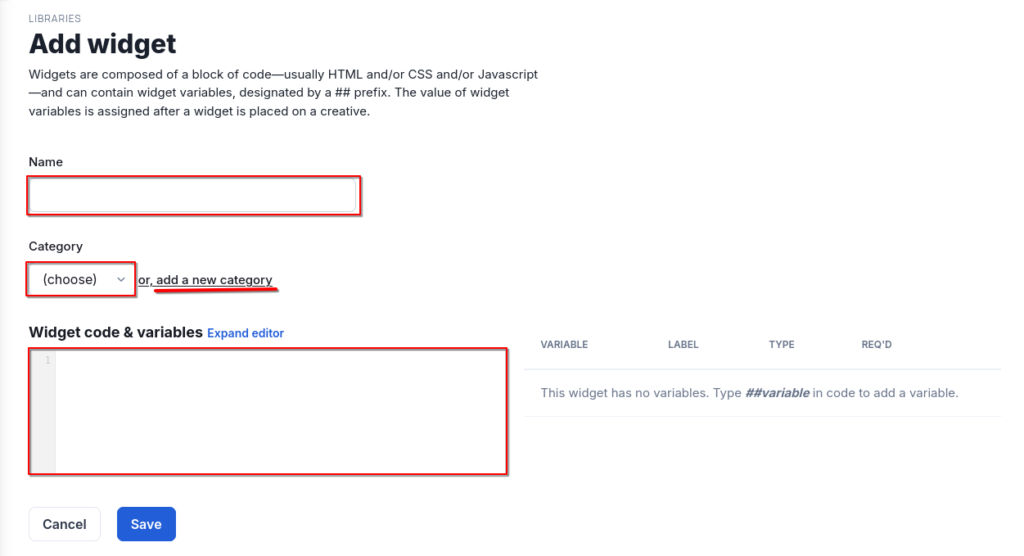
Libraries > Widgets, click Create New Widget, and select an existing widget category (or add a new one for the wheel widget).

- In the widget editor, give the widget a descriptive name, confirm the category selection, and paste the embed snippet below into the code pane.
Widget embed snippet (update placeholders before saving):
<script>
  (function (d, s, id, src, fjs) {
    if (d.getElementById(id)) return;
    fjs = d.getElementsByTagName(s)[0];
    s = d.createElement(s);
    s.id = id;
    s.rel = "stylesheet";
    s.href = src;
    fjs.parentNode.insertBefore(s, fjs);
  })(
    document,
    "link",
    "ixp-ps-wof-css",
    "/Templates/ion/ion_Framework_v4.0/ixp-ps-widget-wheel-of-fortune.min.css"
  );

  (function (d, s, id, src, fjs) {
    if (d.getElementById(id)) return;
    fjs = d.getElementsByTagName(s)[0];
    s = d.createElement(s);
    s.id = id;
    s.src = src;
    s.async = true;
    fjs.parentNode.insertBefore(s, fjs);
  })(
    document,
    "script",
    "ixp-ps-wof-js",
    "/Templates/ion/ion_Framework_v4.0/ixp-ps-widget-wheel-of-fortune.min.js"
  );

  window.ixpPSWidgetDataLayer = window.ixpPSWidgetDataLayer || [];
  function ixpPSWidget() {
    ixpPSWidgetDataLayer.push(arguments);
  }

  ixpPSWidget("init", {
    data: ` ##dataJSON `,
    sliceColors: ` ##colorJSON `,
    dataField: "##dataField",
    hasPlayed: `{{##dataField}}`,
    scriptElement: document.currentScript,
    playOnlyOnce: "##playOnlyOnce",
    action: "##action",
  });
</script>- Define the widget variables so editors can configure the experience when they drop the widget into a creative.
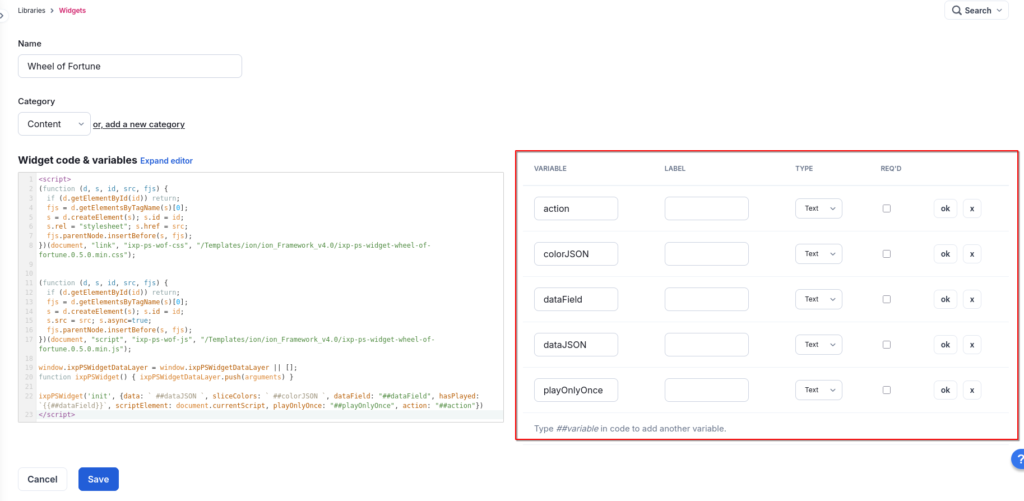

- Select Add Variable, enter the label, choose the field type, and toggle Required when the field must be supplied.
- Click OK to add the variable and repeat until the list matches the recommended settings below.
Recommended settings for widget variables in Ion:
| Variable | Label | Type | Required |
| action | Action Trigger | Action | no |
| colorJSON | Background Colors | Text | no |
| dataField | DataField Name | Text | yes |
| dataJSON | Wheel Contents | Text | yes |
| playOnlyOnce | Can only play once | Text | no |
- Save the widget so it becomes available in creatives.
Usage Configuration
- Drag the widget into your creative (
Elements palette > Basics > Widget), then select the widget name configured above.
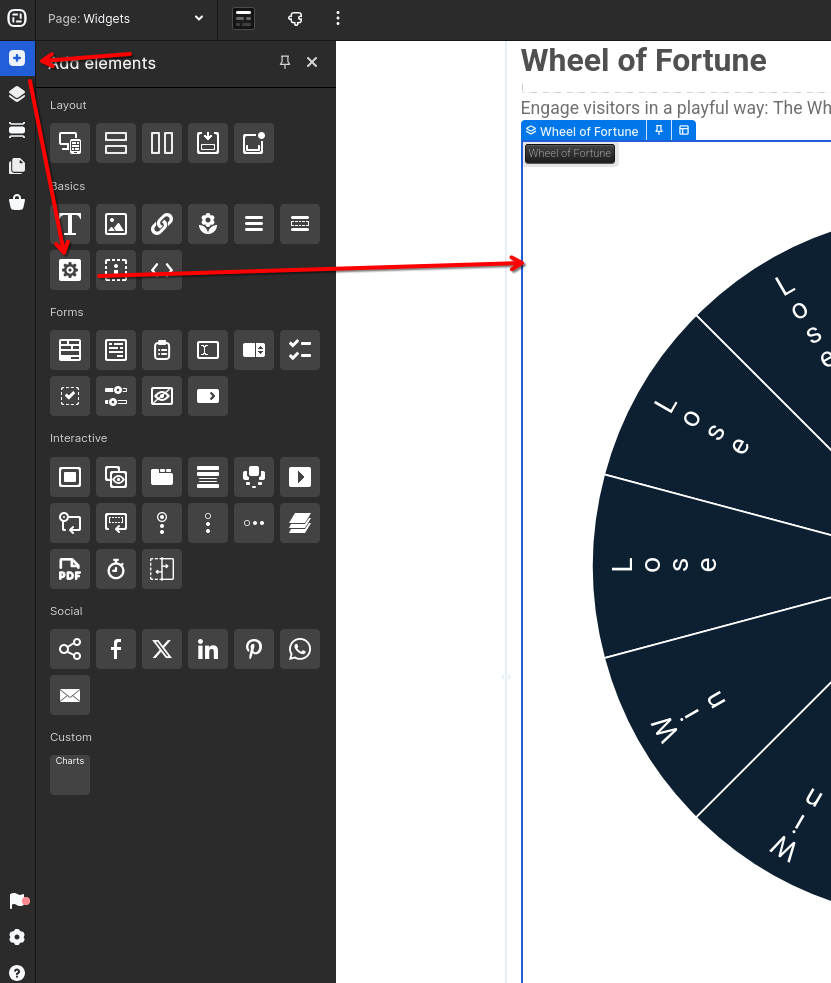
- Populate the widget variables. Keep JSON values on a single line so the Ion editor does not add additional whitespace.
- Wheel Contents must be a JSON array of one-key objects. The key becomes the label on the wheel and the value is saved to the respondent record.
- Background Colors is an optional JSON array (
["#color1", "#color2", ...]) that overrides the default palette. - DataField Name must reference an Ion data field that already exists (for example, create a Text field in
Data Collection > Data Fieldsbefore wiring the widget).
Example payload for Wheel Contents:
[
  { "Win": true },
  { "Win": true },
  { "Win": true },
  { "Lose": false },
  { "Lose": false },
  { "Lose": false },
  { "Win": true },
  { "Win": true },
  { "Win": true },
  { "Lose": false },
  { "Lose": false },
  { "Lose": false }
]
Tip: Paste JSON directly (without pretty formatting) into the Ion editor so the runtime parser can read it, and make any edits in a plain-text editor before replacing the in-place value.
Optional Workflow: Win/Lose Lightboxes
- Configure the wheel as described above, then add an action trigger that redirects to the current page (use an anchor if you need to jump back to the wheel after reload).
- Create page rules that evaluate the saved wheel result so the correct lightbox can respond on load.
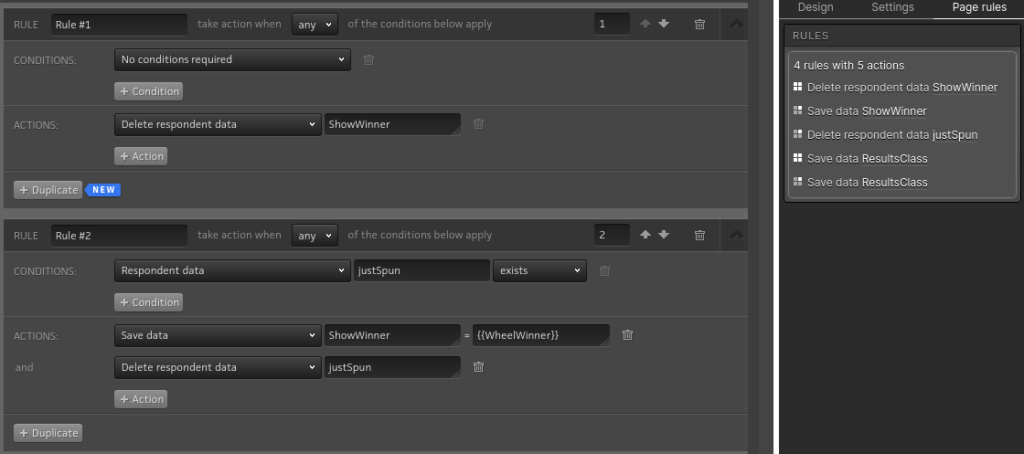
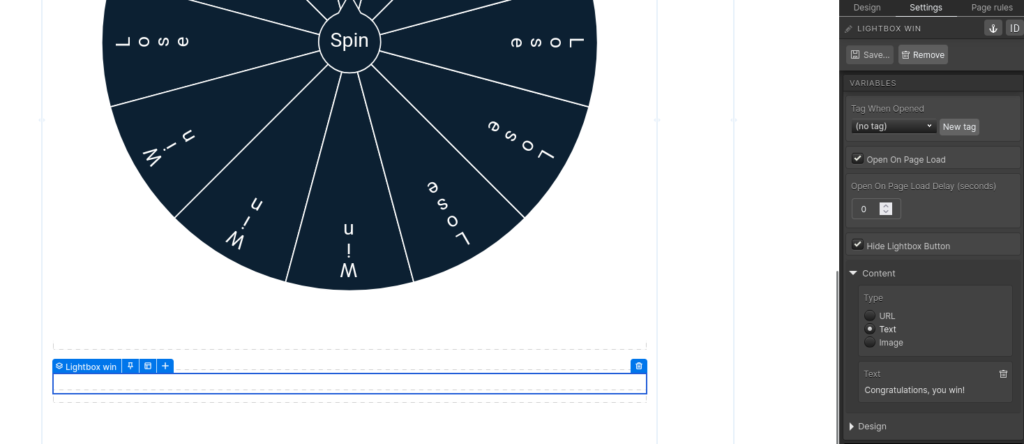
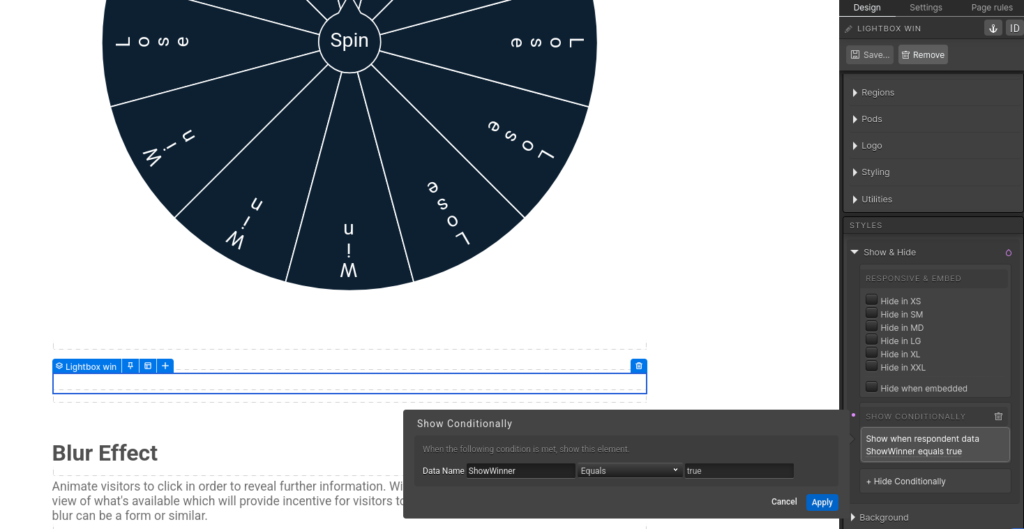
- Place two lightboxes under the wheel—one for the win state and one for the lose state—set them to open on page load, hide their buttons, and apply conditional show/hide rules that match the wheel response.
Testing Checklist
- Spin the wheel multiple times in preview mode to confirm the CSS and JS assets are loading from
/Templates/ion/ion_Framework_v4.0/. - Confirm
playOnlyOncecorrectly prevents a second spin when the merge field value evaluates to true. - If
actionis provided, ensure the redirect fires after the spin completes and the data layer saves. - Validate any custom slice colors render as expected and contrast with the text labels.
