
Top Bar
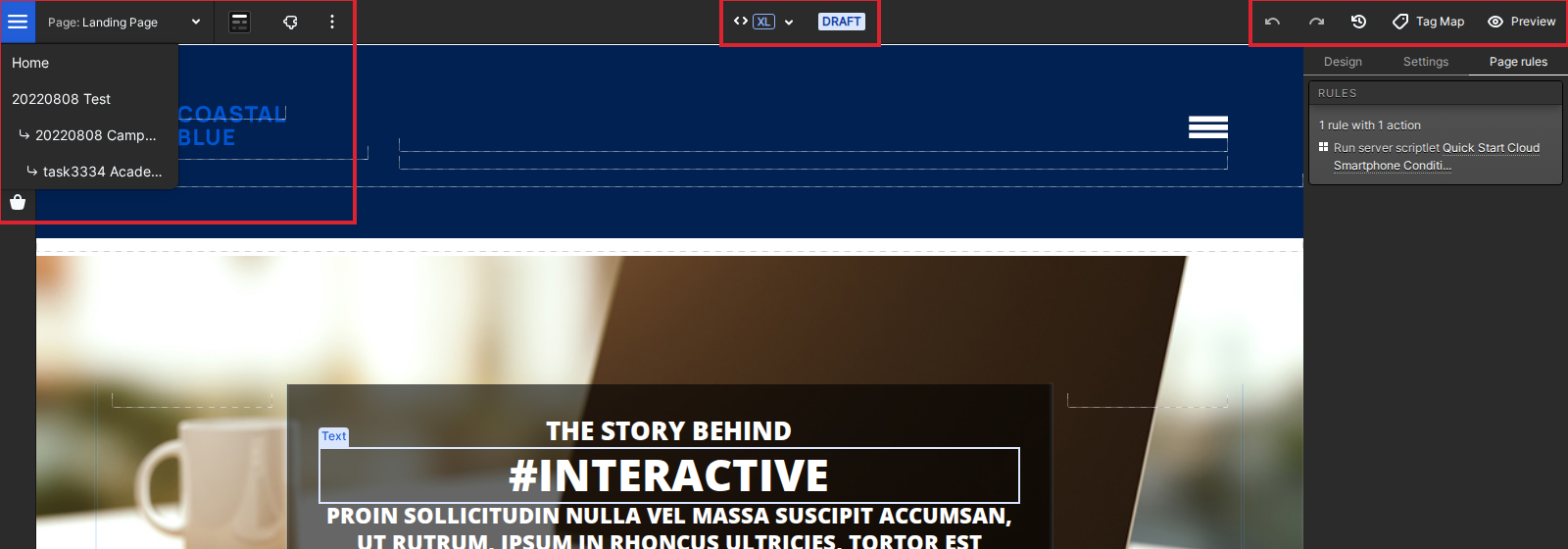
At the top of your creative studio, you will see a bar of buttons with key functionality to navigate, edit and proof your creative.
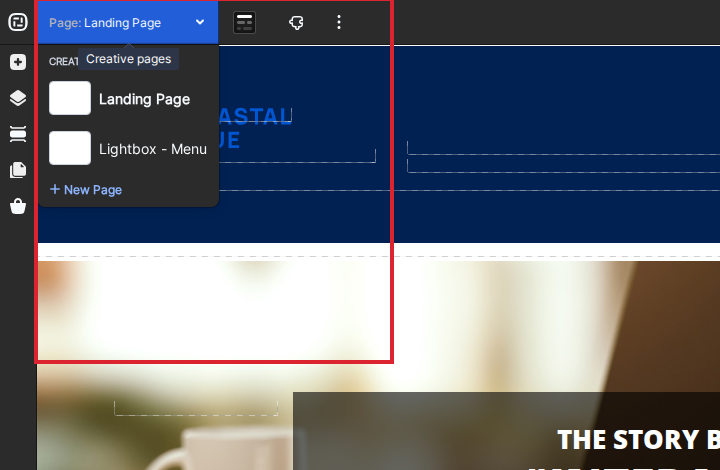
Open the Ion-logo menu at the far left to navigate to Home or back through the portfolio, campaign and creative hierarchy. Use the Page menu beside it to move between pages in the current creative.
The centered status badge always shows the creative’s current status. The privacy-safe test creative shown here is Draft; a live creative displays Live in the same location.
The placeholder visibility control beside the Page menu toggles the editing placeholders on the canvas.
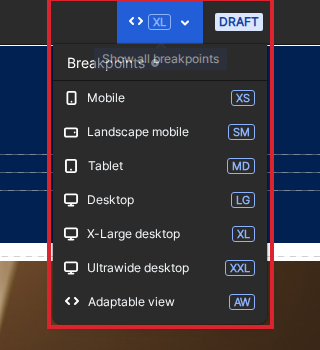
The Breakpoints menu lets you view and edit the page at Mobile (XS), Landscape mobile (SM), Tablet (MD), Desktop (LG), X-Large desktop (XL), Ultrawide desktop (XXL) and Adaptable view (AW) sizes. Check the relevant breakpoints before publishing a responsive page.
At the top right, use Undo and Redo for recent page changes, or Version history to review and restore an earlier creative version.
Tag Map and Preview remain at the top right. Open More options (the three-dot menu) to reach Proof and Live URL.

Live URLs
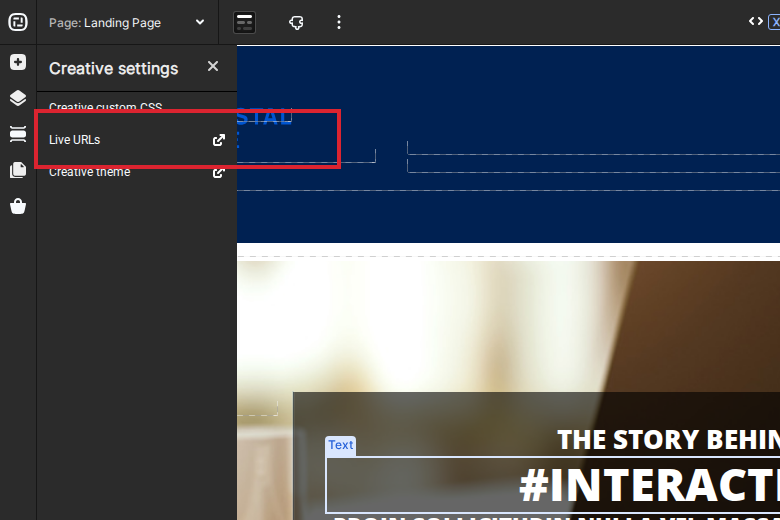
Open Creative settings and select Live URLs to see the URLs assigned to the creative. Live URL is also available from More options.
Add elements
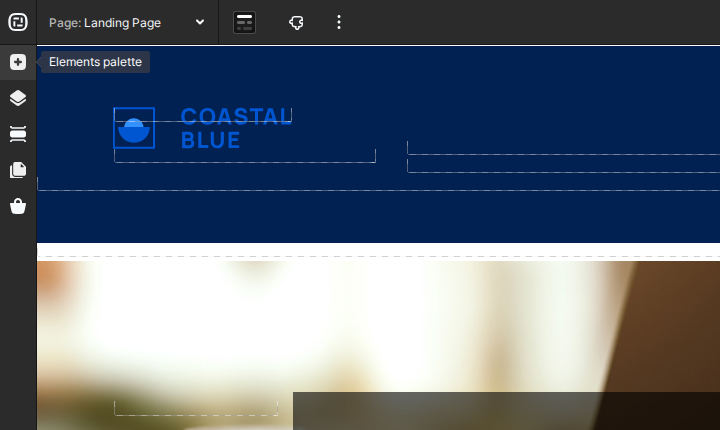
Open Add elements on the left to find the controls for adding content to the page. The controls are grouped by purpose; drag the element you need onto the canvas to begin editing it.
Layout
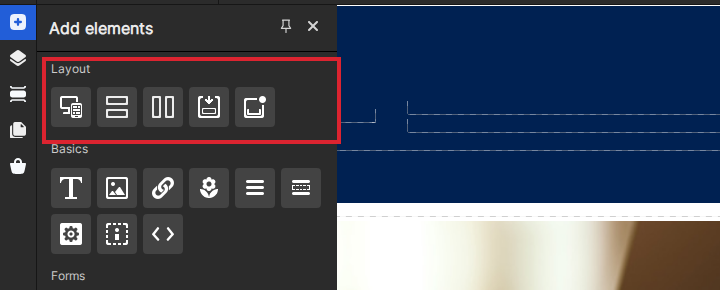
The Layout group in Add elements contains the structure controls for the page, including grids, rows, columns and containers. Use them to build the responsive structure into which you place content.
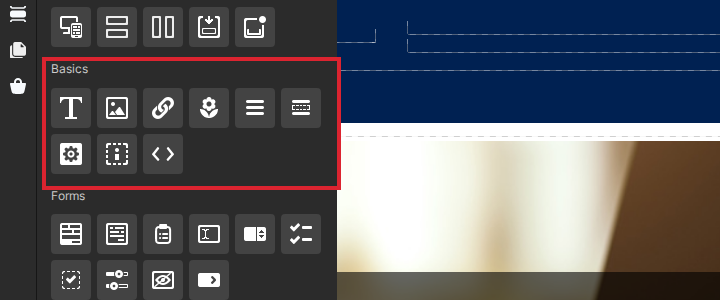
Basics
The Basics group in Add elements contains common page elements such as text, images and links, plus the additional basic controls shown in the panel.
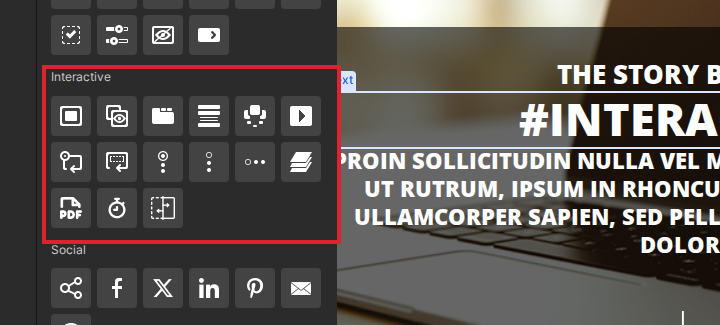
Interactive
The Interactive group in Add elements contains current components for interactive layouts and media, including tabbed and layered content, accordions, lightboxes, video and other reusable interactions.
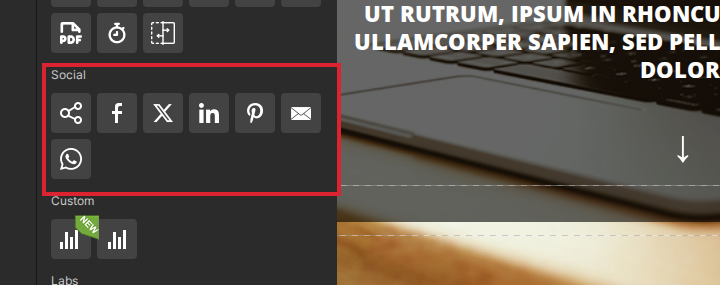
Social
The Social group in Add elements contains the current sharing and network controls, including Facebook, X, LinkedIn, Pinterest, email and WhatsApp options.
Editing elements
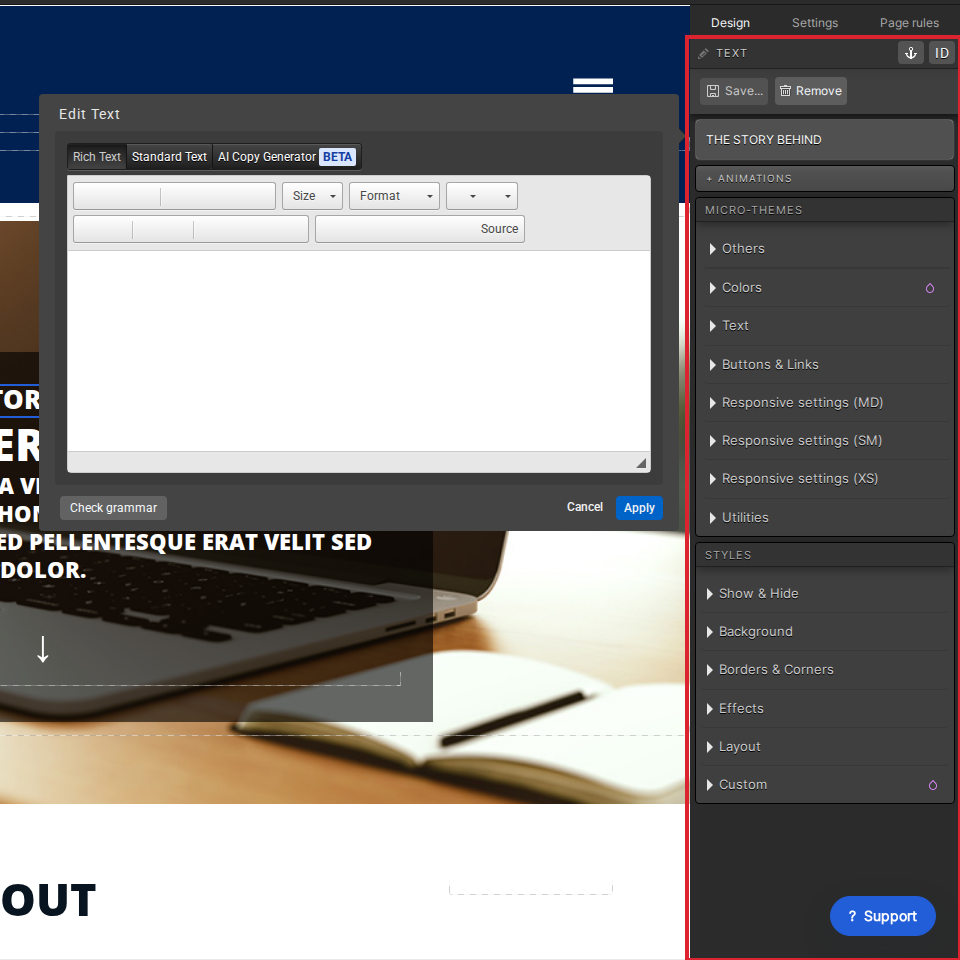
Select an element on the canvas to open its inspector on the right. Element settings are organized in that inspector, while focused editors provide Cancel and Apply controls for direct content changes.
Text – just click and edit
Select a text element to open the Text inspector, then choose Edit Text to open the focused editor. Make the change and choose Apply, or choose Cancel to leave the text unchanged. Other text settings remain available in the right inspector.
Images – upload directly from your page
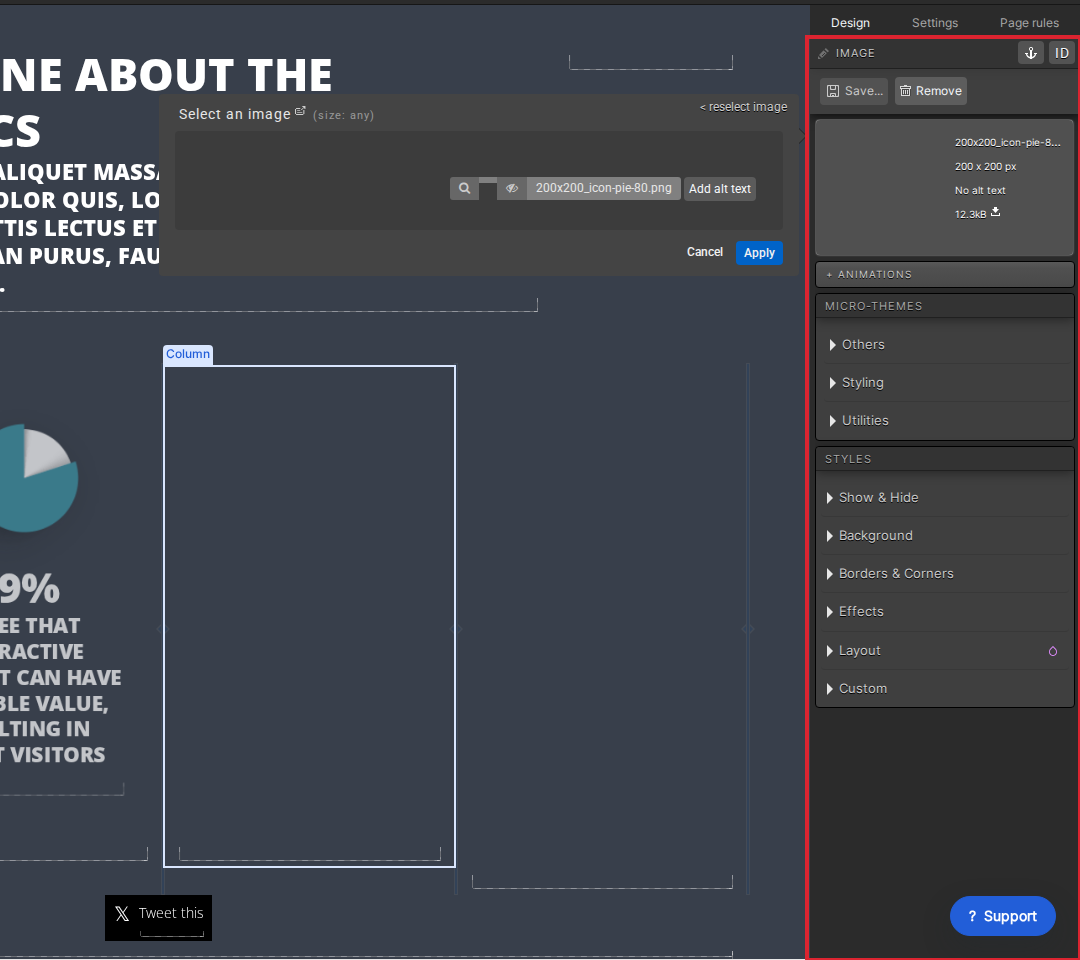
Select an image element to open the Image inspector, then open Select an image to reach the image library. Search the library or browse its categories for the asset you need.
You can upload an approved image from the library dialog when needed. Use only assets that are cleared for the creative and do not expose private or client data.
After placing the image, use the sections in the right inspector to configure its action, rules, styling and other available settings.
Links
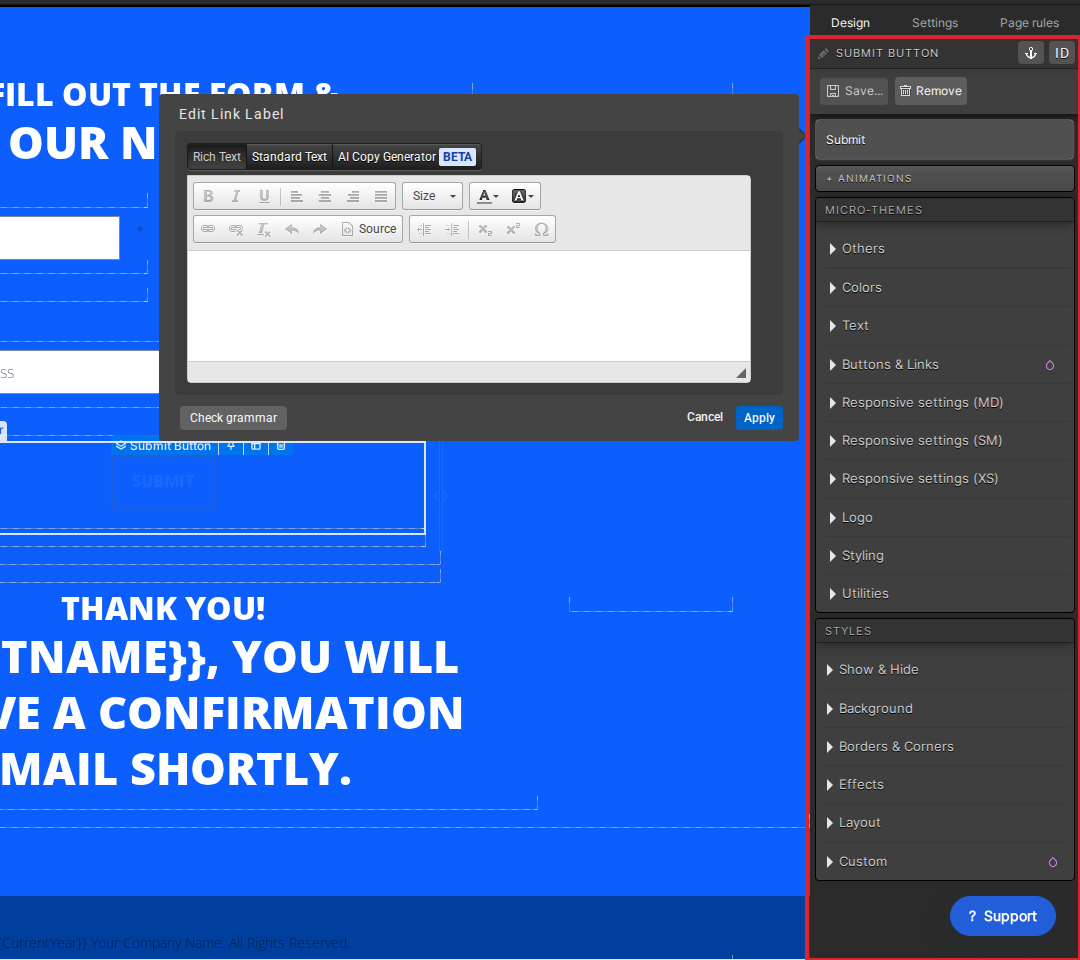
Select the link or button to open its right inspector, then use Edit Link Label to change the text in the focused editor. Choose Apply or Cancel, and configure the link action, rules and styling in the inspector.
Layers
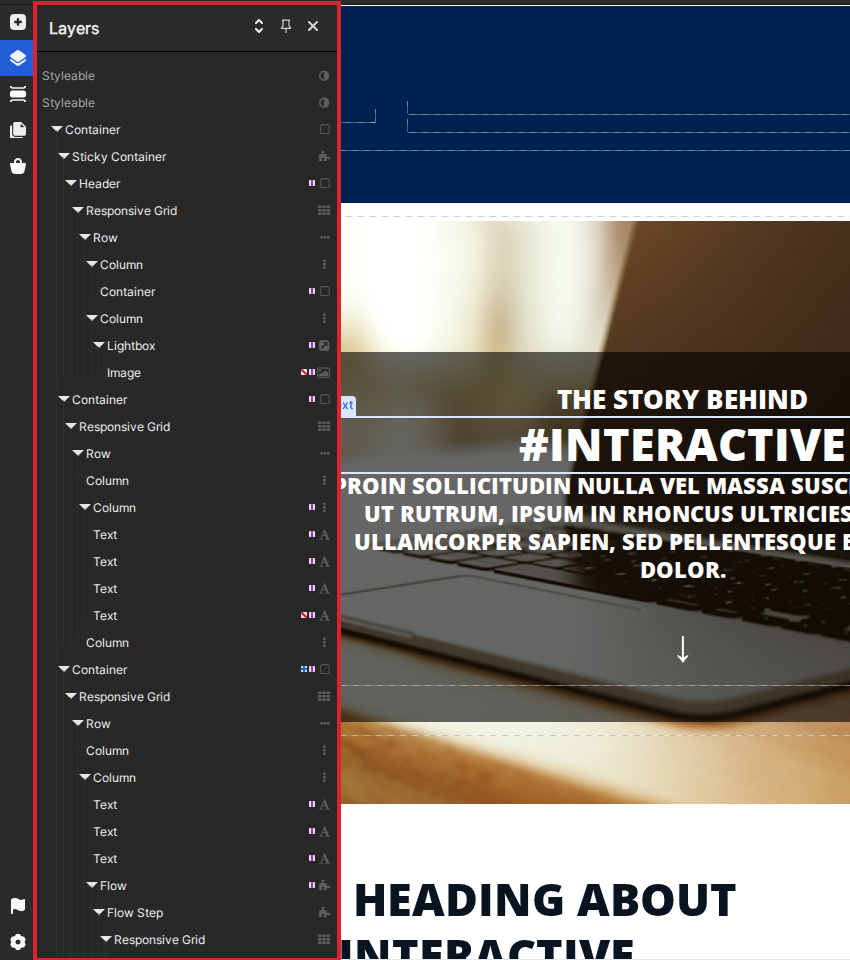
The Layers panel shows the page’s nested structure. Elements are grouped beneath the rows, columns and containers that hold them, making it easier to understand the current hierarchy.
Expand a branch in Layers to find an element, then select it to locate it on the canvas and open its inspector.
The tree labels and icons identify each item and its element type while preserving the parent-child structure of the page.
Pages and Page rules
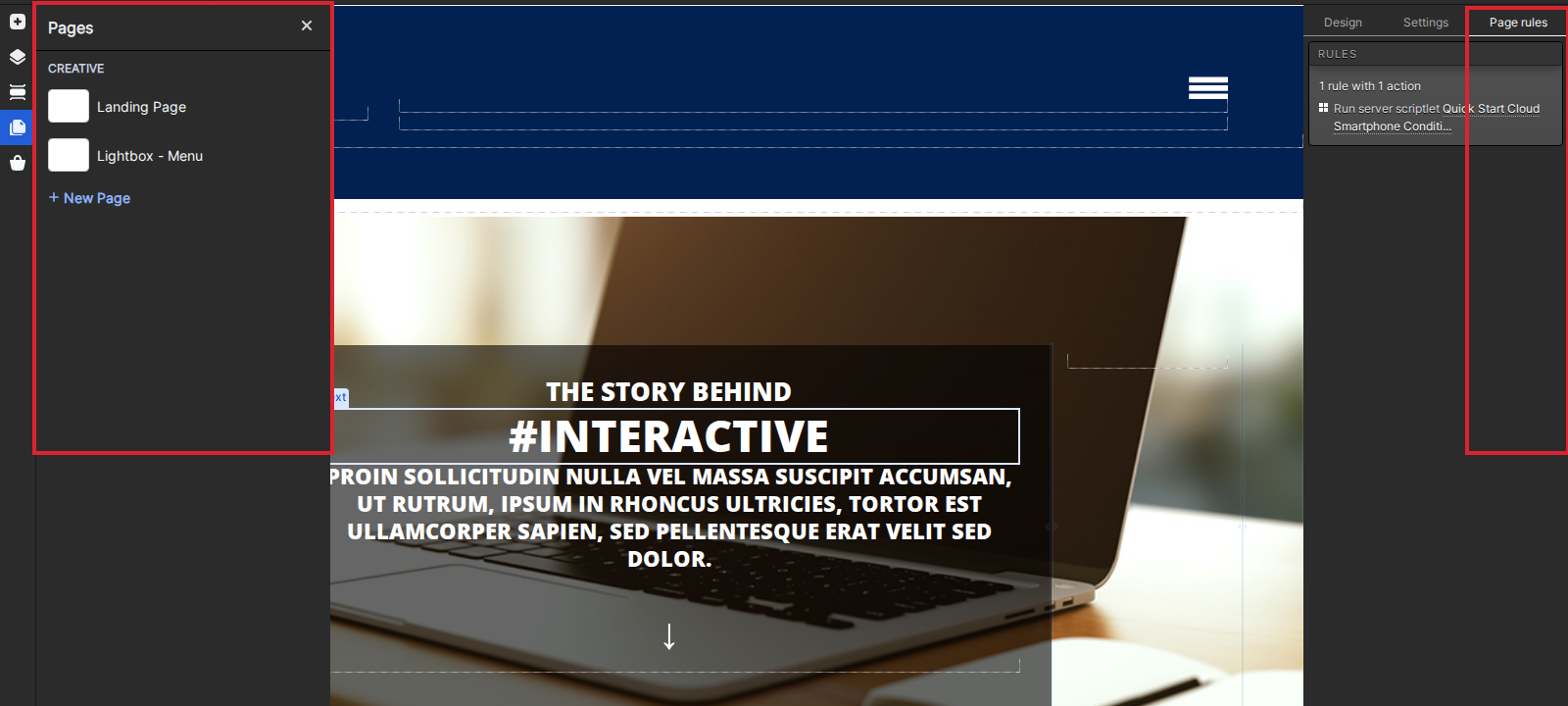
Page rules appears on the right and shows the rules configured for the current page. Open it to add or edit rules that execute on page load.
Open Pages on the left to see and navigate the pages in the current creative. Page navigation is separate from the Page rules area shown on the right.
Creative pages
Use the Page menu near the top left to choose another page in the creative or select New Page. The Pages area also provides page navigation; there is no separate Creative tab in the current Studio.
If you have any questions, please contact us on help@ioninteractive.com.
