
The Show & Hide controls let you control whether an element is available at a responsive breakpoint, when the experience is embedded, or when a condition is true. This makes it possible to adapt one creative to different devices and respondent states without duplicating the page.
Open Show & Hide
- Open the creative in Creative Studio.
- Select the element you want to control.
- On the Design tab, expand Show & Hide.
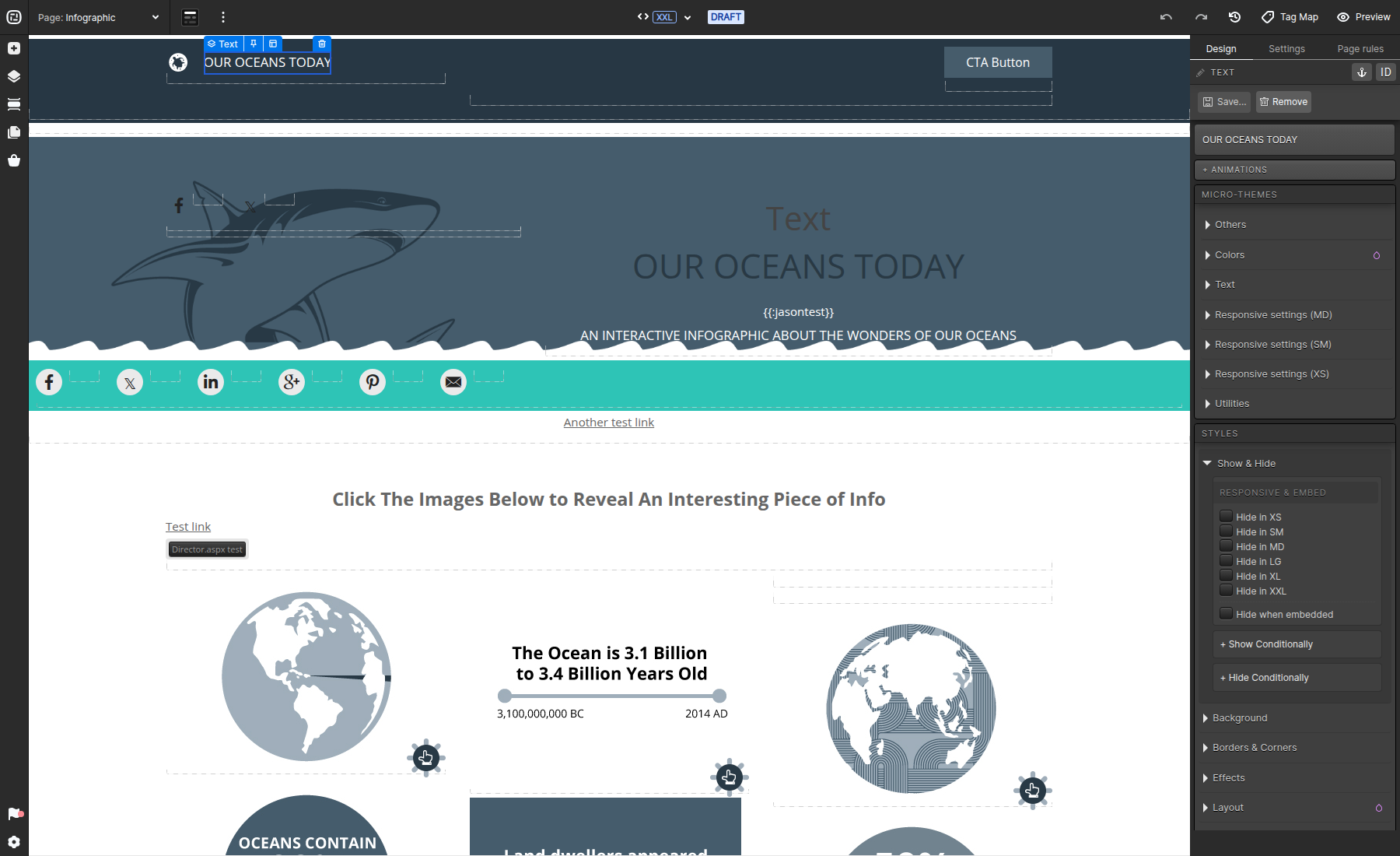
Responsive and embed visibility
Use the responsive checkboxes to hide the selected element in XS, SM, MD, LG, XL, or XXL. Use Hide when embedded when the element should appear on a standalone Ion URL but not inside an embedded experience.
Switch the preview size at the top of Creative Studio to confirm the design at each breakpoint. A hidden element does not occupy its normal page space at that breakpoint, so also check the surrounding layout.
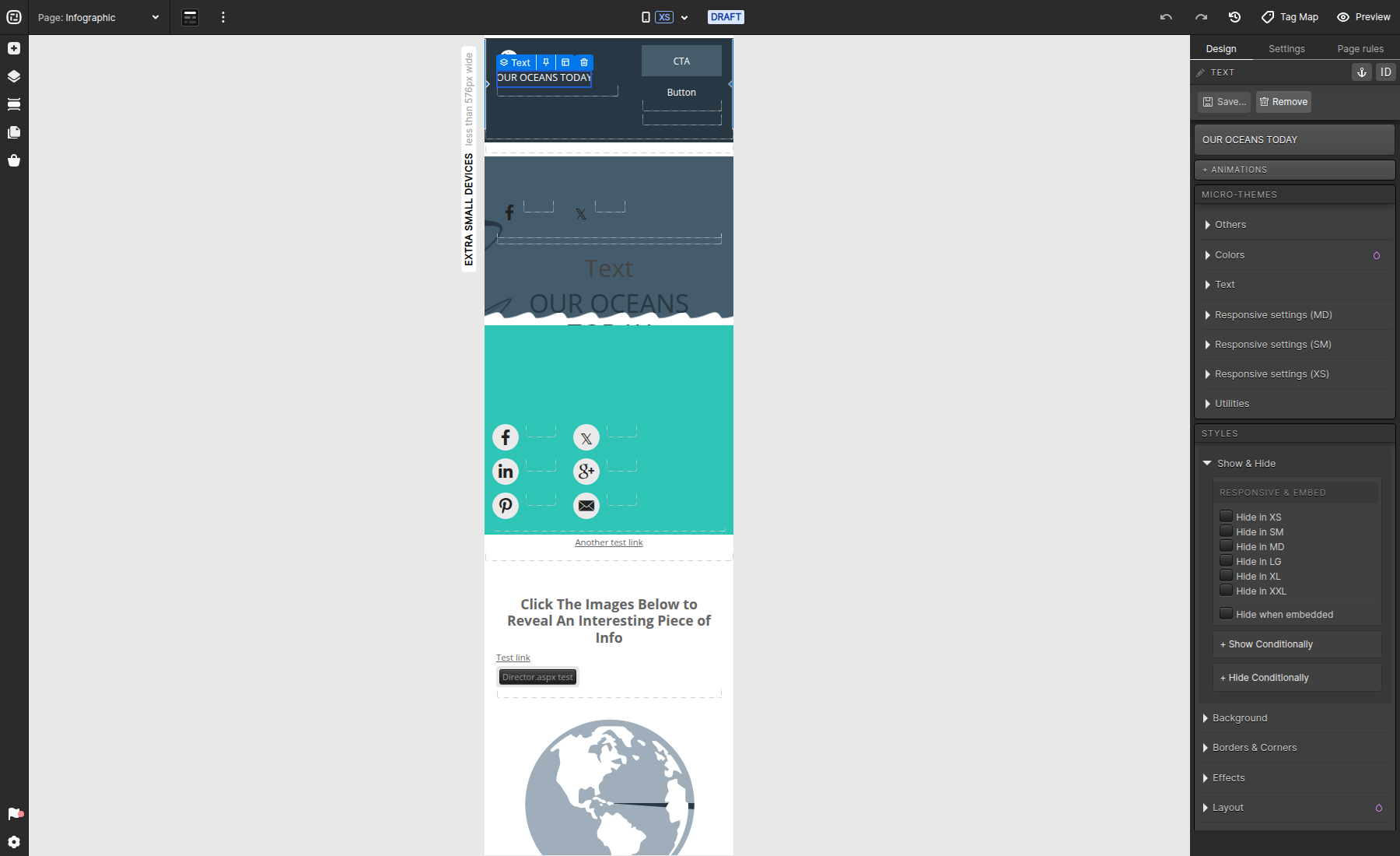
Conditional visibility
Select Show Conditionally or Hide Conditionally to add a condition based on available respondent data or experience state. Keep conditions mutually understandable, and test both the matching and non-matching paths in Preview before publishing.
For rules that perform actions beyond element visibility, use the Page rules tab instead.
