
Restrict Permissions to Ion Users
Login Page
The Ion login page allows users to sign in with their User ID and password. For trusted browsers or personal devices, the “Stay Signed In” option can be selected to make future access more convenient. If a password has been forgotten, users can also begin the password recovery process directly from the login page. Customers with the Single Sign-On (SSO) integration enabled can also sign in using their organization’s existing credentials, providing a faster and more secure login experience.
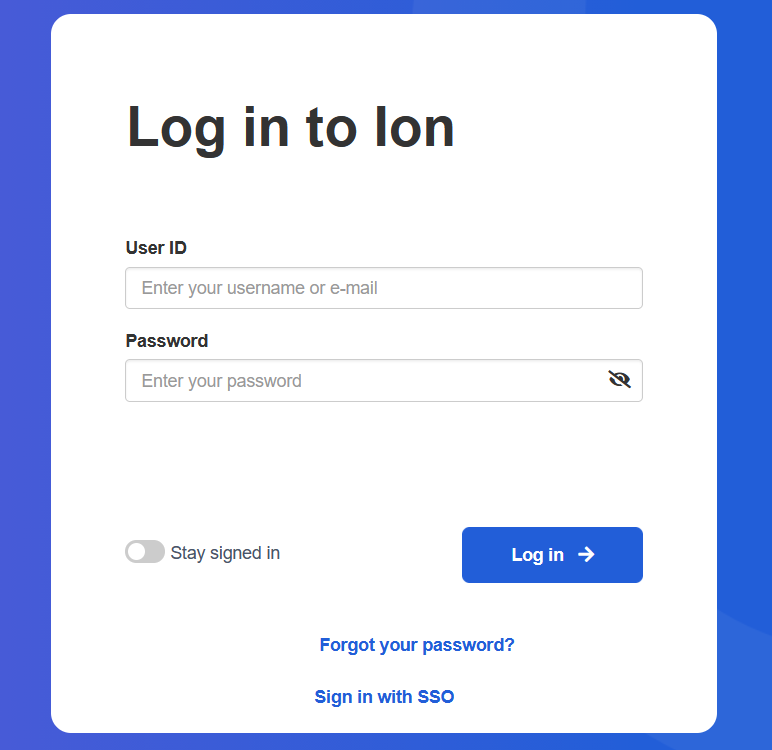
* In case you aren’t able to login to the platform, try to reset the password using the following link. Be sure to include your console name in this URL: https://[YOURCONSOLENAME].postclickmarketing.com/ixp/Manager/PasswordResetRequest
Add a New Ion User
It’s simple for a console Owner (aka console administrator) to create a new User Account. Upon Login creation, an email notification will automatically be sent to the new User.
- Navigate to Settings > Accounts
- Add a User by clicking the “New User” button
- Enter the email address of the new User
- You may choose to make this User a console “Owner” (full privileges to add/edit Accounts)
- Or select the User’s feature and Portfolio access
- Save the User information
Once the new User information is saved, an email will be sent to the address entered in #3 with a link for the new User to set up their Login credentials. Console Owners can edit User information by clicking the Username within the Settings > Accounts screen.
Change Your Password
To change your Password, first you must Login into Ion Account.
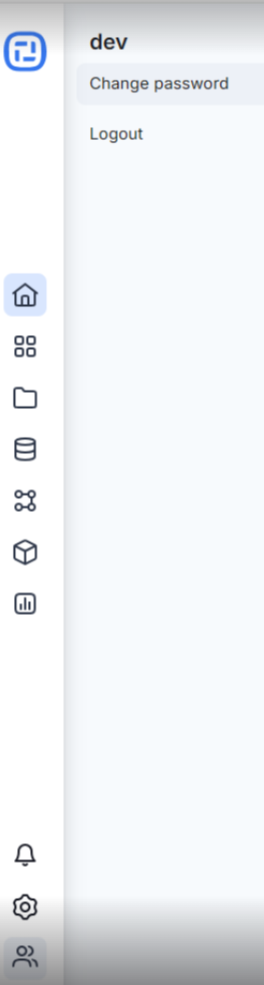
- Navigate to User Icon > Change Password
- Enter your old Password
- Enter a new Password (minimum 6 characters, 1 digit or non-alphanumeric character)
- Verify your new Password
- Save the updated Password
To change another Owner’s Password, navigate to Settings > Accounts and click the other console Owner’s Username Account you want to change and then click Actions > Force Password Reset button at the top of the screen. The next time the other User tries to Login, they will be prompted to enter their old Password as well as the new one.
Forgot Your Password?
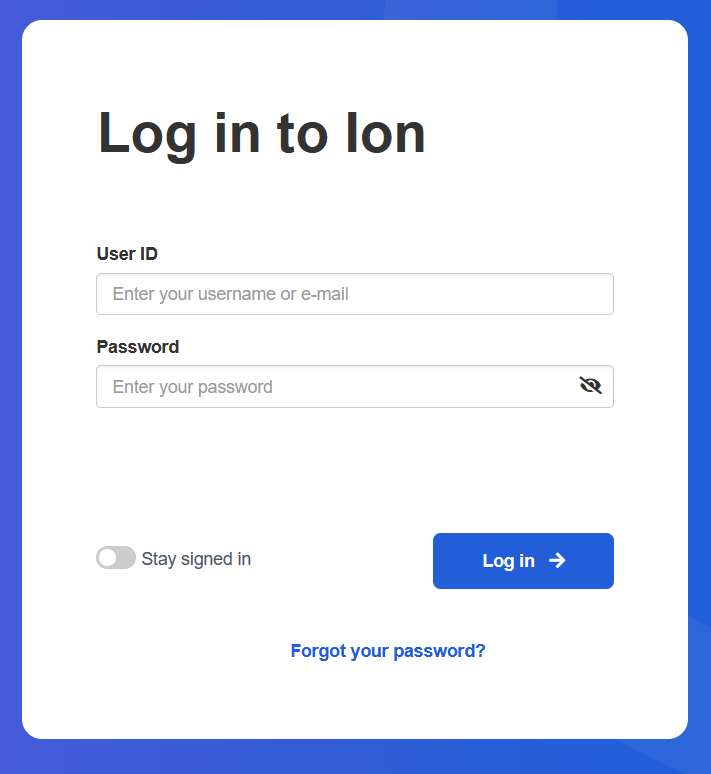
You will find a “Forgot Your User Password?” link below the Password Textbox. Simply click this link and enter your User ID (email address) on the next screen. The platform will send you an email with a link prompting you to reset your Password.
Another option is to ask your console Owner to go to Settings > Accounts and click the Username of the person who forgot their Password:

Then click the Actions > Send Forgot Password Email button:

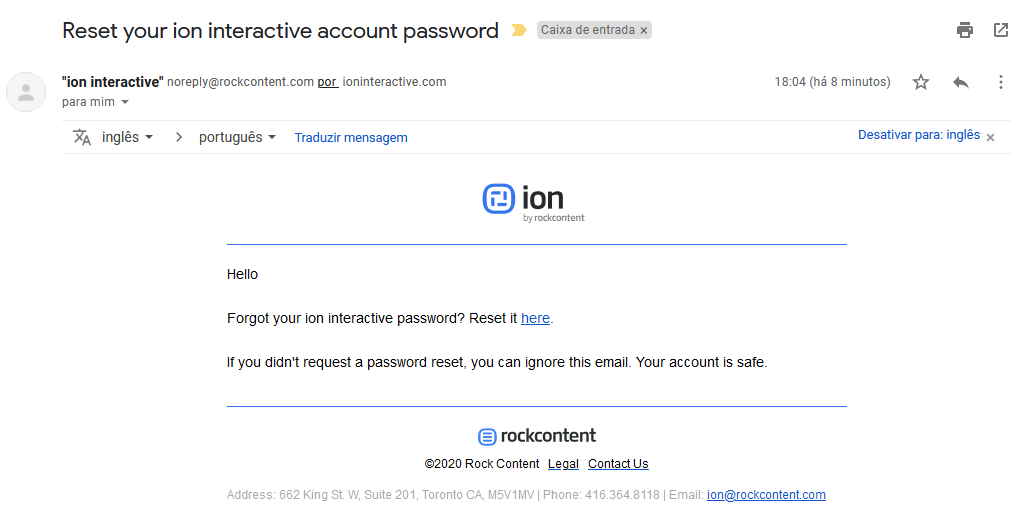
This User will receive a recovery email similar to this one:
User Lockout
Console Owners will find options to lockout users within Settings > Configure Site. From here, console Owners can customize the following lockout options:
- Password Failed Attempts – Number of Login attempts before User is locked out of console;
- Lockout Duration – Minutes User will need to wait before they can attempt to Login the console again;
- Password Expiration – Number of days until Passwords expire (requiring Password reset after expiration);
- Password History Count – Number of times a given Password can be used when resetting Passwords;
- Enable Lockout Notifications – When checked, sends email to all console Owners when a User is locked out of the console with a link that allows Owners to restore the user’s access.
NOTE: Console Owners can also force all users to reset their Passwords manually by clicking “Reset All Passwords” button at the top of the Settings > Accounts page.
Restrict Permissions to Ion Users
Ion allows the restriction of Users. Console Owners can add/edit Account Permissions and specify more granular control of areas within the console that Users have access to. There are three ways in which a User can be granted access:
- Select Owner account, which gives that user access to everything and makes the other permission options unnecessary
- Select individual options under Feature Permissions to show only the chosen areas, such as Data Collection, Images, Fulfillment, and Forms.
- Select individual portfolios under Portfolio Permissions. If All Access is selected, you do not need to select each portfolio.
The Dashboard is available to Owner Accounts and users with All Access under Portfolio Permissions. A new portfolio can be created by an Owner Account, a user with All Access, or a Permission Group Manager.
When a non-owner user signs in without All Access under Portfolio Permissions, one of three things will happen:
- If they have access to ZERO portfolios, the console takes them to the Portfolios page, but instead of showing an empty portfolios table, we show them a friendly message (“Welcome to ion. Please choose one of the options from the menu bar above”).
- If they have access to EXACTLY ONE portfolio, the console takes them directly to that Portfolio.
- If they have access to TWO OR MORE portfolios, the console takes them to the Portfolios page, but this time it displays the portfolio choices (but not the “+ portfolio” button).
If a user has All Access under Portfolio Permissions but is not an Owner, the Capacity gauge on the Dashboard will not be clickable.
Everything under the “Settings” menu is ONLY available to account owners — with the exception of “Change Password”, which is available to everyone.
If a user is not an Owner, access to individual pages is determined by the feature and portfolio options selected on the Add/Edit User page.
Only Libraries and Data Management menu options that were checked will be visible. If no Libraries options are checked, then the Libraries option is not displayed. If a user attempts to use bookmarked (or favorite) links to view or access pages with features or portfolios that they do not have access to, they’ll be redirected back to the Portfolios page.
Permission Groups & Roles
Permission groups provide console owners more options for the level of access granted to users of the Ion platform. Console owners can now give users access to specific portfolios as well as specific resources. This makes access assignment faster and more scalable, as portfolios and access to resources can be added to a particular group to give users access to these portfolios and resources, instead of having to enable access to new portfolios every time which are added to the console. In addition to permission groups, console owners can assign specific functions to users who have access to a particular group. Check out the classification of these functions below:
Console Owner
- Can add/remove users to the Ion platform
- Create, edit, view, delete all Permission Groups
- Add a Portfolio to a Group or remove it from a Group
- Assign the Manager or Editor role for each Permission Group
- Set a user’s role to Unassigned for a Permission Group
- Configure SSO attributes for Permission Group access on consoles that support SSO
- Grant or remove Owner account access for another user
- Manage user invites (resend, cancel)
- Unlock locked accounts and force password reset for all users
- Receives console notifications (traffic alerts, for example)
Permission Group Manager
- Can open the portfolios and feature areas selected in that Permission Group
- Can create, edit, and delete portfolios for that group
- Can use the available add, edit, and delete actions in the selected Libraries and Data management areas
- Does not become a Console Owner and cannot manage accounts or Permission Groups
Permission Group Editor
- Can open the portfolios and feature areas selected in that Permission Group and work with existing content
- Cannot create portfolios and does not receive add or delete actions reserved for Managers
- May be able to edit an existing item on one screen while another screen is view-only, because each area offers different actions
- Does not become a Console Owner and cannot manage accounts or Permission Groups
Combining permissions: Each Permission Group on Settings > Accounts shows Unassigned, Editor, and Manager. A user can belong to more than one group. Ion combines those groups with the boxes selected under Individual feature & portfolio permissions. If the same item is assigned both ways, individual access or Manager access applies to that item only.
Permission Groups are optional. You can continue assigning individual feature and portfolio access instead.
Global Raw respondent CSV access: All Ion users can export respondent data and they can be set up with the permission to download CSV files with global raw respondent data.
- Across the console: Integrations needs to be checked under Data management on the user settings screen. The user can then open Data Management > Integrations from the left-hand menu and select Export global respondents.
- For one portfolio or campaign: The user opens that item and selects Actions > Export respondents. The checkmark for Integrations on the user settings screen or a Manager role are not required.
If an export action is not shown, contact Ion Support. This article covers downloaded CSV files, not respondent answers viewed through Ask Ion.
