This guide explains how to implement Google Analytics 4 (GA4) on Ion experiences. It also outlines how Google Tag Manager (GTM) can be used as part of the setup.
Why use GA4 on Ion?
Universal Analytics was sunset on July 1, 2023. To continue tracking performance accurately, GA4 must be implemented.
GA4 provides several advantages:
- Cross-device tracking: A modern event-based data model that better reflects how users interact across mobile, tablet, and desktop.
- Enhanced privacy controls: Improved consent and data management options.
- Machine learning insights: Predictive metrics and automated insights to support data-driven decisions.
Together with Ion’s native analytics, GA4 gives you a more complete picture of user behavior and campaign performance.
How tracking works in Ion
In Ion, third-party tracking scripts (GA4, GTM, etc.) are:
- Stored once in the Global Script Library
- Applied at one of three levels:
- Campaign (recommended)
- Creative
- Page
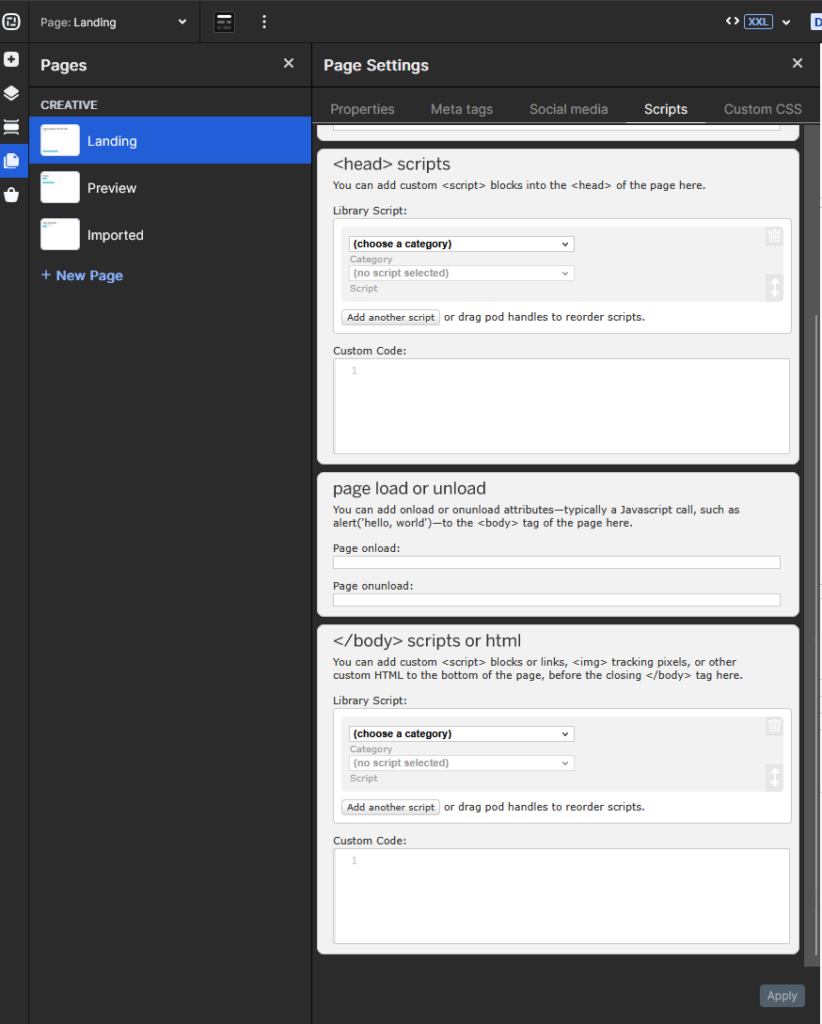
Scripts can be injected into:
- <head>
- before </body>
Adding the script to the Scripts Library and applying it at the Campaign level is generally the most scalable approach, as it ensures tracking is automatically applied to all creatives within that campaign.
Step-by-step: Setting up GA4 on Ion
Step 1 – Create your GA4 property
In Google Analytics:
- Create a GA4 property
- Copy the GA4 tracking script (gtag.js)
Follow Google’s official GA4 setup documentation if needed.
Step 2 – Add GA4 to Ion’s Global Script Library
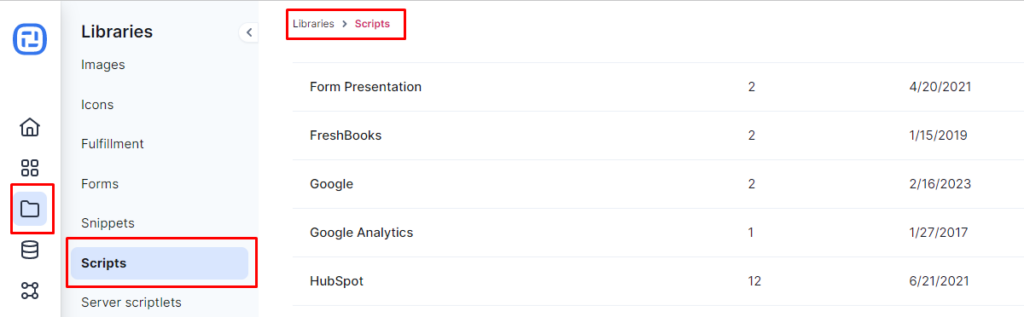
Navigate to:
Dashboard → Libraries → Scripts
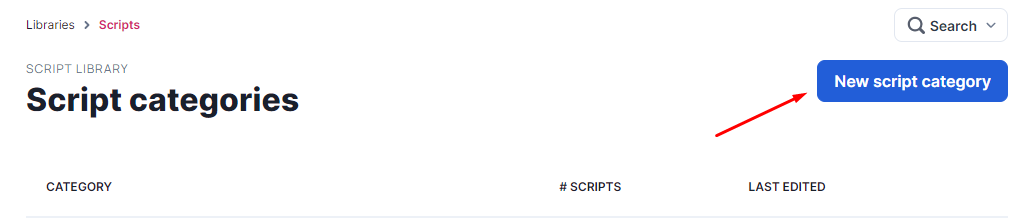
- If you already have a Google-related category, open it
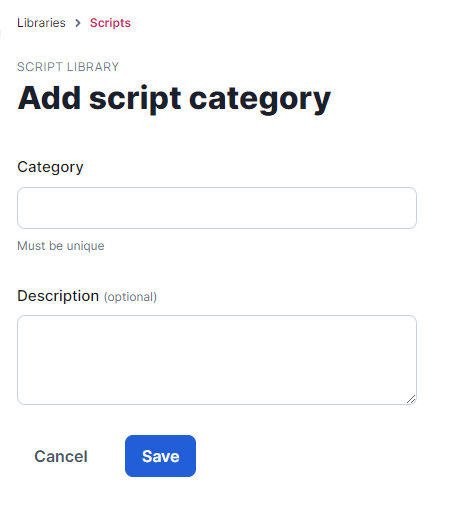
Otherwise, click Add New Category and give it a clear name (e.g. Google Analytics)
Step 3 – Create the GA4 script
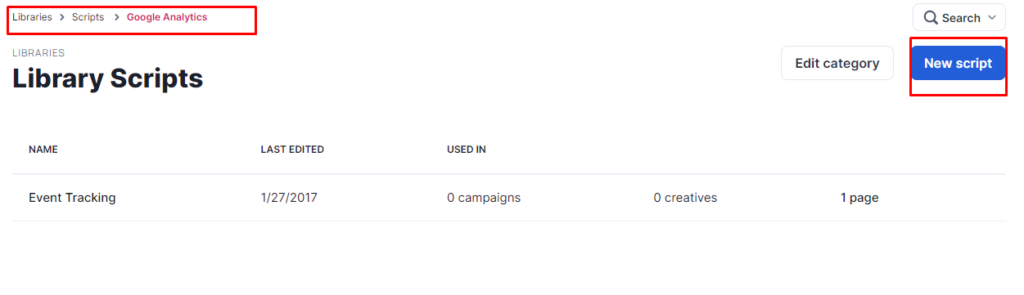
- Click New Script
- Add a clear label (e.g. GA4 – Campaign – Head)
- Select the cookie category: Performance & Analytics
- Paste your GA4 script
- Save
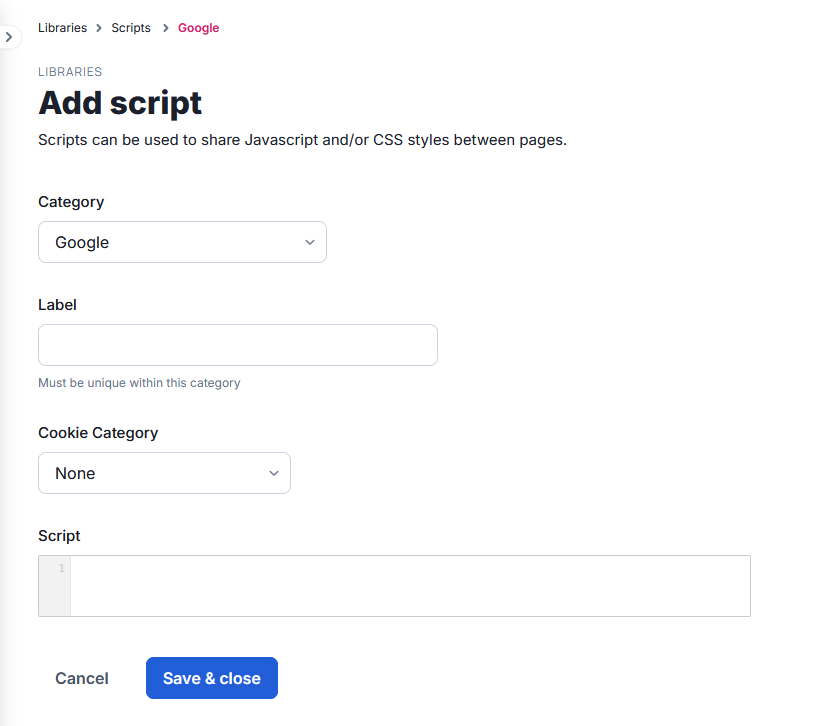
GA4 scripts are typically placed in <head>.
Step 4 – Adding the script to a Campaign
Go to:
Dashboard → Portfolio → Campaign
- Open the desired campaign
- Click Actions → Edit Campaign
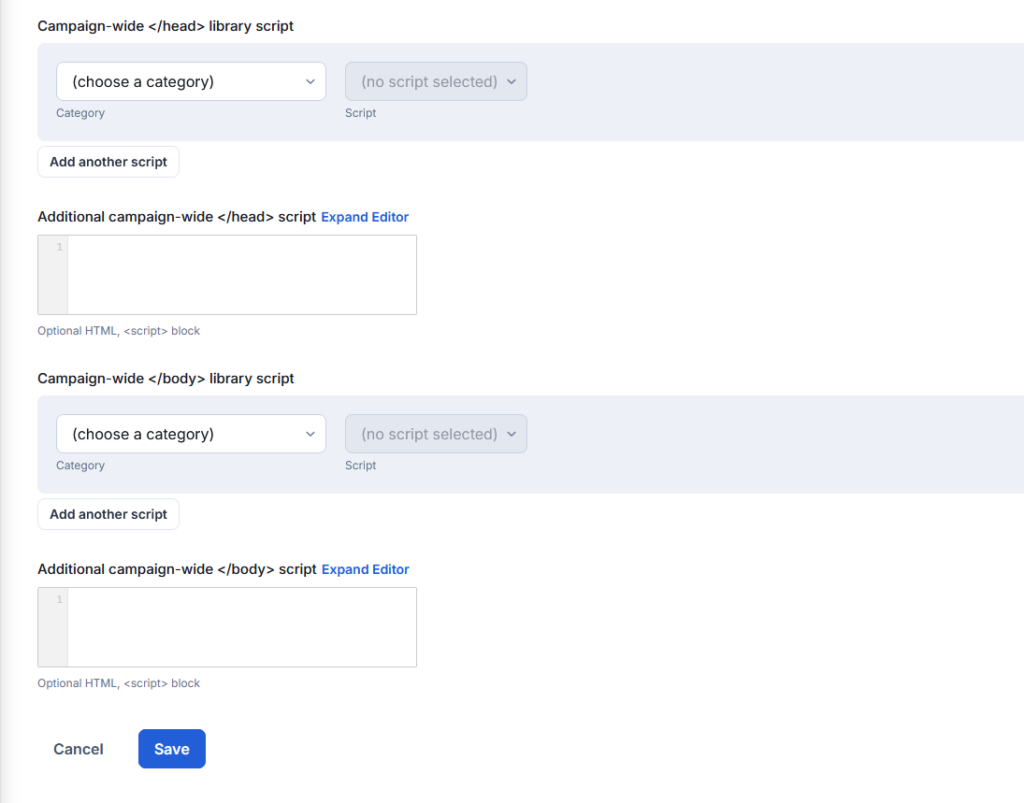
- Scroll to Campaign-wide library script
- Add your GA4 script
- Save
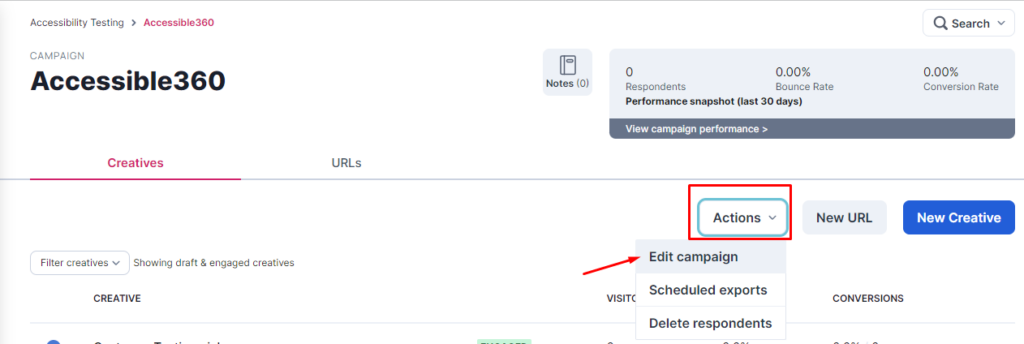
Applying the script at the campaign level makes it available to all creatives within that campaign.
Alternative – Apply GA4 to a single Creative
If you only want to track specific assets:
Dashboard → Portfolio → Campaign → Creative
- Open the creative
- Click Edit Properties
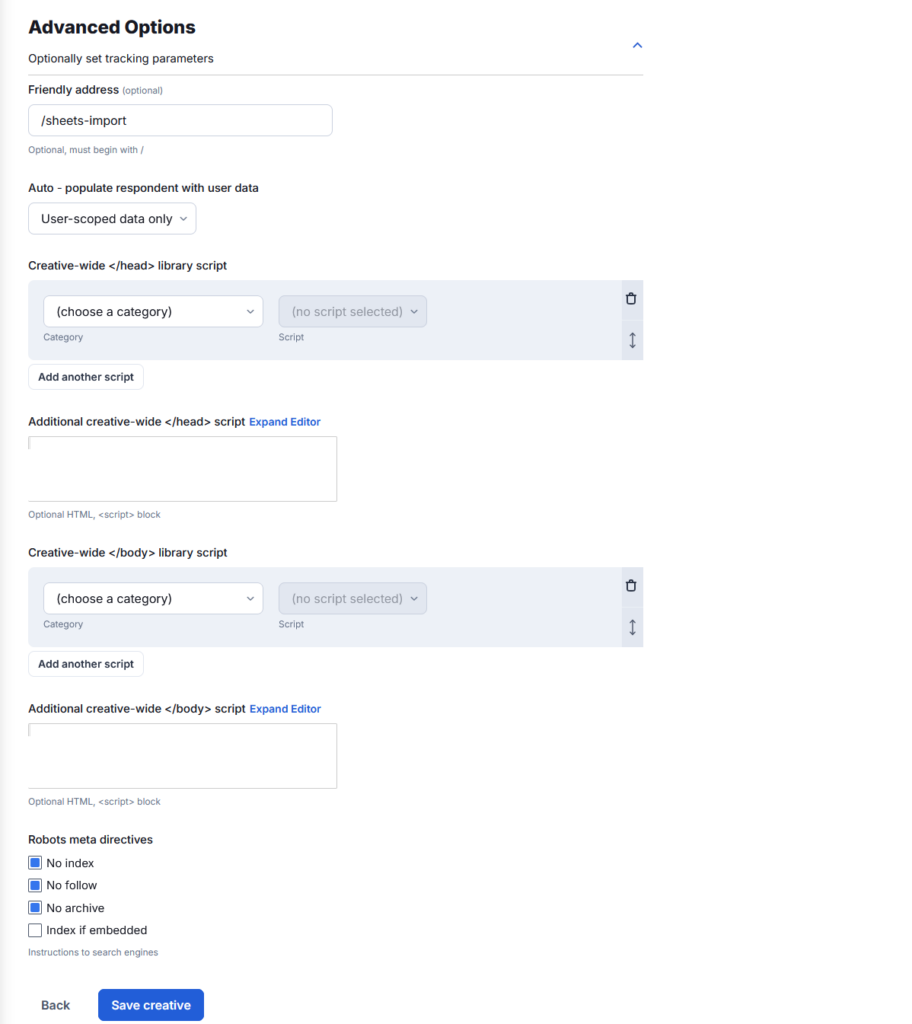
- Scroll to Additional creative-wide script
- Add the GA4 script
- Save
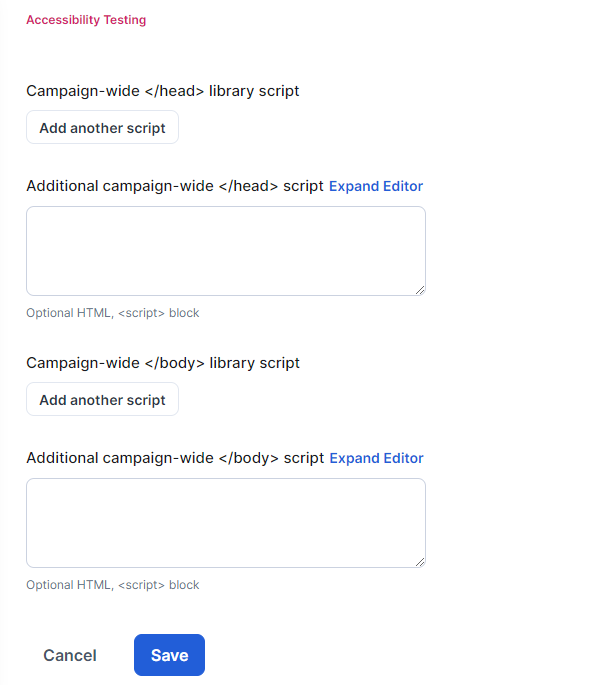
This approach requires adding the script individually to each creative, which may increase maintenance effort compared to campaign-level tracking.
Using Google Tag Manager
For advanced tracking, GTM-first is the most flexible model.
GTM implementation flow
- Add the GTM script to the Global Script Library
- Store:
- <head> snippet as one script
- <noscript> body snippet as another (if required)
- Apply both at the Campaign level
- Manage GA4 configuration and events inside GTM
This approach allows you to:
- Track events without editing Ion pages
- Adjust tracking logic centrally
- Scale tracking across campaigns easily
Script scope: what affects what?
| Scope | Affects |
| Campaign | All pages in all creatives |
| Creative | All pages in one creative |
| Page | One specific page |
In most cases, applying the script at the campaign level simplifies maintenance, as it makes the script available to all creatives within the campaign.
Tracking events (clicks, forms, quizzes)
Ion supports tracking in two complementary ways:
A) Ion-native tracking
- Tags
- Conversion points
- Interaction depth
Used for Ion reporting and dashboards.
B) GA4 / GTM event tracking
When using GA4 (typically through GTM), events can be configured based on user interactions such as:
- CTA clicks, using click triggers
- Form submissions, using form triggers or thank-you page views
- Quiz answers, using click-based triggers
- Results pages, using page path conditions
- File downloads, using link click triggers
- Video starts, using media or click-based triggers
The exact configuration depends on how your GTM container and GA4 property are set up.
Pageviews in standalone Ion experiences
Ion experiences are standalone pages:
- Each page has its own URL
- GA4 pageview tracking works like a standard website
- When an Ion experience is accessed directly (standalone), GA4 pageviews function similarly to standard web pages. If the experience is embedded in another site, tracking behavior may depend on iframe and cookie configurations.
Apply GA4 or GTM at the Campaign level to ensure full coverage.
Will Ion and GA4 numbers match?
Not exactly, and that’s expected.
Common reasons for discrepancies:
- Different measurement models
- Consent and cookie behavior
- Attribution logic
- Session definitions
- Ad blockers
Ion focuses on interaction analytics.
GA4 focuses on broader web and attribution analytics.
Validating your configuration
Before going live, verify:
- GTM Preview mode shows tags firing
- GA4 DebugView shows:
- Pageviews
- Key events
- Conversions
- Test:
- Landing page
- Main interactions
- Conversion confirmation
- Confirm correct script scope in Ion
Multiple domains and subdomains
Ion supports loading tracking scripts across multiple domains and subdomains. Additional GA4 configuration (such as cross-domain tracking) should be managed within Google Analytics.
Keep in mind:
- Configure GA4 cross-domain tracking if needed
- Set referral exclusions appropriately
Ion loads the script; GA4 controls how data is measured.
Maintaining and updating scripts
When scripts are managed via the Global Script Library:
- Update once
- Changes apply everywhere the script is used
Avoid pasting scripts directly at page level unless absolutely necessary.
There are two common ways to implement GA4 in Ion
Using Google Tag Manager
- Add GTM container to Script Library
- Apply at Campaign level
- Configure GA4 and events in GTM
- QA with GTM Preview + GA4 DebugView
Using the GA4 Script Directly
- Add GA4 script to Script Library
- Apply at Campaign level
- Best for pageview-only or simple tracking needs
Final notes
GA4 introduces new concepts that may require:
- Conversion setup
- Custom events
- Reporting adjustments
For advanced use cases, consult Google’s GA4 documentation. If you have questions related to Ion, contact us at help@ioninteractive.com