
Copy and paste can be used with any piece of content in your page, or even between different pages in your console.
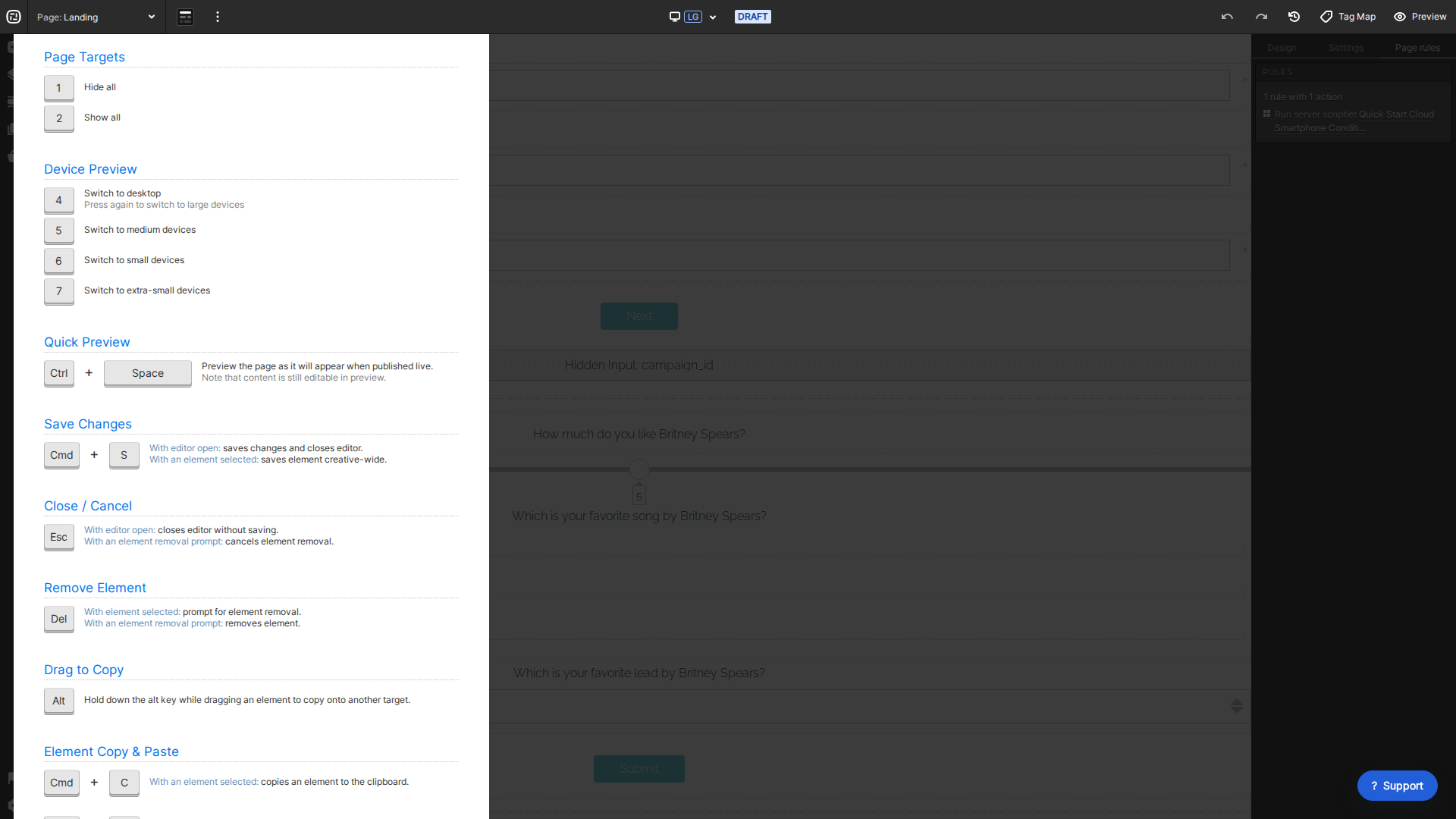
- PC users can click an element and then press Ctrl + C to copy. Next, go to the page you would like to paste the content, click into the place where you would like to paste your content and press Ctrl + V.
- Mac users can click an element and then press Cmd + C to copy. Next, go to the page you would like to paste the content, click into the place where you would like to paste your content and press Cmd + V.
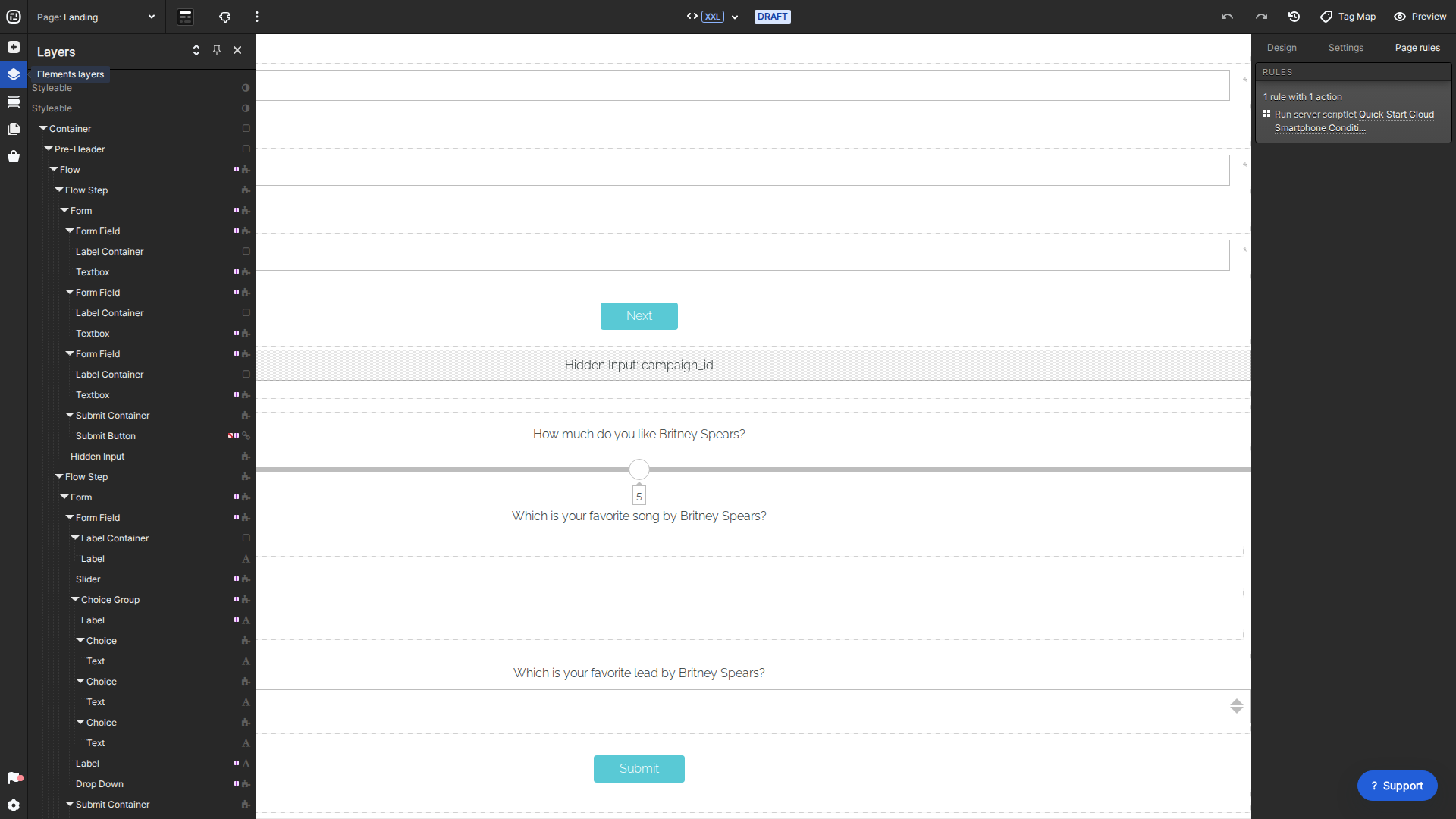
You just have to make sure that you are pasting the content into a higher-level container/element. You can use the up arrow of your keyboard, the List tab of your Creative Studio, or the menu indicated below to navigate through the hierarchies:
In the example above, you can copy the Choice container, go up one level and paste it into the Column.
*NOTE: For a short-cut, you may also hold the alt button on your keyboard and click and drag a given element into another container on the page to copy the element to that container.
If you have any questions, please contact us on help@ioninteractive.com.
