
Alt Tags
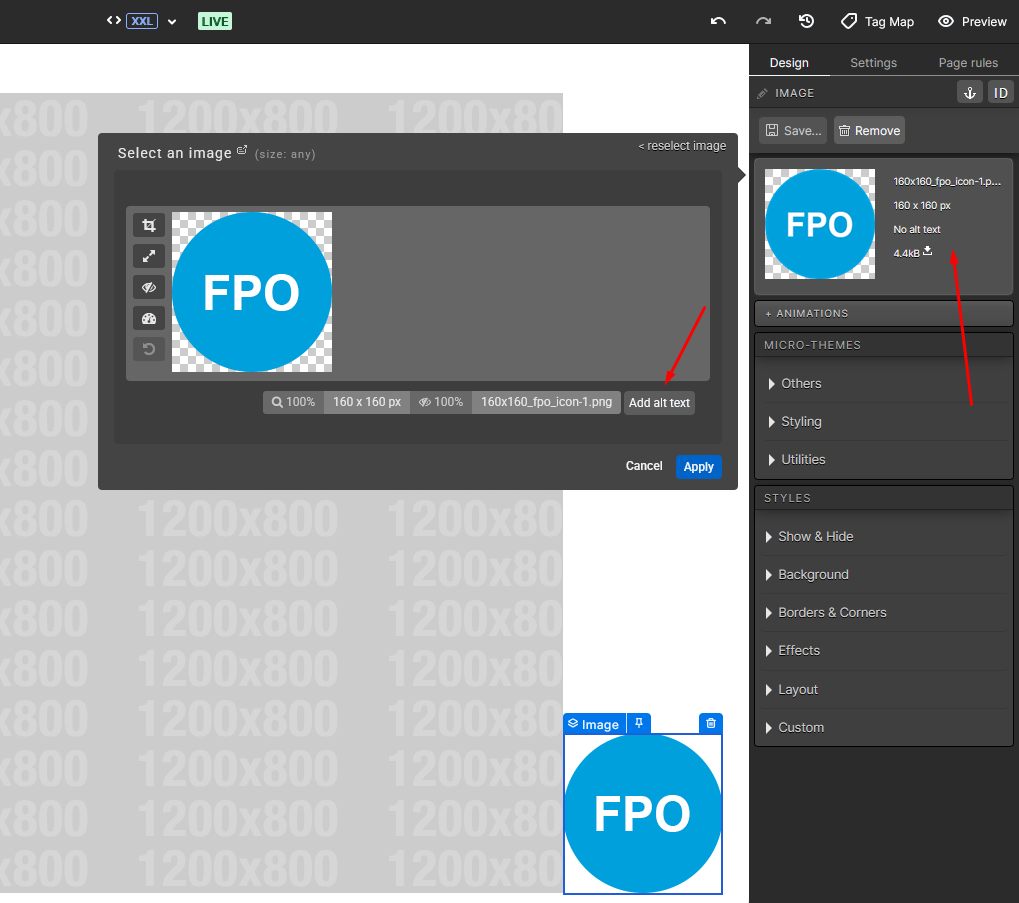
When setting up a standard image, you can apply an alt tag that is read by search engine crawlers.
Meta Tags
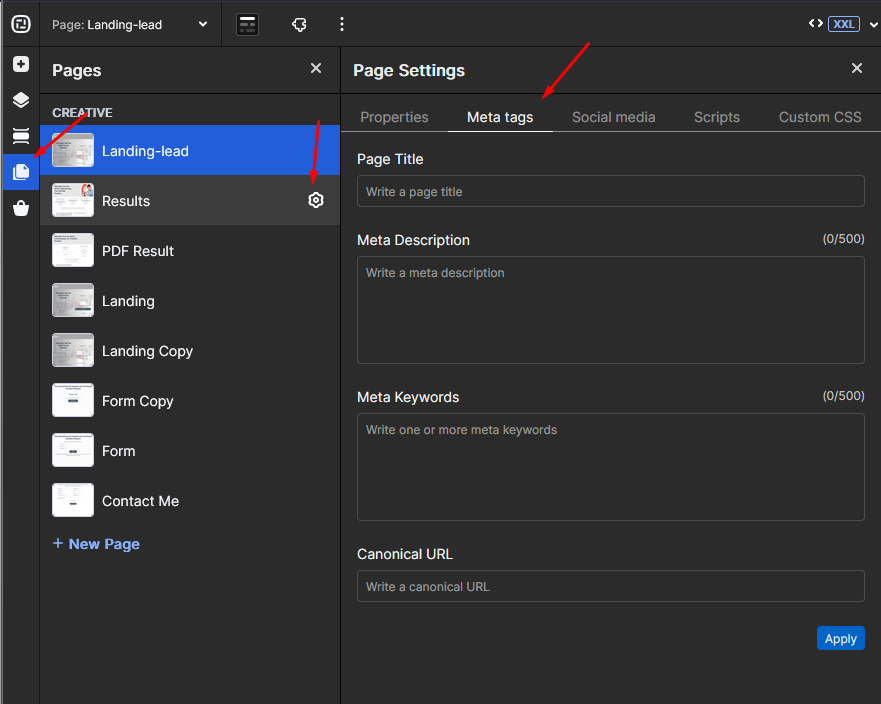
You can update your meta tags directly within the Page tab of your creative studio. Meta tags are used to control the following information about your page:
- Page title: This is the title of your page as displayed within the tab at the top of your browser.
- Description: This is the description that will be displayed when your page is found on a search engine and other sources of traffic.
- Keywords: You can add meta keywords to make it easier to find your experience in organic search results.
- Canonical URL: Tells search engines to crawl another URL for organic search ranking.
Structured Data (Schema.org), AEO and GEO
Schema.org is a shared vocabulary that search engines and AI answer engines use to understand what a page is about. Instead of leaving crawlers to infer meaning only from your copy on the web page, you label the page explicitly: this is an FAQ, this is a product, this is the organization that published it. Adding such metadata falls under the scope of SEO as well as Answer Engine Optimization (AEO) and Generative Engine Optimization (GEO). The markup is normally written as JSON-LD inside a <script type="application/ld+json"> block placed in the page <head>.
Where to add it in Ion. You can add schema.org markup anywhere the platform lets you write into the <head>. There are three scopes, and the one you pick decides how many pages the markup appears on:
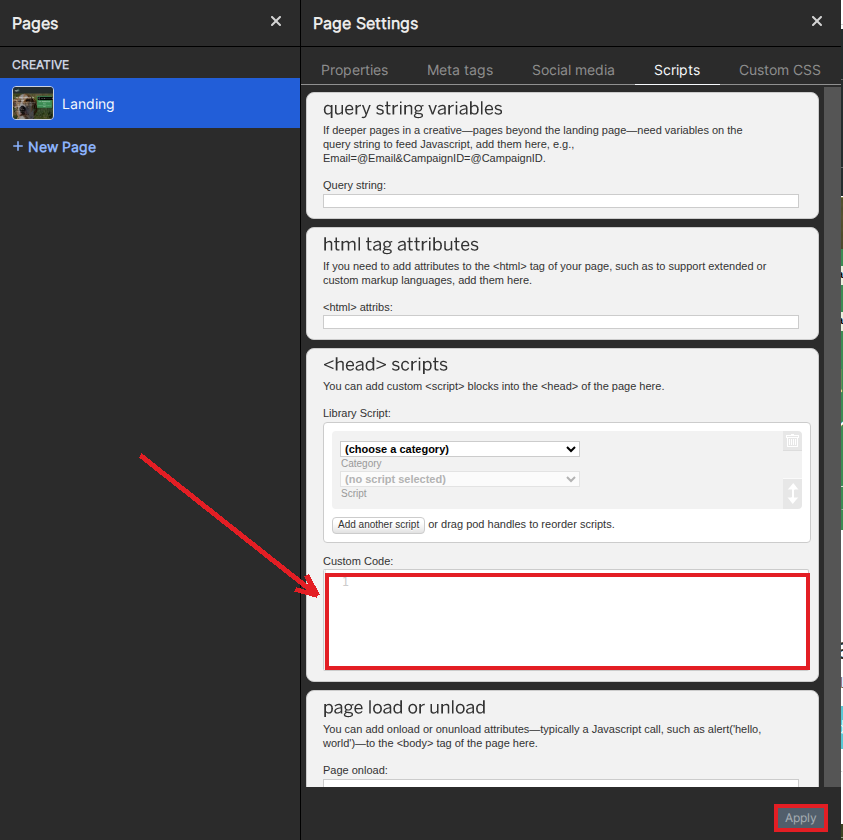
- A single page — use the Custom Code box on the page’s Scripts tab.
- Every page in a creative — use the Additional creative-wide </head> script box in the creative’s Advanced Options.
- Every creative in a campaign — use the Additional campaign-wide </head> script box in your campaign settings.
Whichever box you use, the platform writes what you paste into the page <head> exactly as you typed it. Include the full <script> wrapper, because it is not added for you:
<script type="application/ld+json">
{
  "@context": "https://schema.org",
  "@type": "FAQPage",
  "mainEntity": [{
    "@type": "Question",
    "name": "How long does it take to launch an experience?",
    "acceptedAnswer": {
      "@type": "Answer",
      "text": "Most teams publish their first experience in under a week."
    }
  }]
}
</script>
Adding it to a single page. Open the page in the creative studio, open the Pages panel and click the gear on the page you want, then go to the Scripts tab. Paste your markup into the Custom Code box under <head> scripts and click Apply. Only that page gets the markup, which is what you want when the schema describes something specific to it, such as a single FAQ or one product.
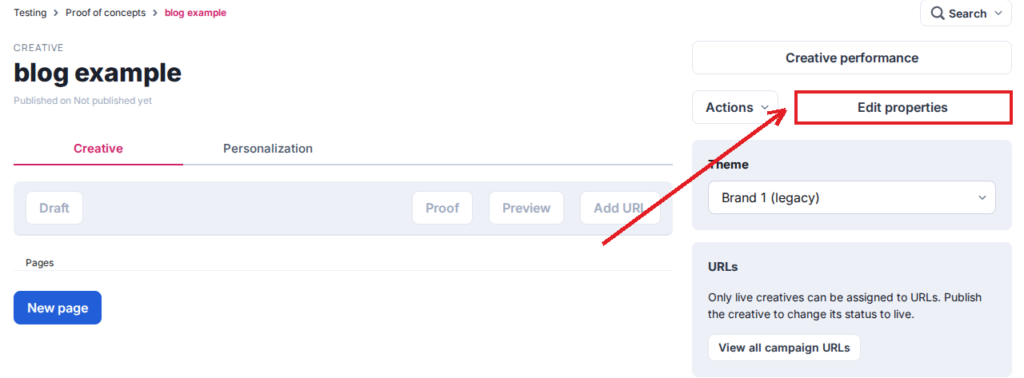
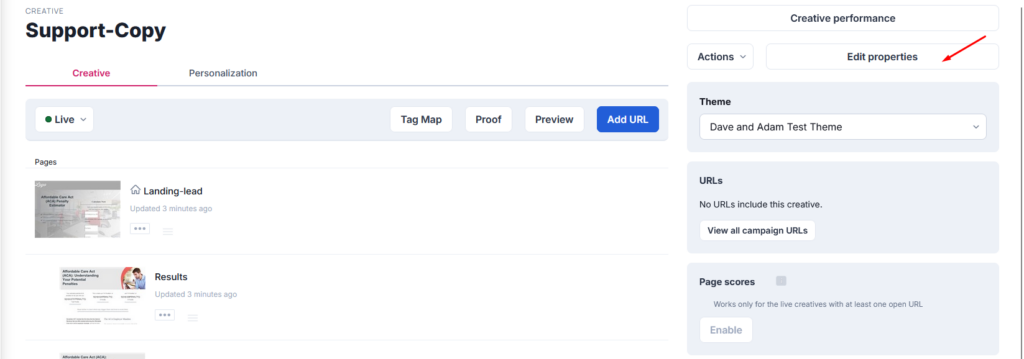
Adding it to a whole creative. If the markup should appear on every page of the experience — an Organization or WebSite block, for example — add it once at creative level instead of repeating it page by page. From the creative’s dashboard, click Edit properties.
On that screen, scroll to the bottom and expand Advanced Options — the script boxes are collapsed by default, so you will not see them until you open it. Paste your markup into Additional creative-wide </head> script, then click Save creative. The markup is now on every page of that creative.
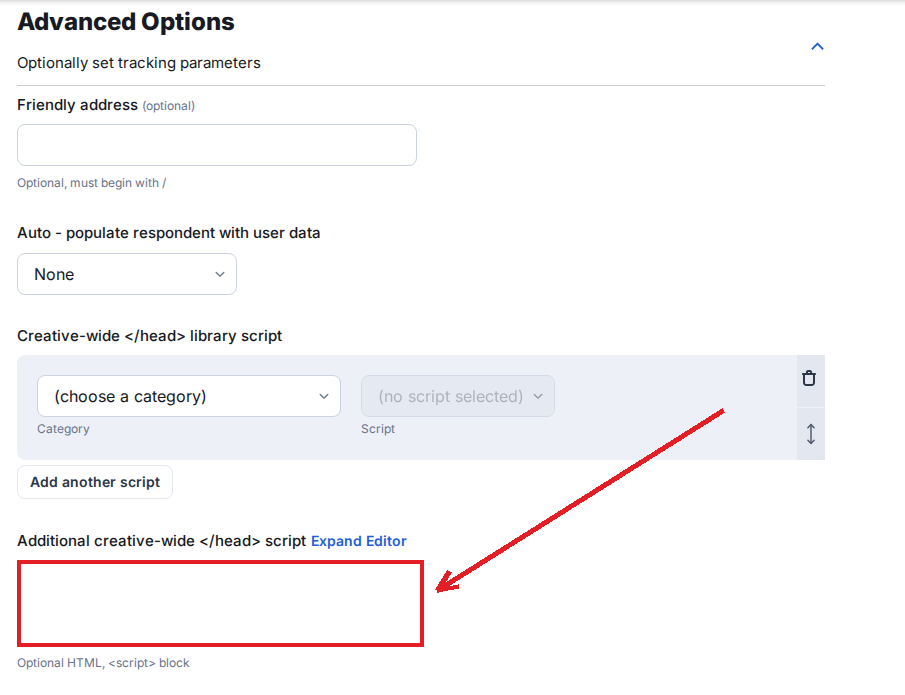
A word on which scope to use: if the same block is added at more than one level it will appear more than once on the page, so pick one home for each piece of markup. Site-level identity such as Organization belongs at campaign or creative level; page-specific markup such as FAQPage or Product belongs on the page.
Things to watch for:
- Structured data has to describe content that is actually visible on the page. Marking up a question, price or review a visitor cannot see is against search engine guidelines, and the markup will be ignored or the page penalized.
- Validate the block before and after you publish, using Google’s Rich Results Test or the Schema.org validator.
- The page still has to be crawlable. Check the Creative and URL settings described above, because markup on a page set to no-index will never be read.
- Head scripts are processed for personalization tokens written as
@@Tokenor{{Token}}. Standard JSON-LD is unaffected, but avoid those two character sequences inside your markup unless you intend them to be merged. - If the experience is embedded in another site, structured data inside the iFrame is not credited to the parent page. See Note on Embed below.
AEO and GEO. Two newer terms come up alongside schema.org, and it helps to keep them apart. AEO (Answer Engine Optimization) is about being the source an answer engine reads out, such as AI Overviews, featured snippets and voice assistants. GEO (Generative Engine Optimization) is about being cited by generative tools such as ChatGPT, Perplexity, Gemini and Copilot. Schema.org is the vocabulary; AEO and GEO are the practices that use it. Clean markup makes a page cheaper for those systems to parse and quote, which is why FAQPage, HowTo, QAPage, Product and Organization are the usual starting points for AEO and GEO work.
One caveat worth stating plainly: no search engine or AI engine guarantees a rich result, an answer box or a citation in return for markup. Schema.org, AEO and GEO improve how well your page can be understood. The ranking and citation decision still belongs to the engine.
Creative
You can click the “Edit properties” button on the Creative Management Screen to access the Edit Creative Screen.
You can check the checkboxes at the bottom of this screen to prevent search engine crawlers from indexing, following, or archiving the Creative and/or indexing when embedded.
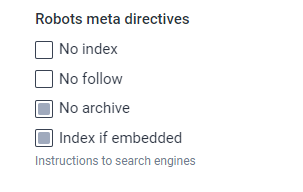
Important: If you want the embedded content to rank for SEO, be sure to check the Index if embedded checkbox.
URL
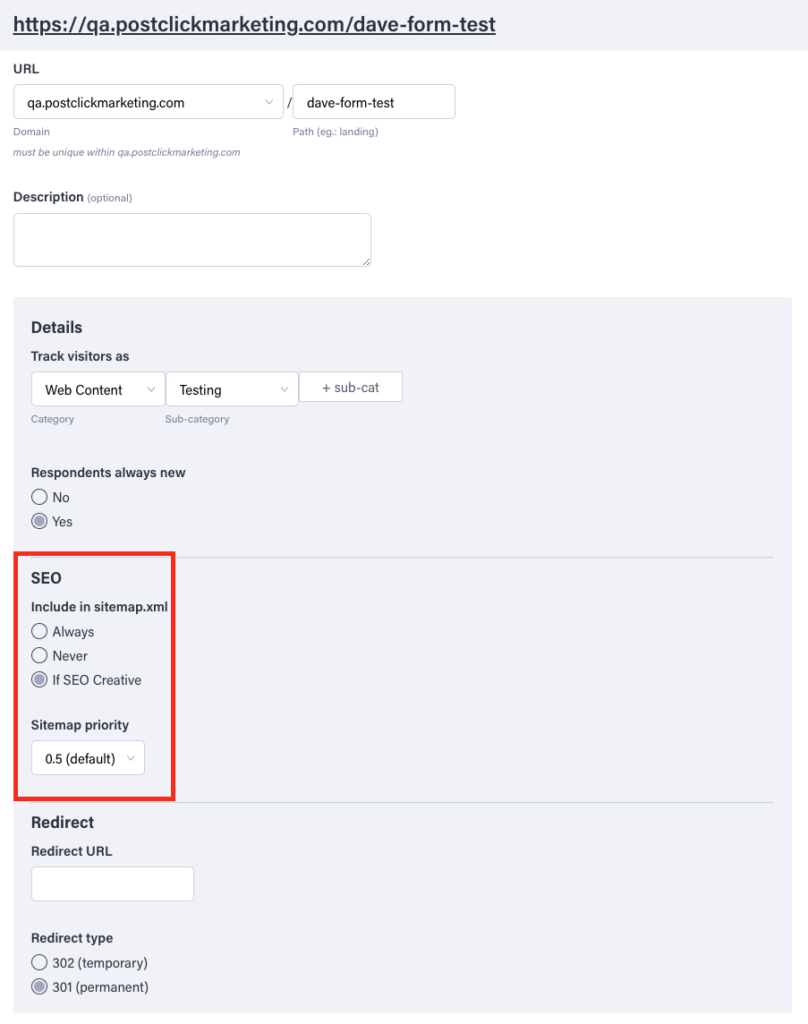
You can click the “Edit URL & settings” button on the right side of the URL Management Screen to edit your URL Settings.
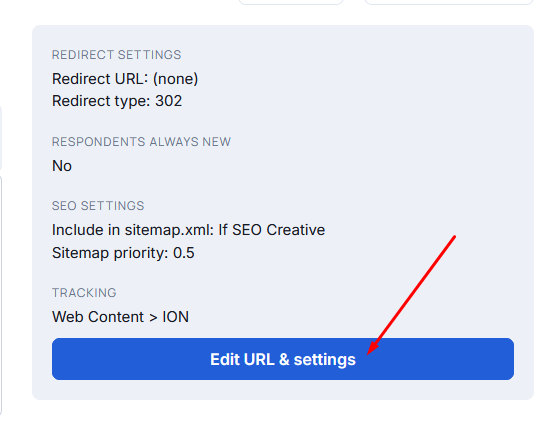
Within the URL Settings, you can choose to include or exclude the URL from your sitemap. By excluding the URL from your sitemap, it would not be crawled by search engines that routinely scan your sitemap. When the URL is included in your sitemap, you can also set the priority of where the URL appears within your sitemap.
When running a split test, you can check which Creative you want search engine crawlers to crawl.
Subdomain
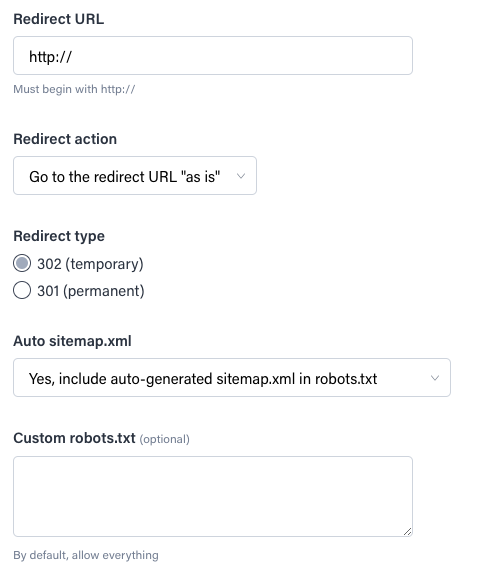
When setting up a new subdomain within your Domain Manager, you can define the type of redirect to use when the domain fallback URL is triggered. You can also specify whether or not the platform should automatically generate a sitemap for your traffic sources. A textbox is available for custom robots.txt.
Note on Embed
Ion embed code is javascript code that dynamically renders an iFrame. This means that any search engine that attempts to crawl the parent site would need to be able to execute javascript in order to render the iFrame and in turn crawl the embedded content. For more, please see this resources on Embed Code and Embedding Best Practices.
