
Use a test URL to share a creative for internal review before directing production traffic to it. A test URL is created through the same URL workflow as a production URL, but its path and search settings should make its temporary purpose clear.
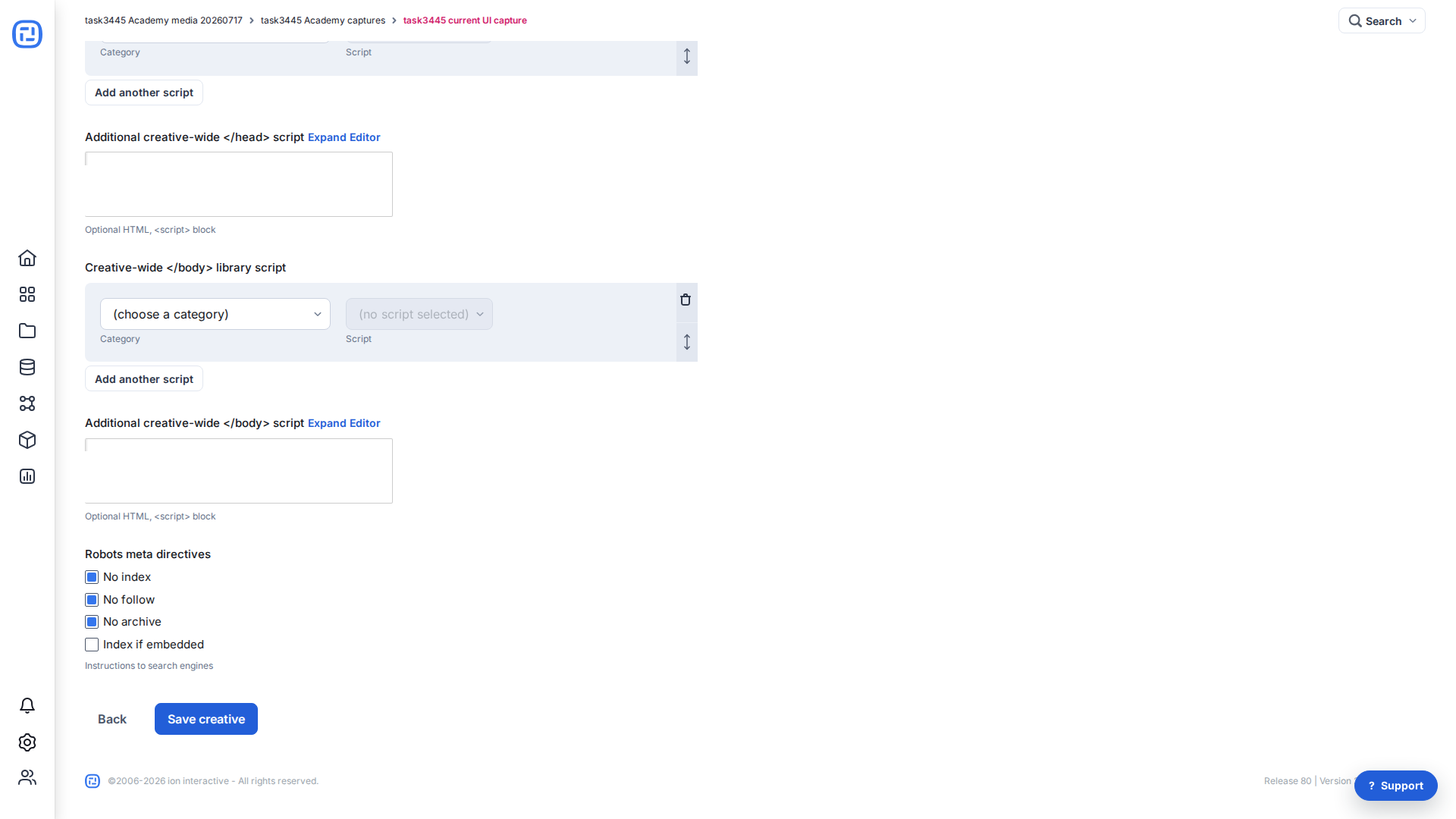
Keep the test experience out of search results
From the Creative Management screen, select Edit properties, expand Advanced Options, and scroll to Robots meta directives. For a test URL, select No index, No follow, and No archive. These directives tell search engines not to index, follow links from, or cache the test experience.
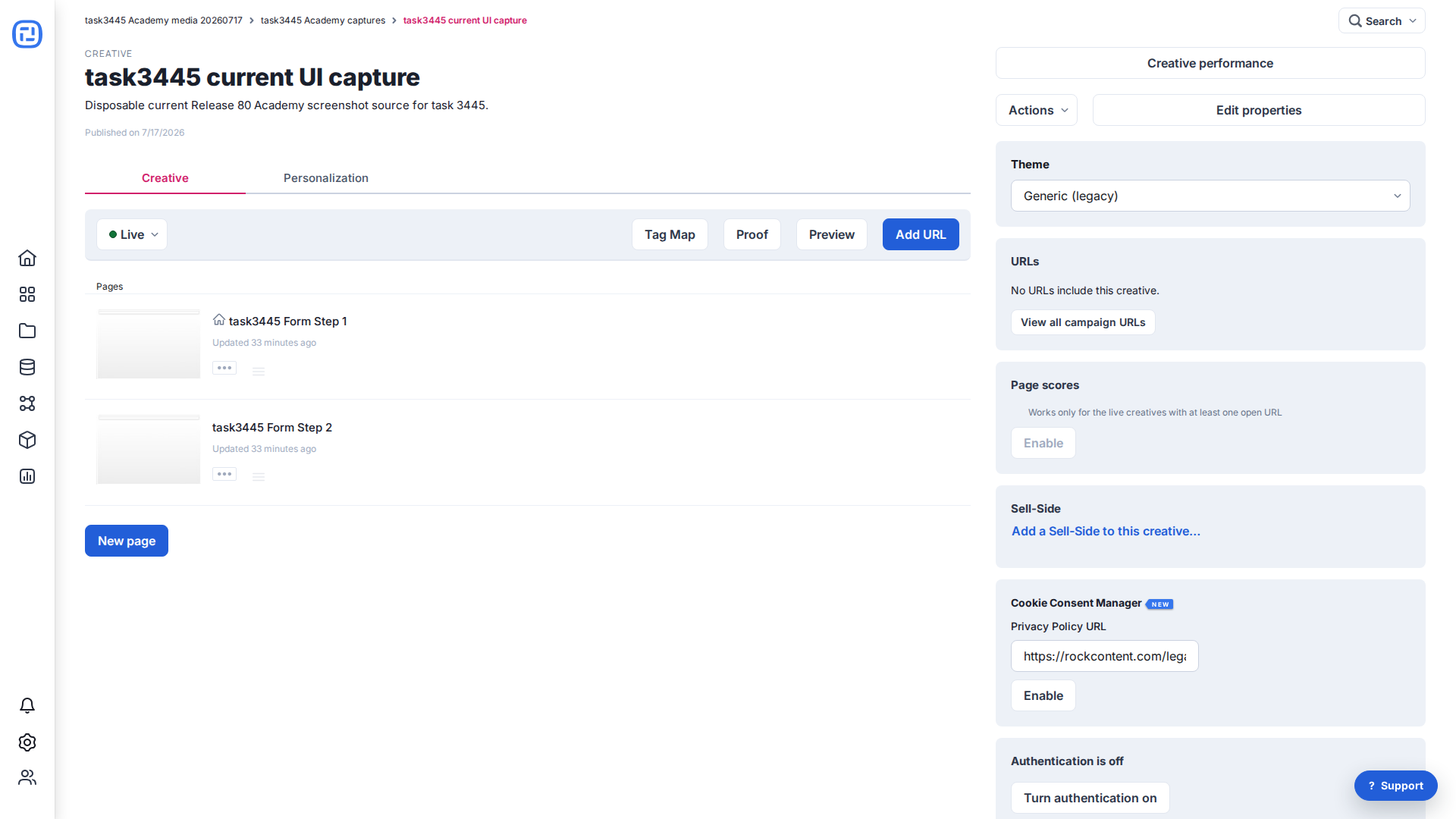
Publish the creative and open Add URL
- On the Creative Management screen, open the status menu and select Live.
- Select Add URL.
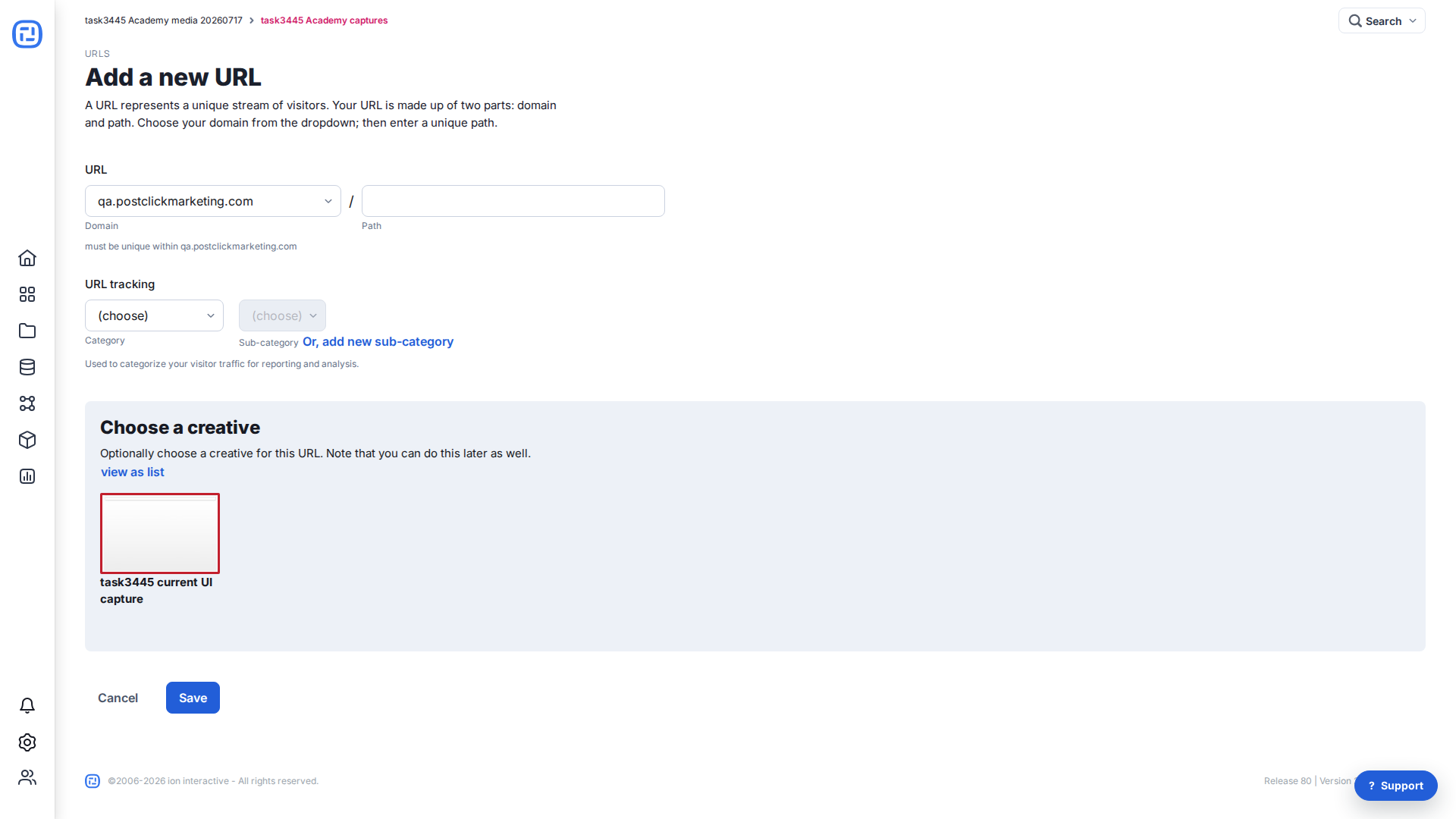
Create the test URL
- Select the approved test domain.
- Enter a unique path. Use a clearly temporary value such as
test-project-2026-07, not the intended production path. - Optionally select a URL tracking category and sub-category for reporting.
- Select the creative and save.
Review test URL settings
On the URL Management screen, review Edit URL & settings. For a test URL, set its sitemap option to Never so it is not added to sitemap.xml. Keep the test path separate from the final production path.
Before a public launch that should appear in search, return to Edit properties and clear No index, No follow, and No archive. Then create or assign the final production URL and complete the GoLive checklist.
For the full URL workflow, see Create a URL.
If you have any questions, contact help@ioninteractive.com.
